
Login and authorization
This page explains how to log in to Reality Cloud Studio, including email/password and SSO login options. For user roles and authorization, see Roles and permissions.
Logging in
Navigate to https://realitycloudstudio.hxdr.app and click on the Log in button.
You will be redirected to the first Login page. Enter your email address and click Continue.
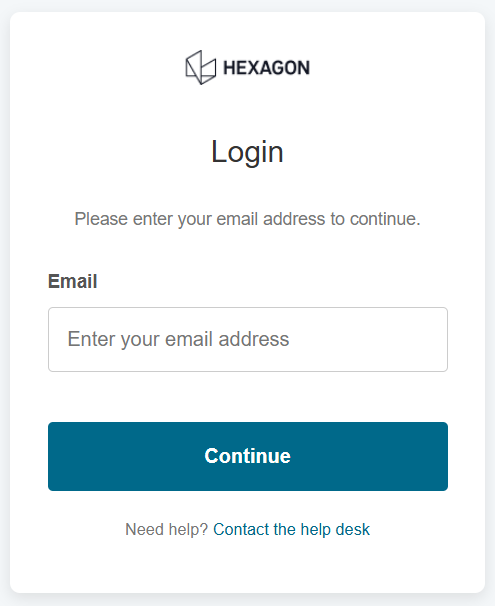
Based on the login type associated with your email you will be redirected to the email address & password login page or to the SSO login page.

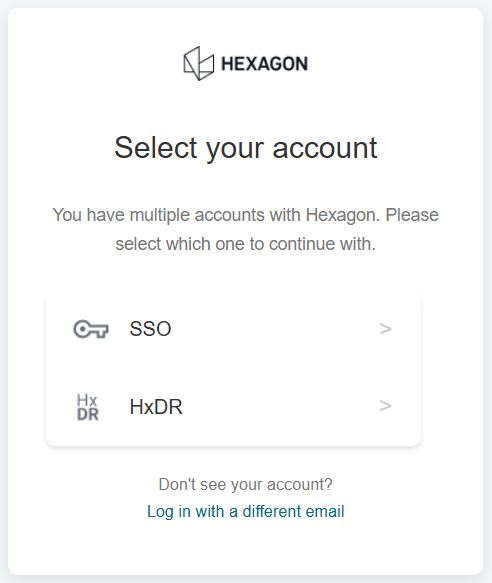
If you have both email address & password account and SSO associated with one email you will see the following page, letting you choose preferred option. See the screenshot below.
For email address & password accounts:
Enter the email address and password associated with your account and click Login. If your organisation uses SSO, select that option instead — see Single Sign On (SSO) for setup instructions.
If logging in for the first time after receiving an invitation email, click the Accept invitation link in the email before proceeding. You will be prompted to set your password.
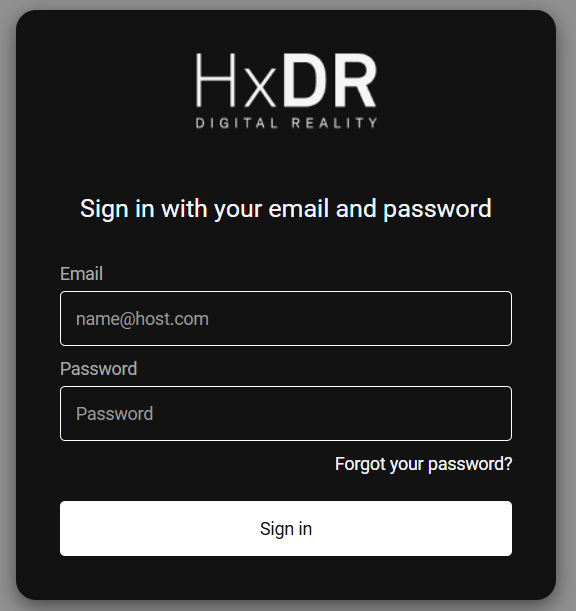
email address & password login page
Forgot your password?
On the login screen, click Forgot password?
Enter your email address and click Send reset link.
Follow the link in the reset email to set a new password.
User roles and authorization
Reality Cloud Studio uses role-based access control within company accounts. For a full breakdown of available roles and their permissions, see Roles and permissions in the User management section.