Autocad revit
COE | COE Export
Command Line
AutoCAD: COEOUT
This command allows users to export specific CAD geometric objects for use in other third-party software.
Using the Tool
The following objects can be exported:
Walls/planes*
Pipes/cylinders*
Lines
Cone
Steel beams
Elbow
Elbow reducer
Flange
Note: Objects marked with an asterisk (*) are represented as 2D lines or curves in Revit.
3D vertex, sphere, cube, cone, and taurus are not supported for export.
CloudWorx for Revit
Select the objects for export.
Click COE Export in the COE panel.
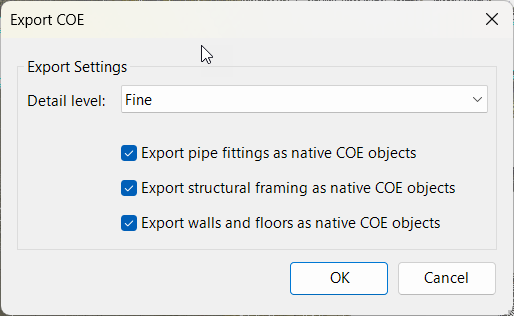
In the Export COE dialog that opens, do the following:
Select the appropriate detail level from the Detail level drop-down list. For example, the Fine setting exports pipes as cylinders, while the Coarse setting exports only centerlines.
Ensure to select or deselect the check boxes according to your needs. If the check boxes are selected, the properties of the specified object types will be retained so that they can be imported back into the native COE format.
Click OK to initiate the export process.
CloudWorx for AutoCAD
Click Export COE Objects in the COE panel.
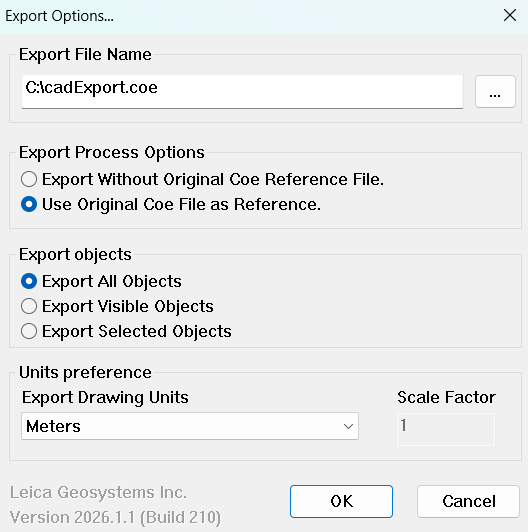
In the Export Options dialog that opens, specify the export file location, then configure the following settings as needed:
Under Export Process Options, select whether to create a new COE file or use the original COE file as a reference.
Under Export objects, choose whether to export all objects, visible objects, or selected objects.
Under Units preference, select the drawing units to use for the exported objects.