Function
Draws a three-dimensional polyline with straight segments. Although the 3D Polyline command does not have as many options as the Polyline command, you can apply editing changes, such as splining, with the Edit Polyline command after the three-dimensional polyline is drawn.
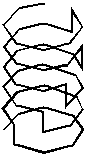
Example of a three-dimensional polyline.
Procedure
ENTER to use last point · Follow · <Start of polyline>: To start a polyline, specify a starting point. To use the last point drawn as the starting point for the polyline, press Enter. To continue the polyline in the direction in which you drew the last segment, choose Follow. As you move the cursor, the length of the polyline is ghosted and is constrained to the angle of the last polyline segment you drew. The system variable LASTANGLE stores the value of this angle.
Next point: Specify the next point of the polyline.
Close · Undo · <Next point>: To continue adding another point to the polyline, specify the next point. To connect the endpoint of the last line segment to the start point of the first line segment, choose Close. To erase the last line segment you drew, choose Undo.
Modifying Properties
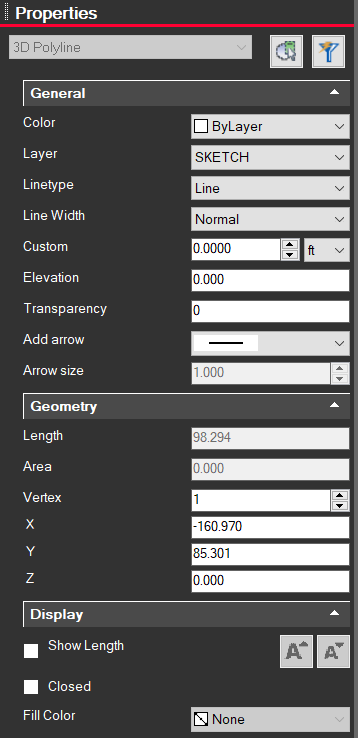
Clicking on a 3D Polyline entity will bring up information on the left side Properties panel. From here you can change the color, layer, line type, width, etc.