
Site Map
Reality Cloud Studio displays a SiteMap view of the asset, familiar to users of other reality capture products. The SiteMap provides a top-down, silhouetted view of the asset’s point cloud. The SiteMap also displays the Setup locations of static sensors along with the user’s view (represented by a frustrum cone). Within the SiteMap window, users can pan and zoom the map and (re)centre it on their current location. The SiteMap window can also be enlarged, reduced (back to default size), or closed entirely to create an unobstructed view of the asset. For optimal navigation and usability within complex spaces, it is recommended to use the SiteMap Levels feature to create multiple maps at each level of the area/zone of interest.
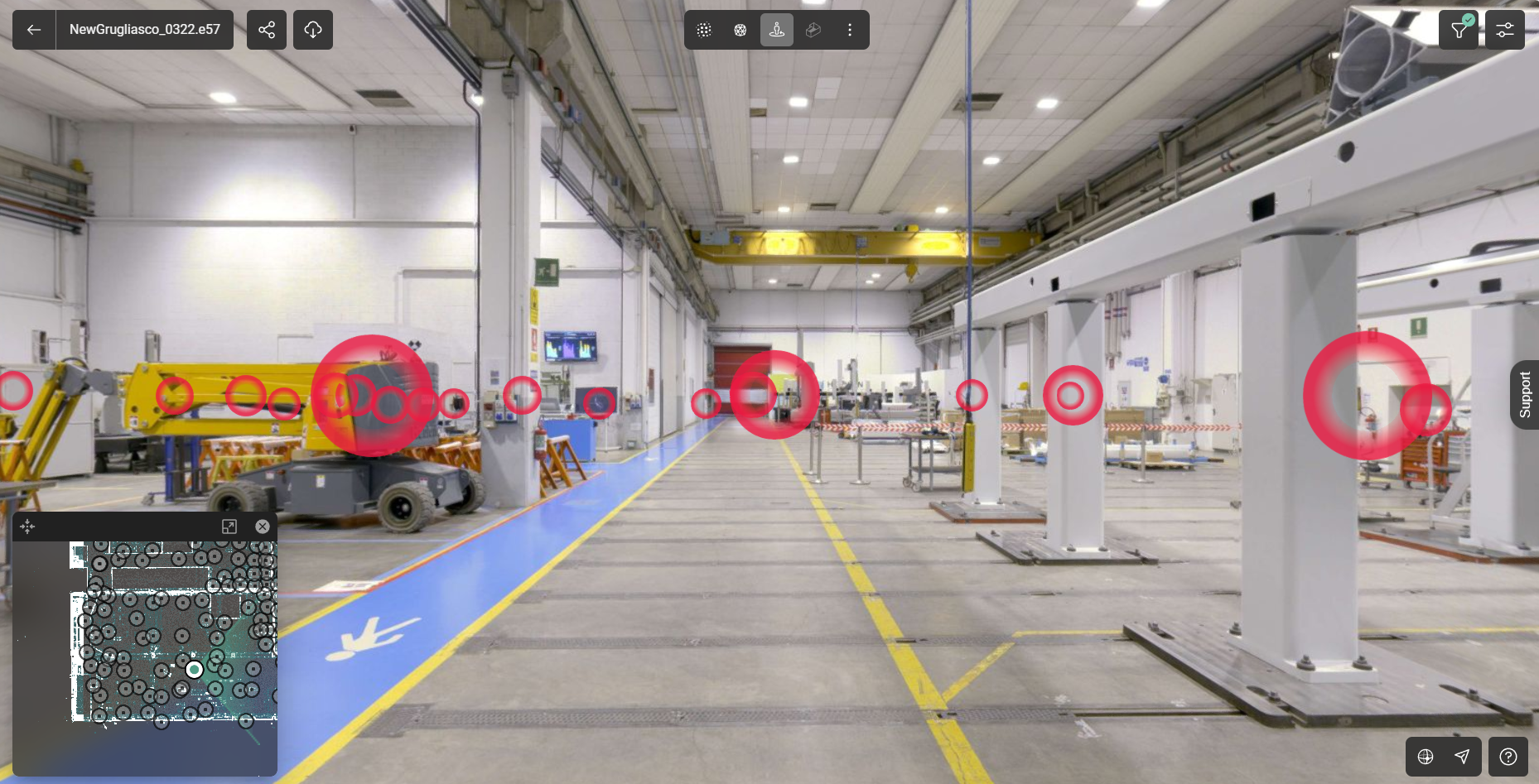
SiteMap showing the setup disks
Unlike the SiteMap found in the TruView family of products and CloudWorx’s TruSpace, which must be created within Cyclone REGISTER 360 PLUS first, the Reality Cloud Studio SiteMap is an automatic rendering of the full extents of the available 3D point cloud data and is displayed in a silhouette mode to accentuate features of the data, particularly in indoor environments (like walls).
Users can navigate around the SiteMap by dragging the map within its dedicated window. To centre the position indicator again, click the Reset View button in the top-left corner of the SiteMap window.
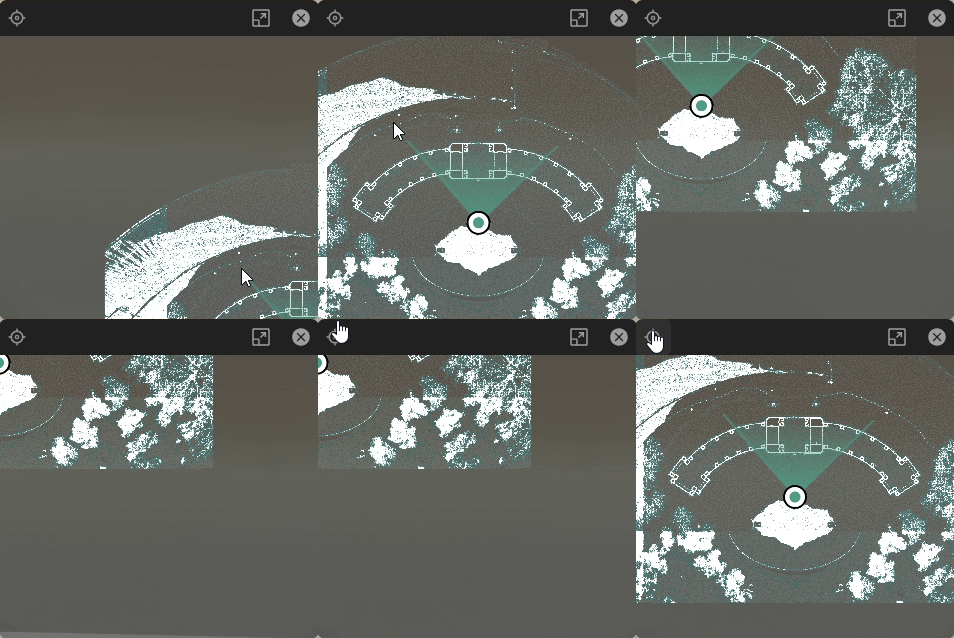
To enlarge or reduce the SiteMap, click the Window Scaling button.
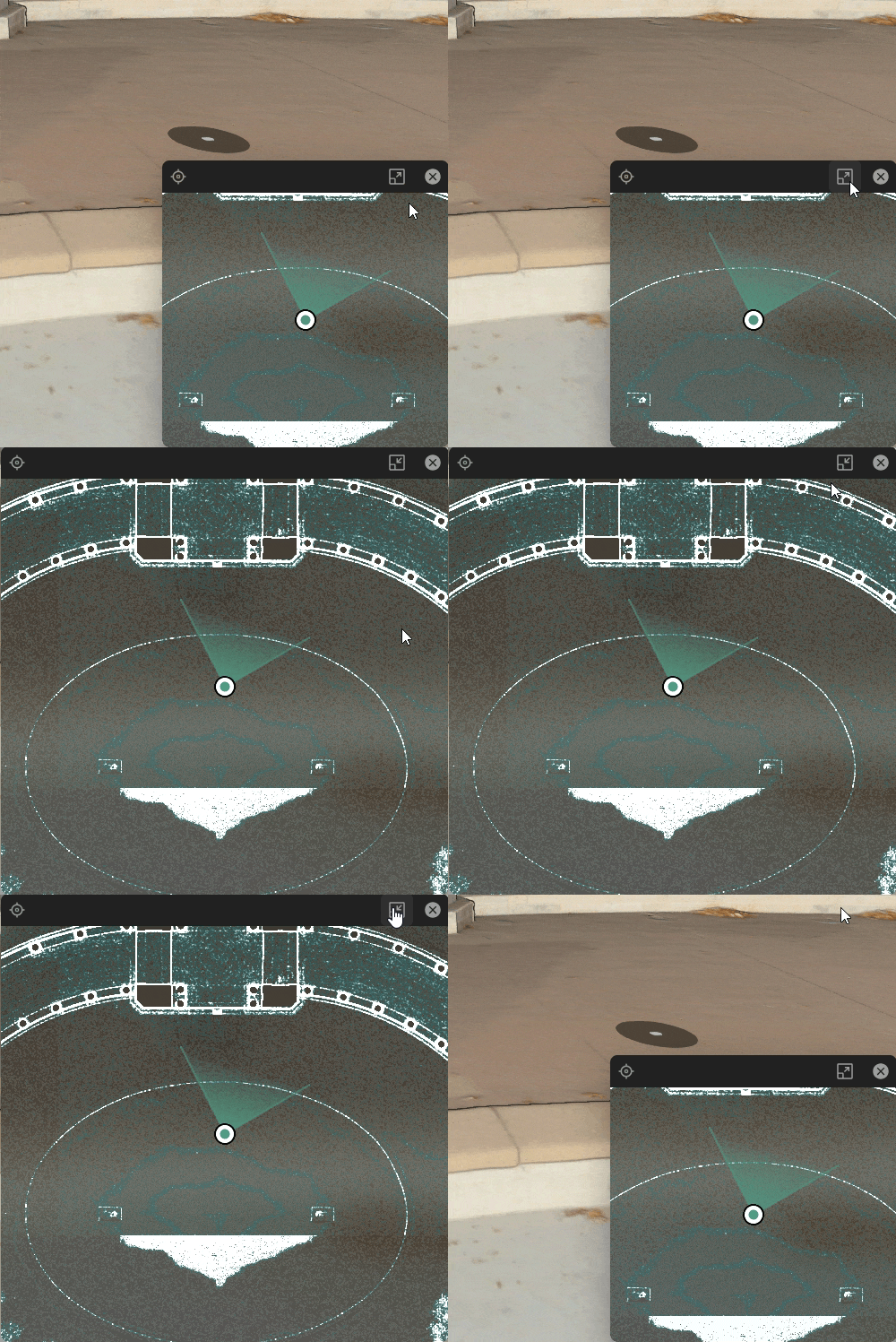
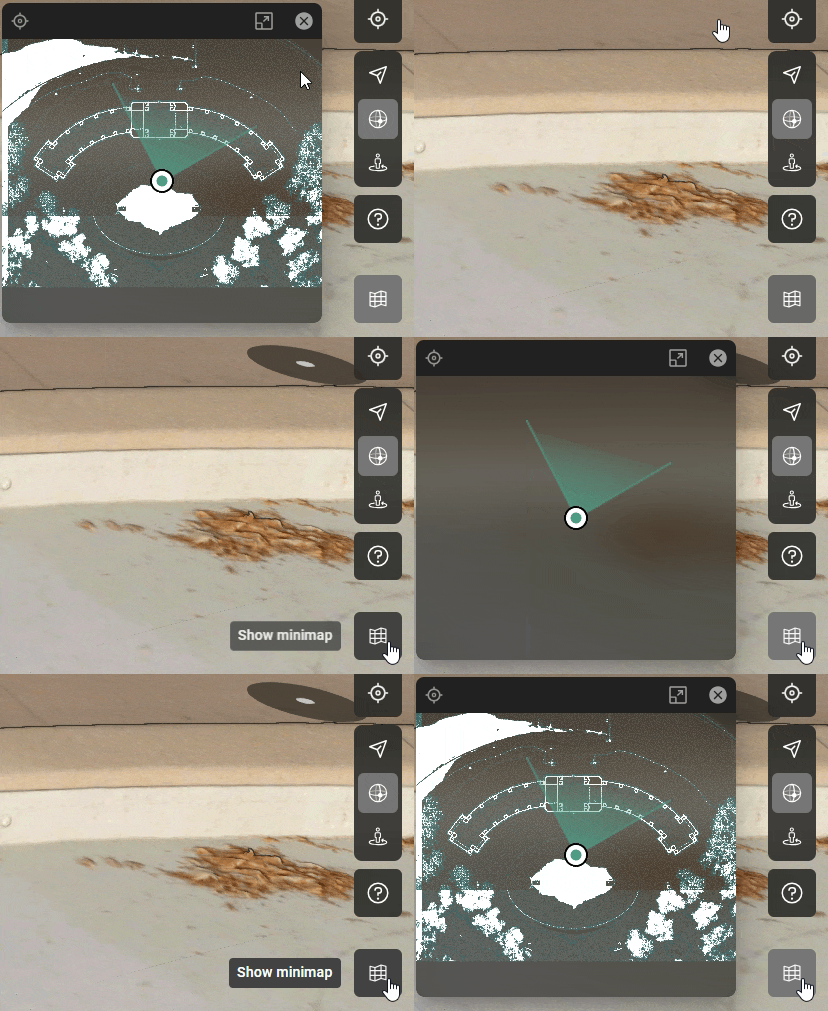
To close the SiteMap, either click the X in the top right corner of the window or the SiteMap Visibility icon at the bottom right of the Asset viewing Window. Use the same SiteMap Visibility icon to turn the SiteMap back on after it is hidden.
To quickly and easily navigate to a Setup location and view its panoramic imagery, simply double click on a sensor’s Setup icon in the SiteMap. This will automatically take the user to that position in the main 3D view as well as toggle the user to the Setup’s pano image view.