
Moving project ownership to SSO user

When moving to Single Sign On, all of the existing (legacy) users in the company account will still exist with their access to the projects. A set of manual steps are needed to move the ownership of the projects from the legacy account to the new SSO account.
Edit your legacy profile
Log in using your username and password.
Click My profile to edit your user details. Modify your name so that you can distinguish your legacy user from your SSO user. For example adding “legacy” to the name.
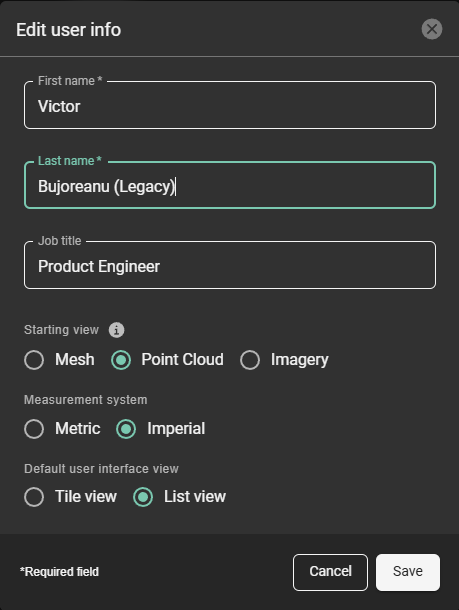
Modify the name of the legacy account
Transferring project membership
Log in with the username and password.
Navigate to the appropriate project.
Go to “Members” tab.
Click “Add Members” button in the top right corner.
Search and select your SSO user and confirm by clicking “Add members”
Transferring project ownership
Log in with the username and password.
Navigate to the appropriate project.
Add your SSO account as a member of the project.
Select Project Settings:
Go to the “Owner” tab.
In the “Change project owner” edit field, search and select the SSO user.
Follow by clicking “Update project” button and confirm your project owner change.
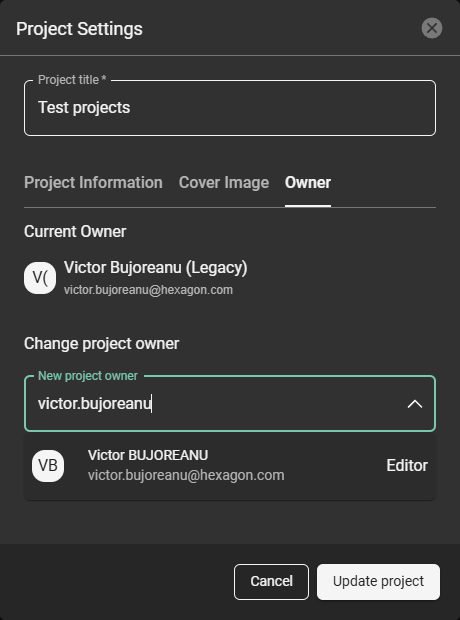
Change the project owner