This page covers the prerequisites and steps required to install and connect the Hexagon GeoCloud desktop app on Windows, as well as how to connect from the field using Leica Captivate. For details on the app interface and synchronisation behaviour, see Hexagon GeoCloud desktop app.
System requirements
Before installing the GeoCloud desktop app, ensure your system meets the following minimum requirements.
Operating System | Windows 10 64-Bit (21H2) or Windows 11 |
|---|---|
CPU | 2x 1.5 GHz |
RAM | 8 GB / 16 GB (Recommended) |
Disk Storage | >500 MB + storage for files |
Downloading the installation file
The desktop synchronisation app for the GeoCloud can be downloaded from the Menu tab.
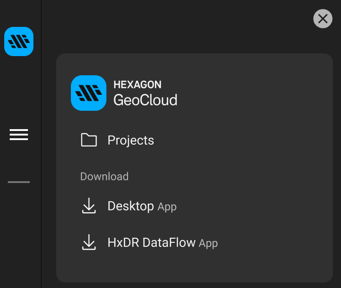
Desktop App download
Installation
Each user can install the app. Administrator rights are not required.
Run the “Hexagon-GeoCloud-latest.exe”.
Follow the guidelines from the screens.
Wait until the app has been installed.
Updating the GeoCloud desktop app
When a new version is available, a Windows notification is shown.
Download the “Hexagon-GeoCloud-latest.exe” file directly from the notification.
Double-click on setup.exe to start the installation.
Confirm the update.
Close the installation window.
First login
The app starts up automatically with Windows.
A small icon appears in the taskbar. Also, check the tray of hidden icons: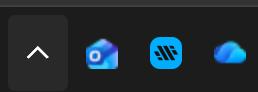
Hexagon GeoCloud desktop app icon
Click the icon.
Click Log in.
The Web browser opens.Enter your credentials in the browser. Depending on your account type, you may sign in with your email and password, MyWorld credentials, or SSO. For the full login walkthrough, see Login and authorisation.
Once signed in, the web browser can be closed.
Once signed-in, you remain signed-in after restarting Windows.
The automatic start-up can be turned off in the app settings.
Connecting from the field
Your GeoCloud can be accessed from the field using Leica Captivate - from a CS20 Controller, CS Tablet, TS Total Station and MS MultiStation.
Within Leica Captivate go to Settings/Cloud services/GeoCloud Drive.
For all Windows tablets:
A web browser opens.
Enter your GeoCloud credentials or use SSO.
For the CS20 and all TS instruments:
A QR code is displayed.
Scan the QR code with a smartphone.
When prompted, enter your GeoCloud credentials or use SSO.
You are now ready to share files using the GeoCloud service.