Tolerance Checking allows you to check the geometric accuracy of a construction project by comparing the BIM model to the scan data.
Open the file
Open the file ProgressMonitoring.3dr (download). It contains two point clouds of a construction site as well as the corresponding BIM model of the beams waiting to be built. The clouds have been scanned at intervals of one week.
Compute offsets
Each sub-element of the BIM file will be individually compared to the point cloud; so it is recommended to remove the unnecessary elements such as screws or ground for example. This will also reduce the computation time.
Select the cloud Week2 and the BIM Model structure and go to Tolerance Checking.
The first step of this workflow, Analyze, will calculate average deviations between each sub-element and the corresponding points. Here, you can adjust three parameters:
The Tolerance defines a threshold to classify elements to the status in or out tolerance. Note this parameter can be modified later.
The Exclusion zone defines the maximum distance to pair a point and the part. Note that a point within this tolerance can be rejected when using the classification. However some points can be linked to a wrong part.
The Coverage Min. defines a % threshold to reject parts not covered by points. Such parts would also be classified as not installed and incomplete by a BIM Progress Analysis.
Set the Tolerance to 1cm, the Exclusion zone to 25cm and the Coverage Min. to 15%. Then click Compute and Next.
Green parts are within the tolerance whereas red parts are out of tolerance.
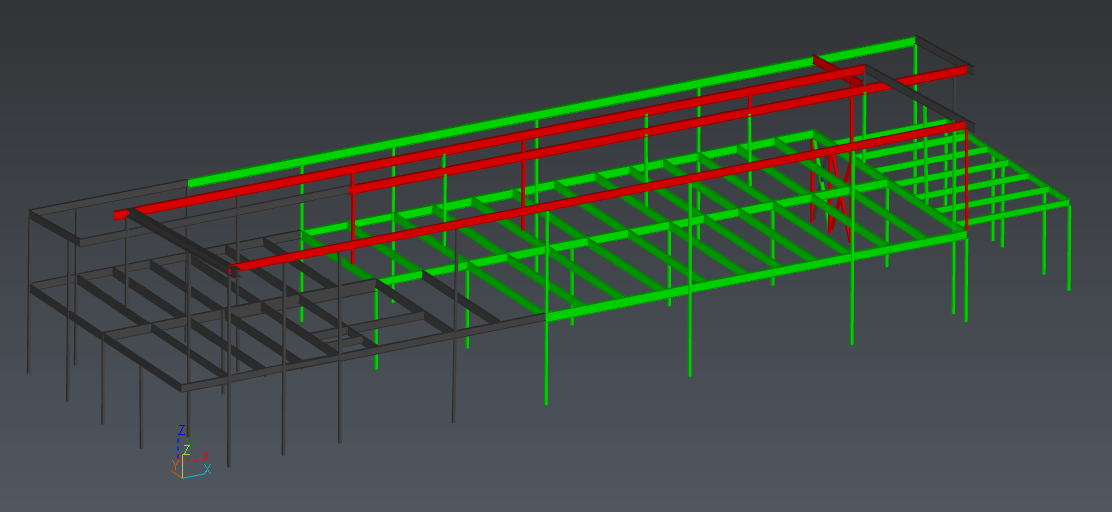
We can notice that the upper parts are less accurate. On the left, some parts have not been installed yet.
Check the results
Now, you can find a tree on the left containing all the sub-elements. By default, the content of each node is sorted in ascending order of coverage values. Next to the results, there are two views: the left one displays the overall Progress View, and the right view focuses on the selected sub-element.
Click on a sub-element, whether in the tree or in the overall view. The right view displays the element in its inspection representation, as well as its matching points. The distribution information is computed according to the part to avoid an inaccurate status when the point cloud density is not uniform.
If necessary, you can modify the result of the automatic checking: select the sub-element you want to edit and press SPACE. Keep in mind that points from other parts can result in out-of-tolerance triangles to a given part.
If you change your mind about the tolerance to apply, you can directly change it: the results will be updated in real time. However, this will reset all former statuses.
Finally, you can click on Next to go to the final step of the workflow: Export.
Export a report
This step allows you to generate the report data and optionally to export a BCF file containing issues to be imported in your BIM platform and software.
Click Update global view to define the scene view that will be included in the report and in the BCF. You can add the detailed views for each BIM object and you can choose not to export specific statuses to only keep track of what you are interested in.
If you want to export a BCF, you can assign the issues to someone and choose between exporting only the Summary or Summary + detailed issues:
The first option will only export the overview and summary data from the analysis.
The second option will add the issues for each analyzed sub-elements in the BCF ticket. You can choose not to export specific statuses to only keep track of what you are interested in.
You can now Exit the workflow. Note you can edit the analysis back later by clicking on the Play icon in the explorer tree next to the Progress Monitoring folder.
Then go to the report editor to generate the PDF report.