Navigation
Three camera profiles are available:
Cyclone 3DR: this profile is almost similar to other Cyclone products. Navigation is mainly done using the left mouse button.
3DReshaper: our former profile (only compatible with desktop UI). Navigation is mainly done using the right mouse button.
AutoCAD: this profile replicates the AutoCAD behaviour. Navigation is mainly done using the middle mouse button.
You can toggle the profile via Display (Settings).
Rotate | Pan | Zoom | Fly/First person | |
|---|---|---|---|---|
| around the clicked point:
around the current position:
|
|
| |
| around the clicked point:
| |||
| around the current or scan position:
| |||
|
| move in the arrow direction:
change the speed:
| ||
(not available in Touch) | around the current position:
| fly to a clicked position (left button):
move with the keyboard:
change the speed (keyboard movement only): SHIFT + Scroll Wheel | ||
| around the screen center:
| |||
| around the vertical axis in the middle of the view:
Then switch to Side Ortho mode | |||
| around the vertical axis in the middle of the view:
|
 Orbit perspective
 Orbit ortho
 Panorama
 Fly
Fly First person
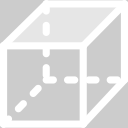 Top ortho
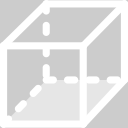 Bottom ortho
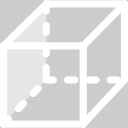 Left ortho
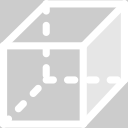 Right ortho
 Front ortho
 Back ortho
 Side ortho
Use Reference Vector: the up vector is always the Z axis of the current coordinate system.
Cyclone 3DR camera profile: this option is always enabled (and hidden).
AutoCAD: this option is always enabled (and hidden) but you can override it by applying a free rotation (CTRL + SHIFT + middle click + movement). After a free rotation or after applying a top or bottom view, it is also possible to rotate around the screen center with CTRL + Left + movement.
3DReshaper camera profile: enable this option to have the same behavior than Cyclone 3DR. Disable this option unfreezes all rotations (mainly suitable to analyze isolated objects):
If the mouse cursor is near the outer edge of the 3D scene border, a rotation around the current view of the screen is performed.
Otherwise, the center of the rotation is the clicked point.
Unlock view: the view can be locked on a limit slice/plane object (refer to Lock View). Click this button to unlock.

Synchronize cameras: open a menu to select which 3D scene cameras are synchronized. Only available when more than one scene are open.
Press CTRLwhile zooming in orbit perspective to enable moving the view through surfaces (crossing walls).
Press CTRL + SHIFT while moving in fly mode to move back.
Press ALT in order to slow down the rotation.
Press SHIFT+? to display the help.
Resolving interaction conflicts with Cyclone 3DR mode
Some tools require Left click + movement / Swipe interaction to operate properly (such as Free Hand polyline, brush selection, etc.). In this case:
use CTRL modifier to manipulate the camera according to the current mode.
or
pause the current tool (S key), allowing only camera movements.
Selection
Selecting an object can be triggered through the left click action or a single tap. Special cases:
Cyclone 3DR camera profile: press SHIFT for rectangular selection.
AutoCAD: press SHIFT to enable the selection with the left button when orbit, pan, panorama, first person or fly modes are enabled.
First person mode: press SHIFT to enable the selection.
If other objects were previously selected, they will be automatically deselected and the previous selection will be replaced by the new one.
If you move the mouse to the right, you will select the objects strictly inside the rectangle; if you move the mouse to the left, you will select the objects touching or inside the rectangle.
If you press the CTRL key, the selected elements will be added into your selection. Inside the Tree View, it is possible to select or deselect objects that are not shown in the graphic zone.
You can use the SHIFT key in the tree to select objects "from/to".
You can use the shortcut CTRL + A in order to select all visible objects.
Useful commands and shortcuts
Zoom All: means adapt the zoom in order to see all the displayed objects by pressing A on the keyboard, or doing a double middle click (AutoCAD mode only), or Zoom All.
Zoom Window: means to adapt the zoom to a drawn a rectangle by pressing W on the keyboard or Zoom Window.
Press X, Y, Z, SHIFT-X, SHIFT-Y, SHIFT-Z on the keyboard to respectively set the view along the X, Y, Z, -X, -Y, or -Z axis.
See the page Shortcut Keys.
Measures
If you click on a selected measure and move the mouse before releasing the button, the position of the measure will be set manually. Measures needs to be in Fixed positioning for this interaction. See Measure objects for more details.