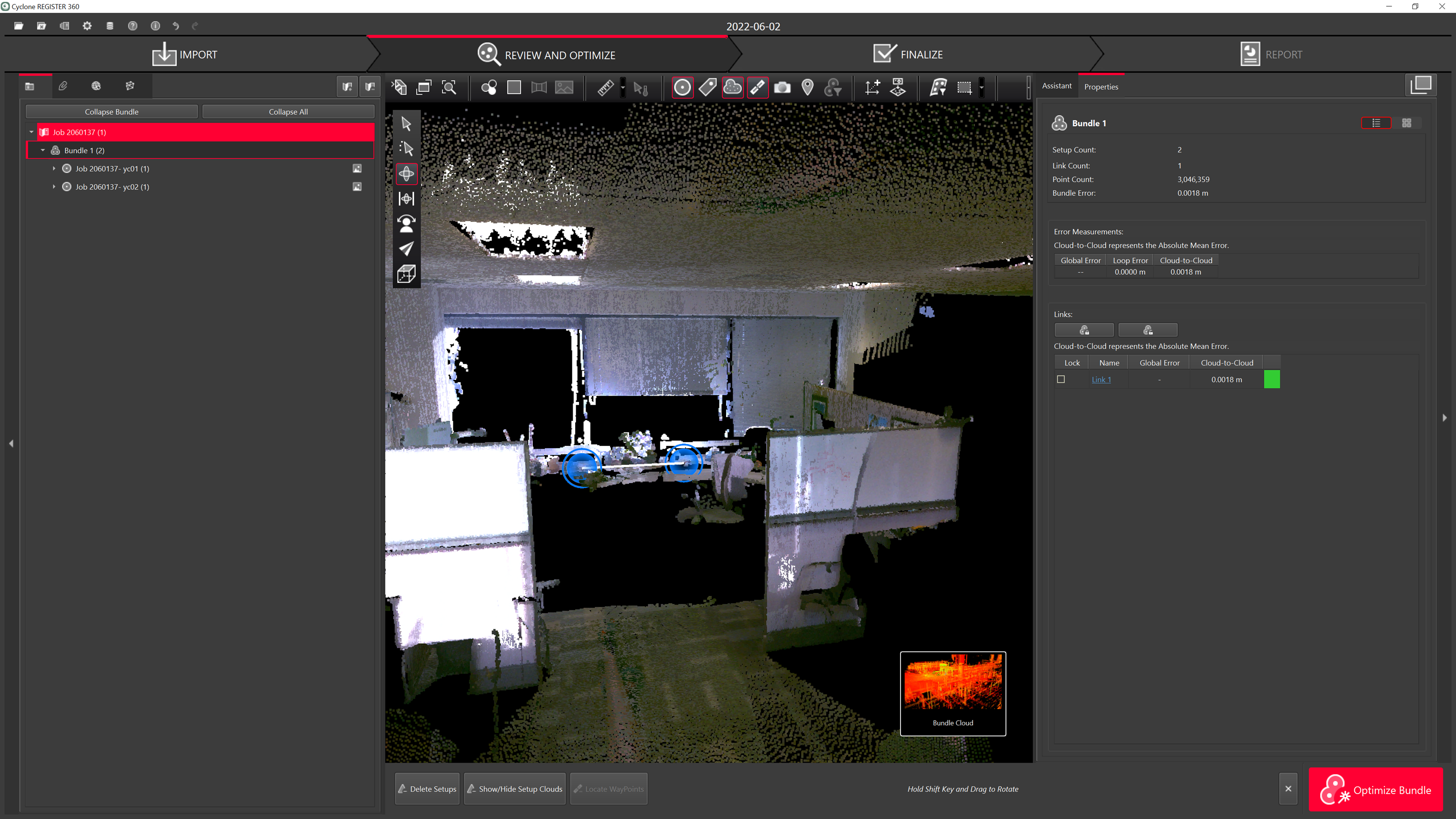
BLK 360 can be controlled using the FIELD 360 app Wi-Fi connection.
The scans can then be downloaded from the tablet or directly from the scanner.
Any work done on FIELD 360, like pre-registering & creating bundles will be synched back to BLK360. Importing from BLK360 will have the updated information.
Thumbnails are supported.
Open Cyclone REGISTER 360 PLUS Standard or Cyclone REGISTER 360 PLUS (BLK Edition) and create a project.
Connect a tablet and computer to the same network.
On the tablet, click the info icon in the top right.
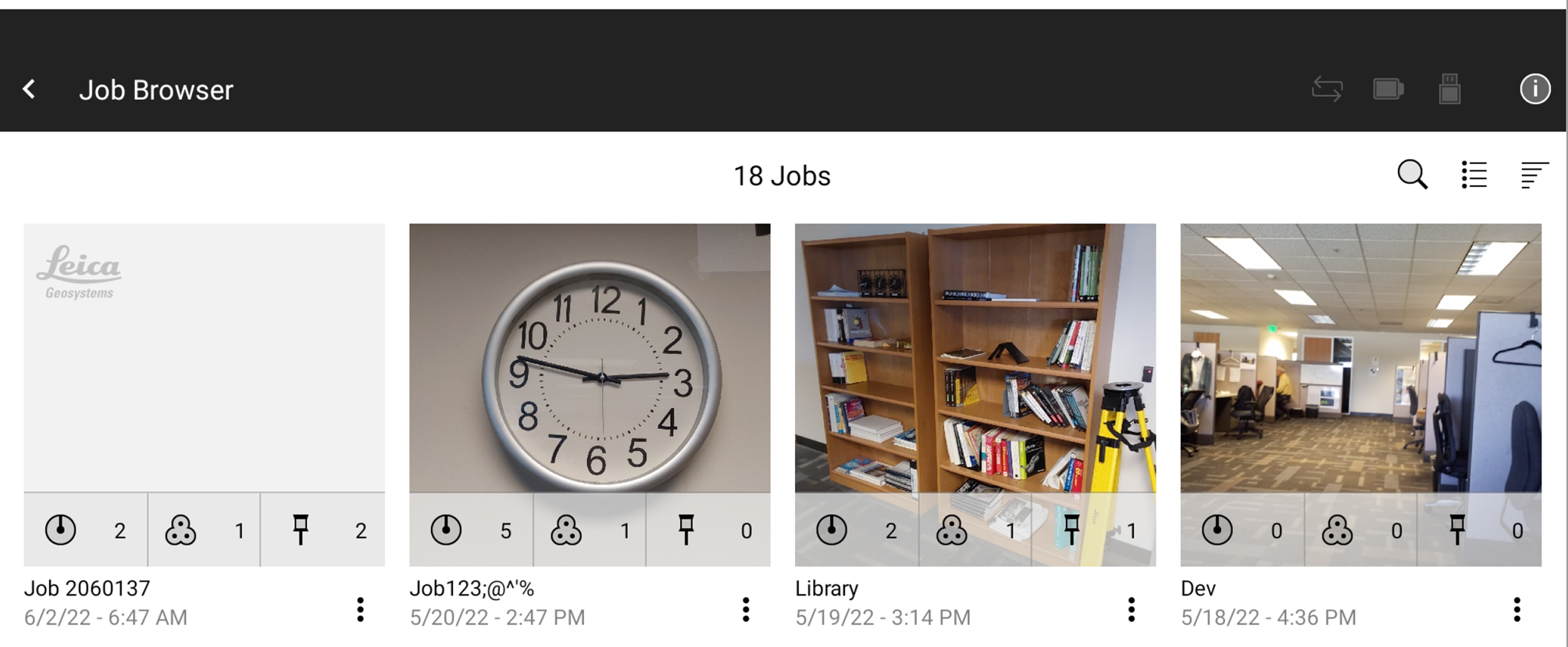
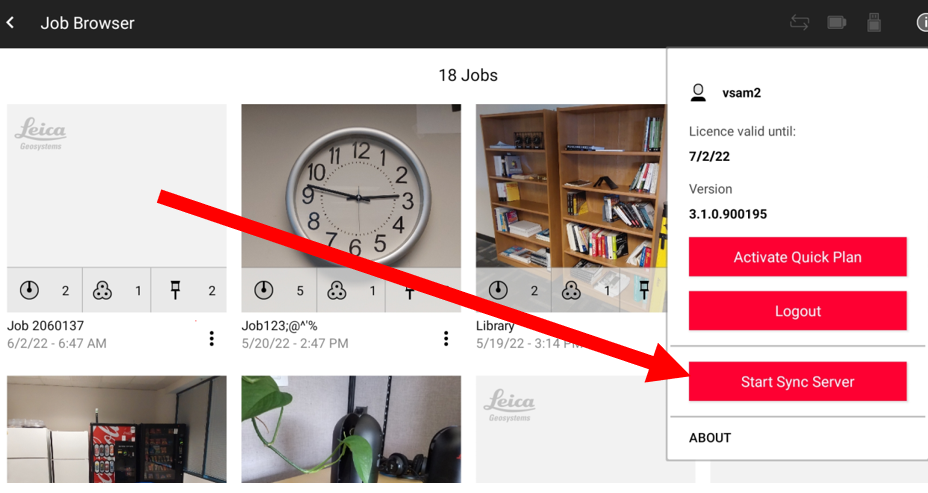
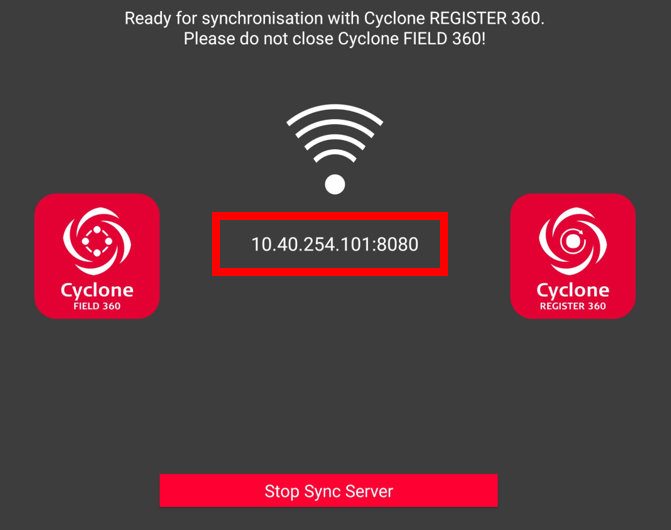
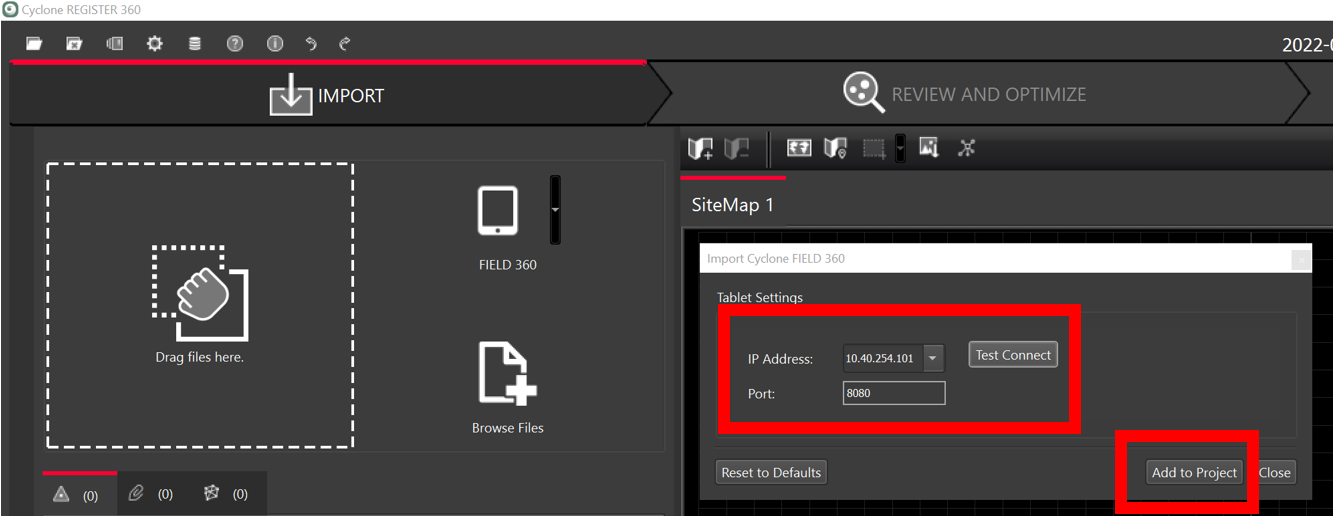
Get the IP address and Port from the tablet.
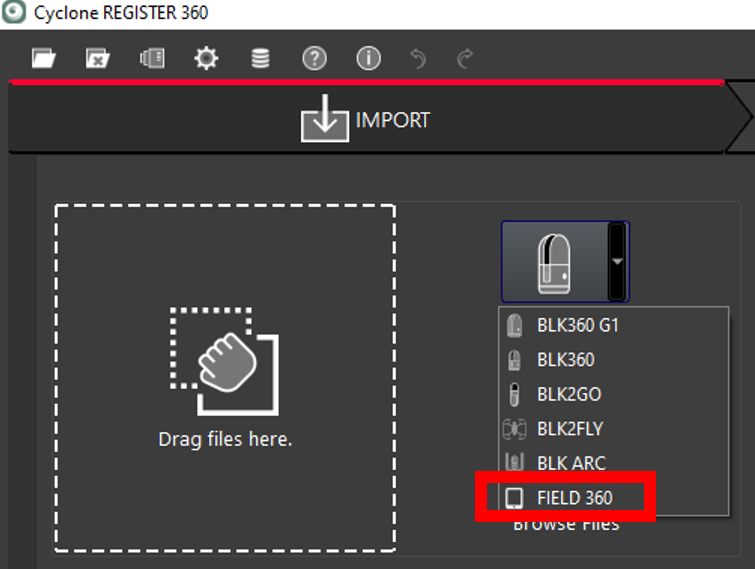
From the drop-down in the Import area, select FIELD 360.
Check the IP address and Port from the tablet, select Test Connect and click Add to Project.
Select the scans for import.
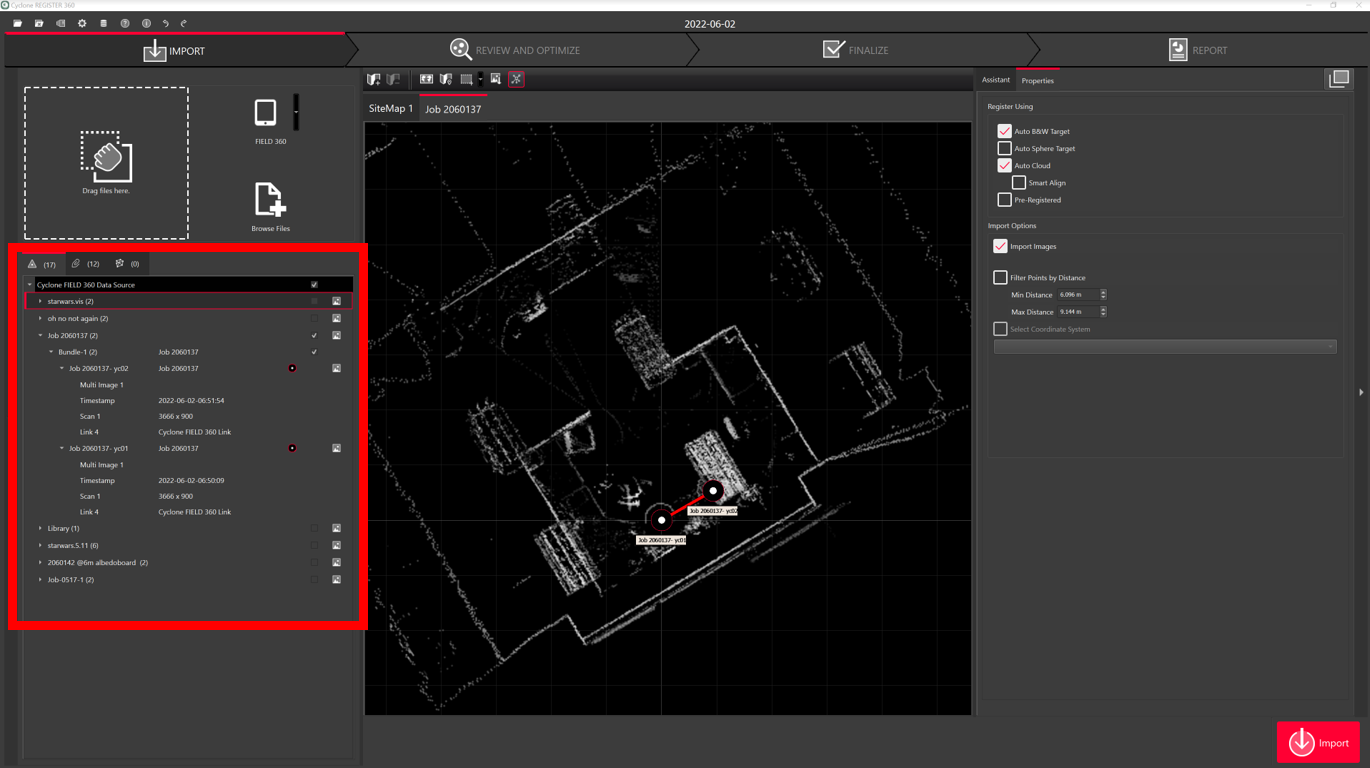
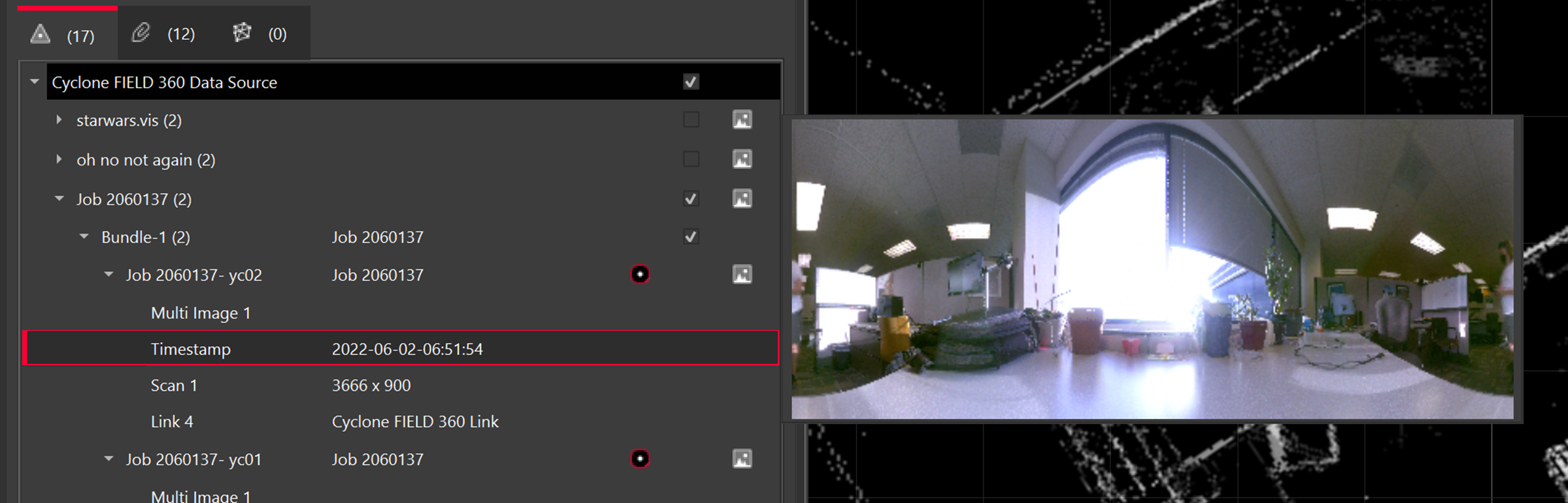
Note: When connecting to Cyclone FIELD 360, there are LWPOs and preview images.
Select import settings and import scans.
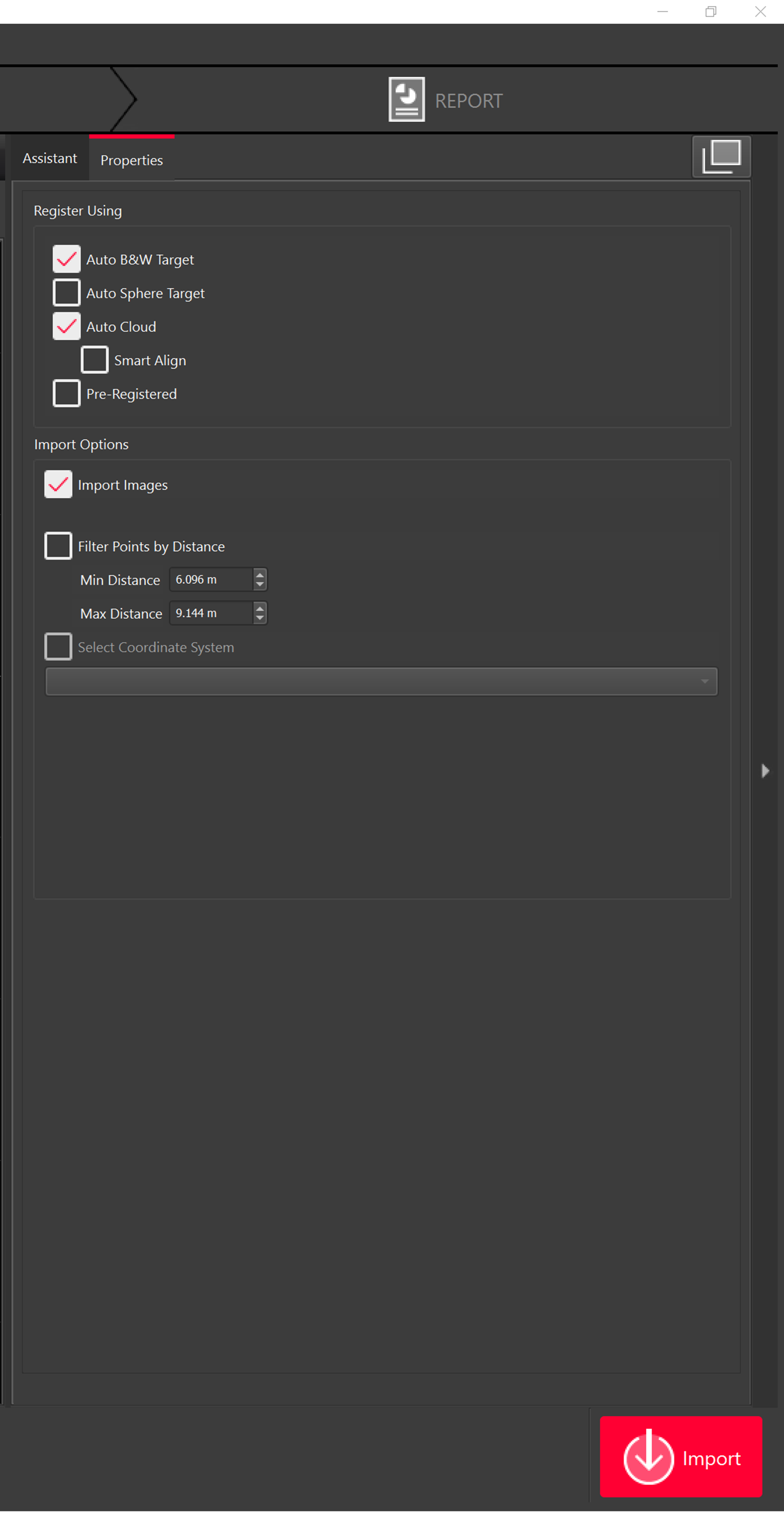
The scans will then be imported.