Workflow 1: Setting a UCS by a Plane Created from the Region Growing Corner
The method uses the planes created by the corner grow to set X or Y and the corner vertex to set the UCS.
The required workflow steps are described below:
Name the UCS.
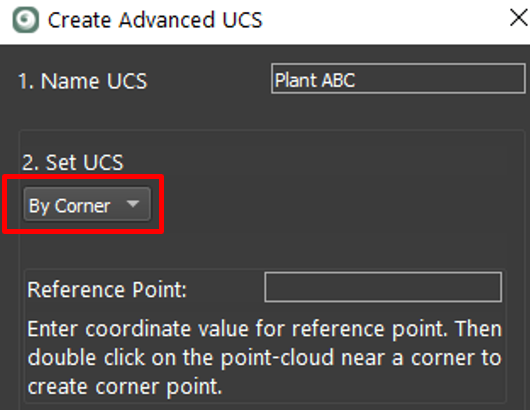
Select By Corner as the UCS creation method.
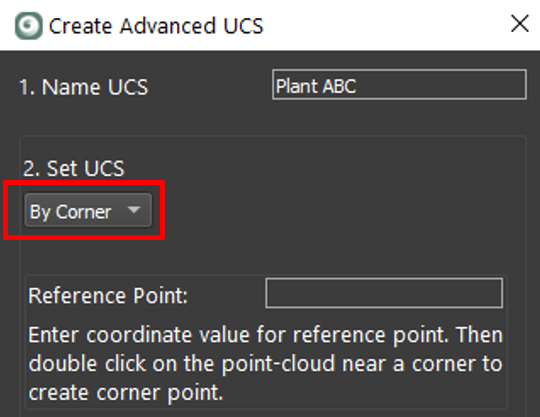
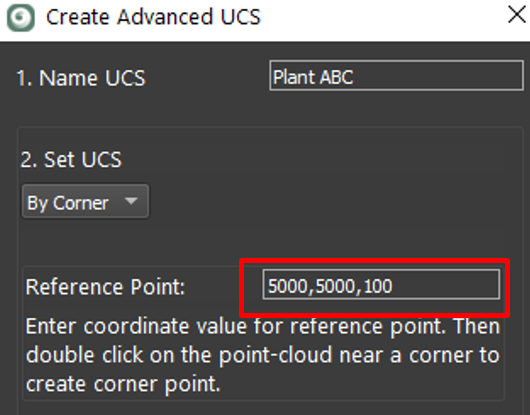
Enter coordinates that will be assigned to the vertex representing the corner.
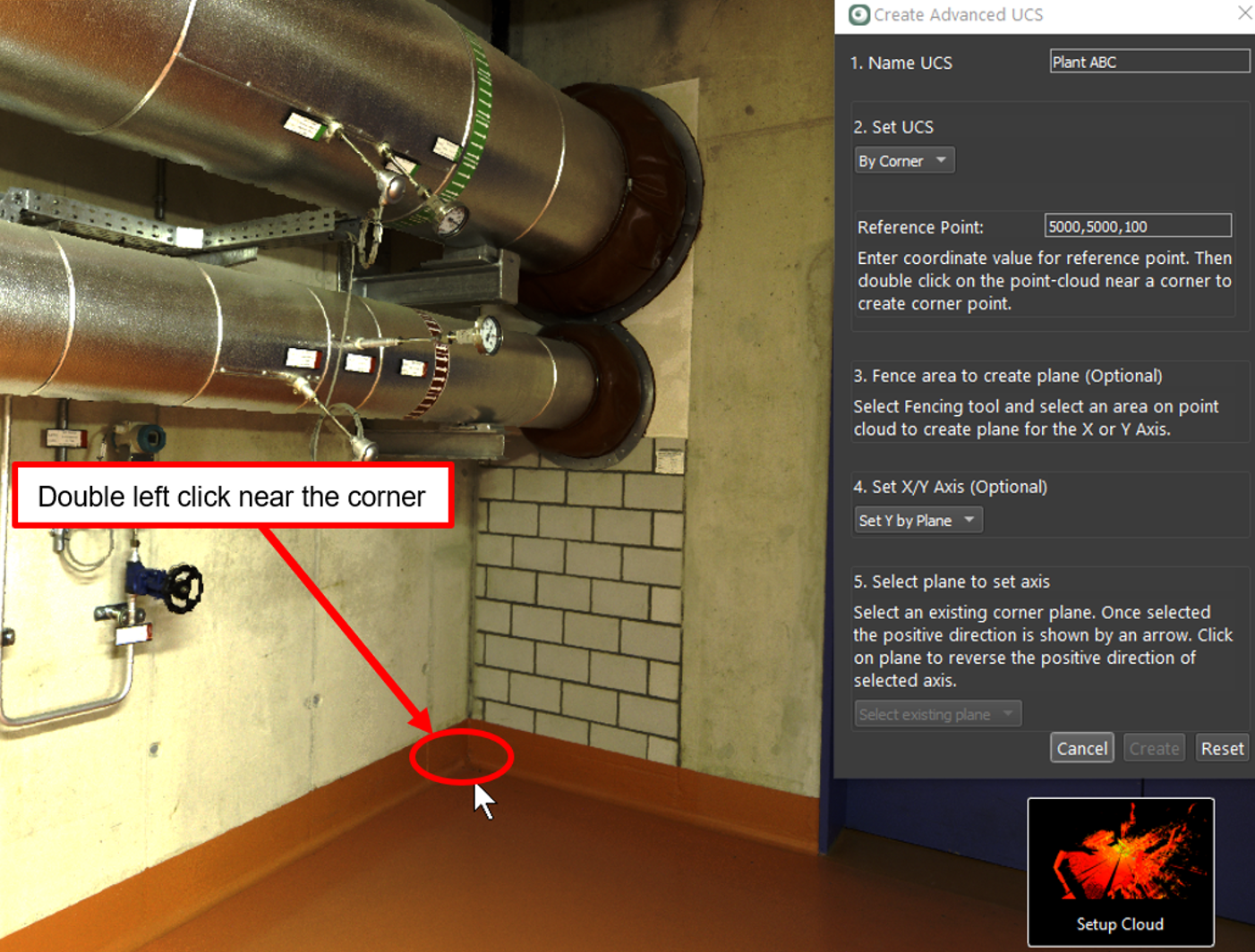
Double-click on the floor or ground surface no more than 0.15 meters or six inches from the corner.
Three planes will be created representing the surfaces of the point cloud forming a corner.
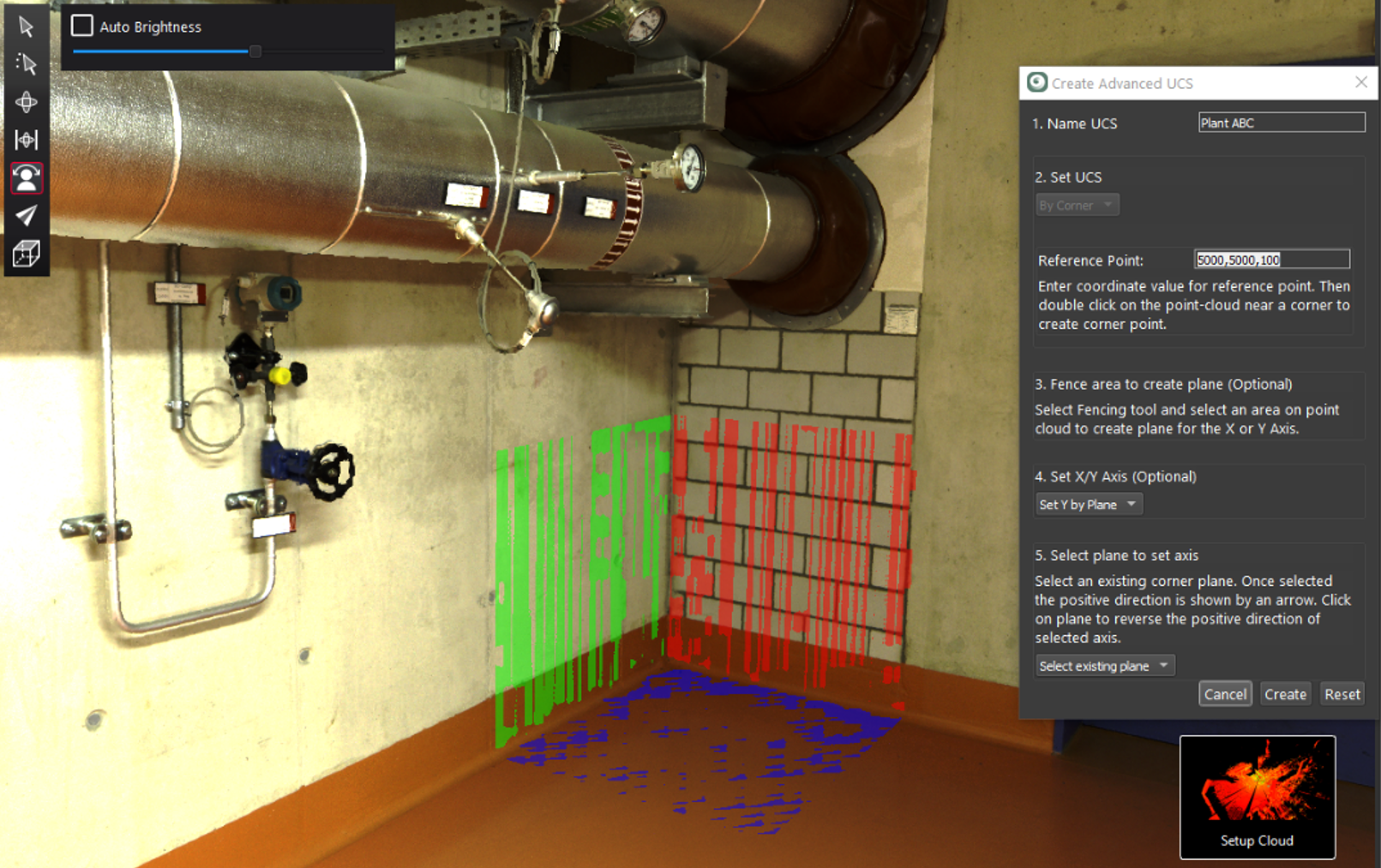
A vertex will be created at the intersection of the planes with the coordinate entered in Step 3 above.
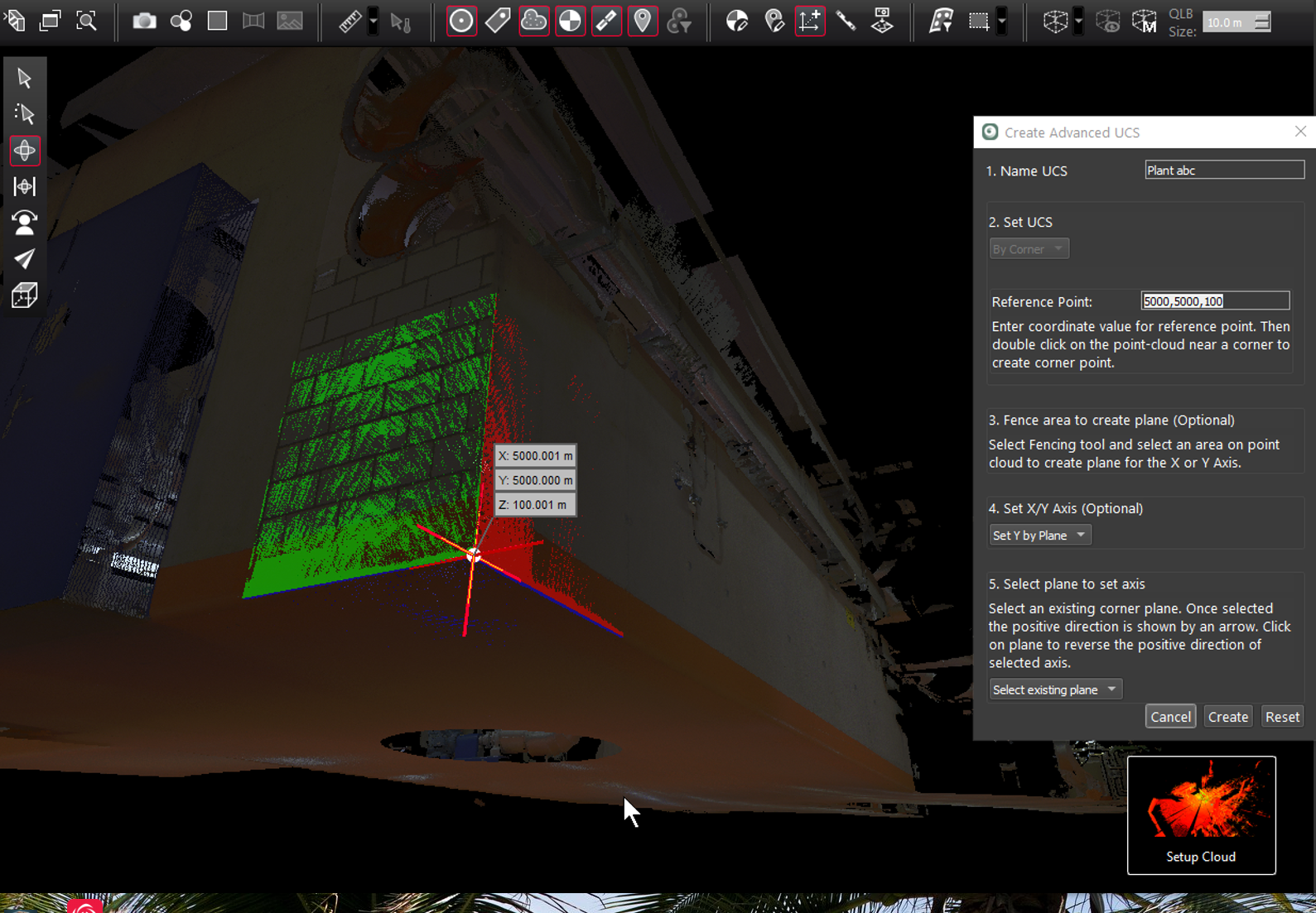
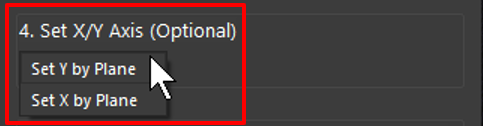
Set the plane axis X or Y from the drop-down. Select Select existing plane from the drop-down.
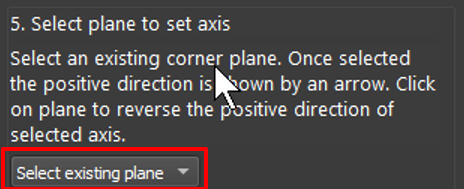
Click one of the existing corner planes to set the Y or X axis based on the selection in Step 7 above. In this example, the Y axis is set to the red plane with the positive direction indicated by the arrow.
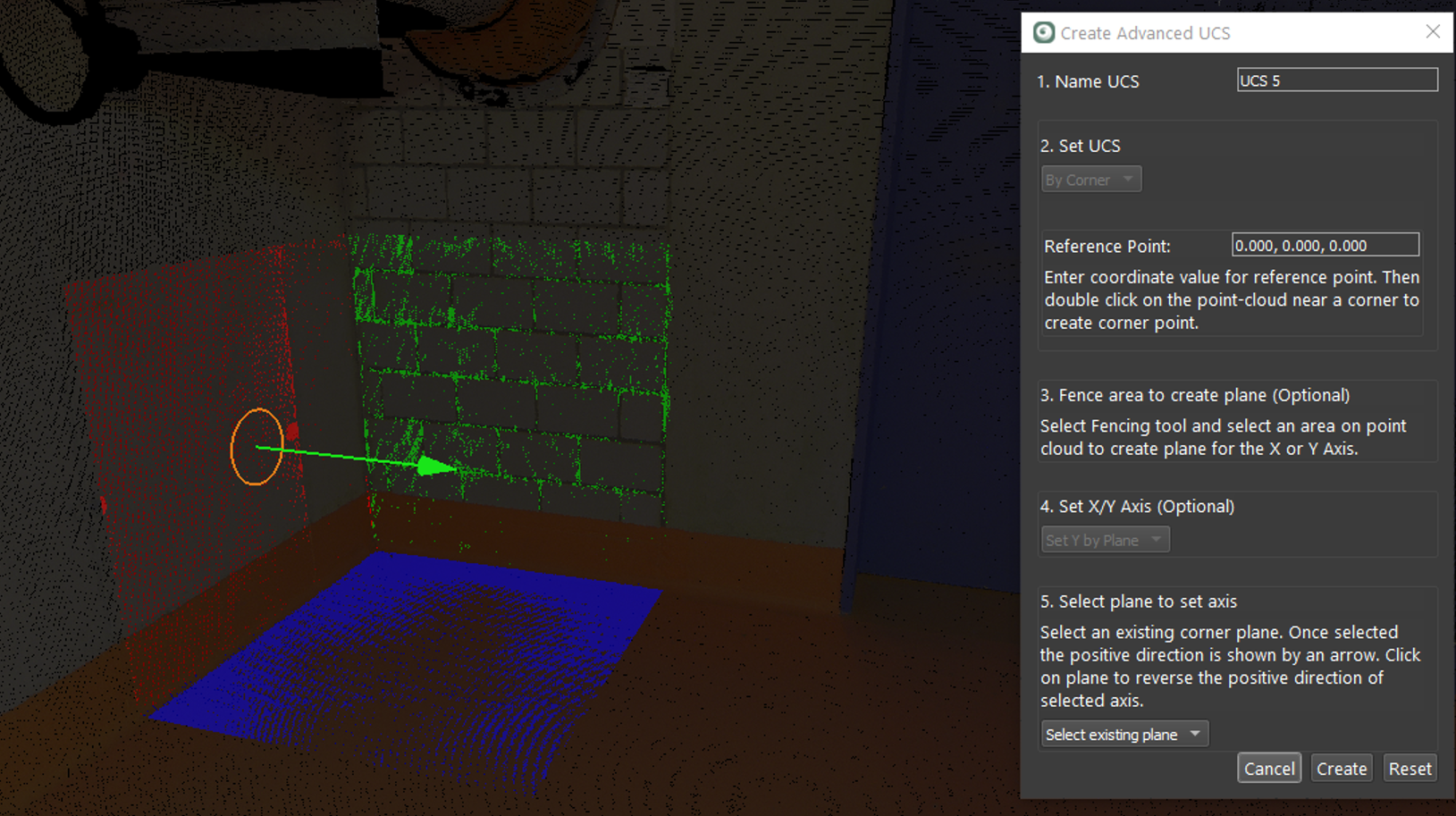
Click again to change the positive direction of the Y axis, if desired. Click the Create button to finish.
Workflow 2: Setting a UCS by Region Growing Another Plane to Set the X or Y Direction
The method uses the vertex from the region growing corner to set the UCS, but instead of using the corner planes to set X or Y, the user clicks on another area to grow a plane to set X or Y.
The required workflow steps are described below:
Name the UCS.
Select By Corner as the UCS creation method.
Using the fence tool, highlight an area to constrain the plane grower:
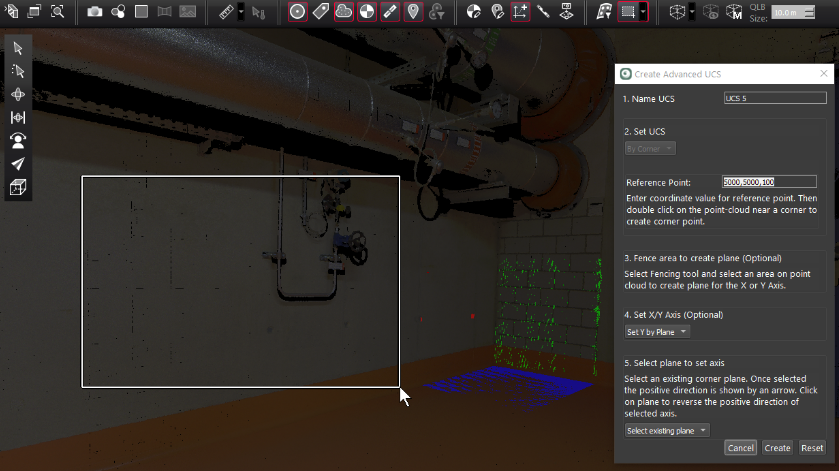
Skip Step 4: Set X/Y Axis (Optional) for now.
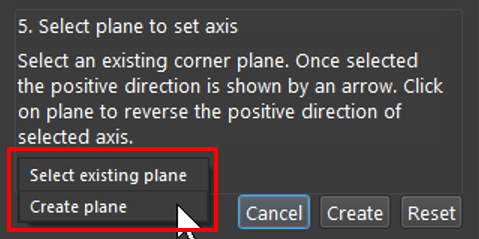
Select Create Plane from the drop-down:
Double-click on the highlighted area to grow a plane.
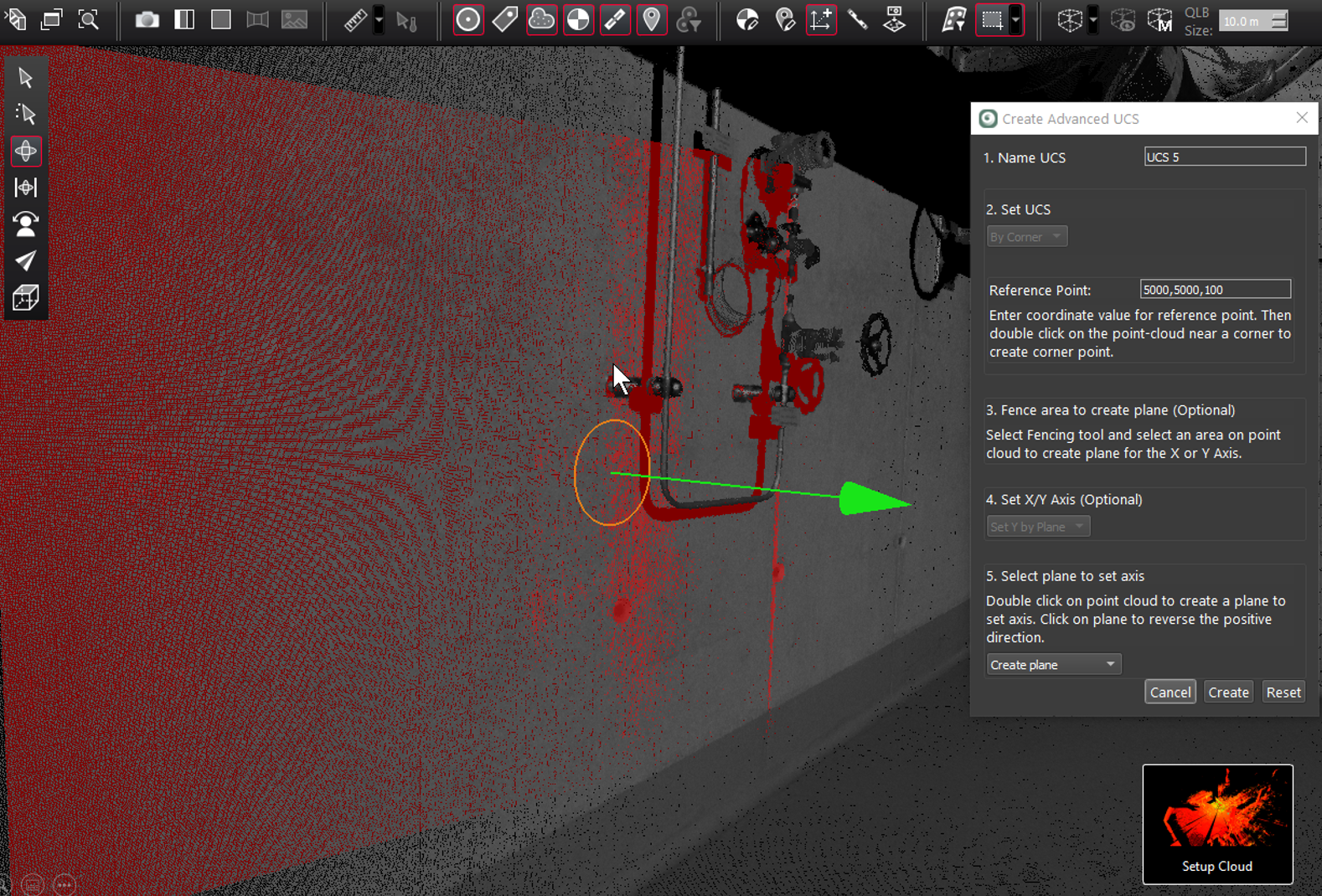
If desired, change the positive direction of the axis by clicking the plane again.
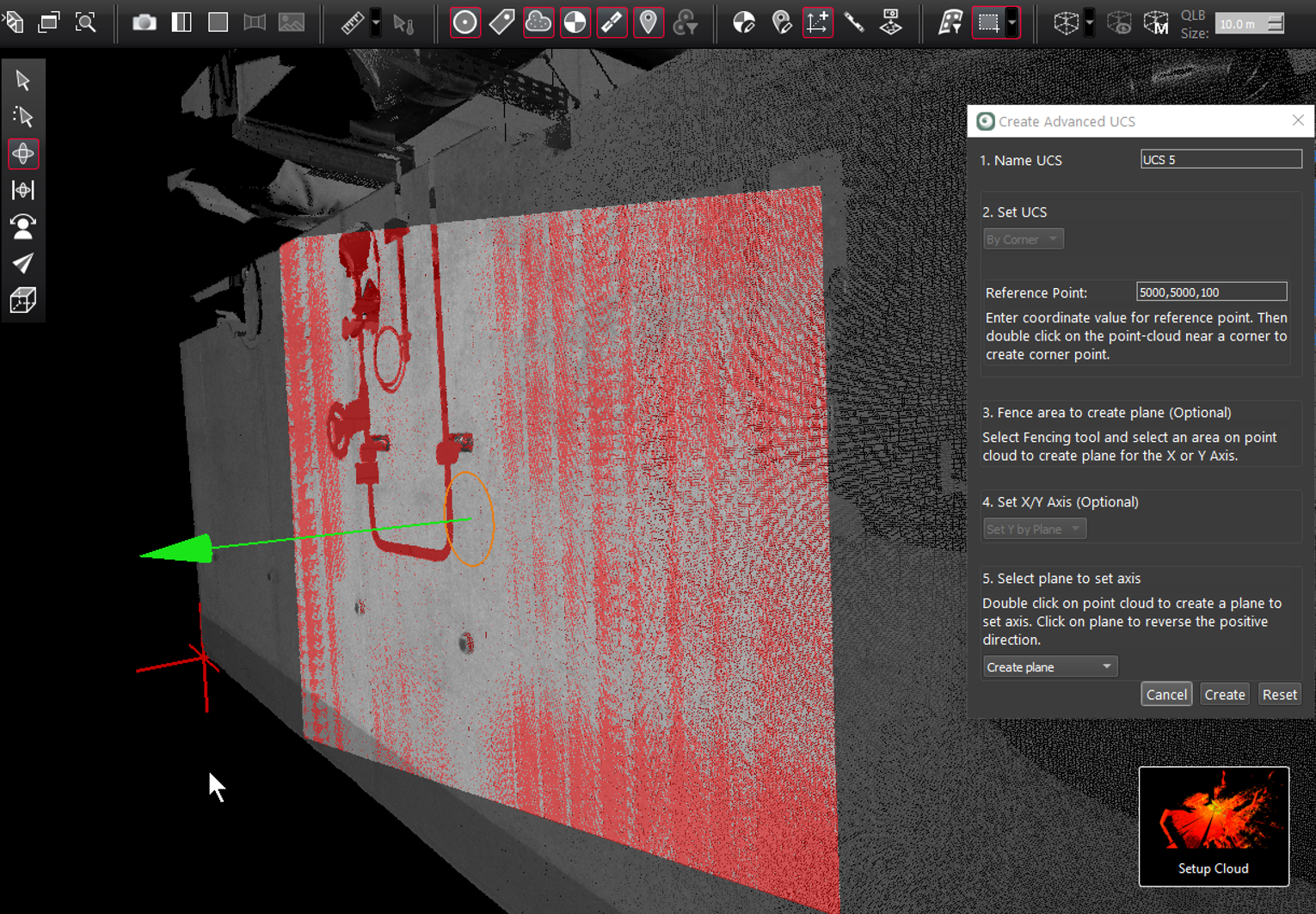
Click the Create button to create the UCS.