Function
The Symbol Librarian is a powerful tool designed to make inserting pre-drawn symbols or custom made symbols quickly and easily.
Symbols that are inserted are automatically scaled during insertion depending upon the drawing scale or the user can choose to Override this feature and manually enter a scale.
Procedure
To insert the selected symbol into your drawing, simply double-click on the symbol or press the Insert button once the symbol is highlighted.
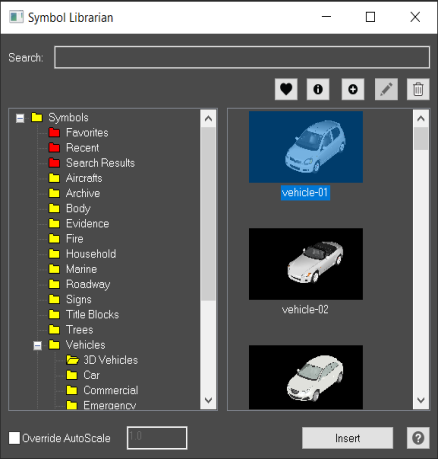
Symbols
This region displays all symbols included in Map360. Click on the folders to see preview images of the symbols.
Any directories and .DWG and .DXF files that you add to the Symbols folder (located in your Application Data folder) will automatically be included.
Some symbols will also be listed here, with the extension .MSSYM and these symbols are for use in Map360 only. Other CAD programs are unable to see or open these symbols.
Search
Once the search index is built, simply type in a word and press the search button. The results of the search are placed in the Search Results folder.
Favorites
If you use the same symbol on many diagrams you create, you can place these symbols in your "Favorites" folder for quick and easy access. To do this, simply pick on the symbol and then select the "Add Favorites" button. You will have the choice of adding the current symbol, browsing for a different symbol or adding an entire directory of symbols to your favorites folder.
The symbols selected are permanently placed in the favorites folder and will persist between drawing sessions.
Symbol Information
This gives detailed information about the symbol that is selected, such as its filename and location.
Add Symbol
This allows you to Create or Import a new symbol in your symbol library. The Symbol will be created/imported into the directory you have currently selected.
Edit Symbol
This will open the selected symbol as a new drawing, allowing you to make edits to the symbol itself. Changes made are to the symbol itself, so they will affect new drawings that use it.
Delete Symbol
This will delete the symbol selected. This deletes the symbol file itself, so be careful when doing so!
Insert
To insert the selected symbol into your drawing, simply double-click on the symbol or press the insert button once the symbol is highlighted.
Override AutoScale
Symbols should be drawn in Inches to be inserted and scaled automatically by the Symbol Librarian.
If this is left off (default), during insertion the symbol will be scaled as follows:
Metric: Symbol Scale = 0.0254
Feet: Symbol Scale = 0.0833
If this is turned on, you will be allowed to override the auto scale feature and enter in your own scale. For example, entering a number of 1 will prevent any scaling of the symbol.