Function
Most dialogs throughout Map360 allow you to press a help button. Choosing this option will bring the help file and automatically display help for the dialog that you are in right now. This help file is continually updated to keep current with all the advancements and new commands that are added on a regular basis.
Procedure
You can find Help using any one of these 3 methods:
By clicking on the HELP button available on most dialog boxes within Map360. This will take you to the help topic on the command currently in use.
Quick tips are available on most dialogs within Map360 by using the What's This? Help.
Access the Help System from the top of the Help menu or using the F1 key.
There are three ways to find topics in the Map360 help system.
You can manually browse the Contents of the help file. Have a look at the image below. The Help is arranged in the same basic order as the Menus you see across the top of Map360 screen.
You can click on the Index tab, and type in the word you’re looking for. This will show you all topics relating to the word you typed in.
You can click on the Search button and have the help file scan all topics for a particular word you type in.
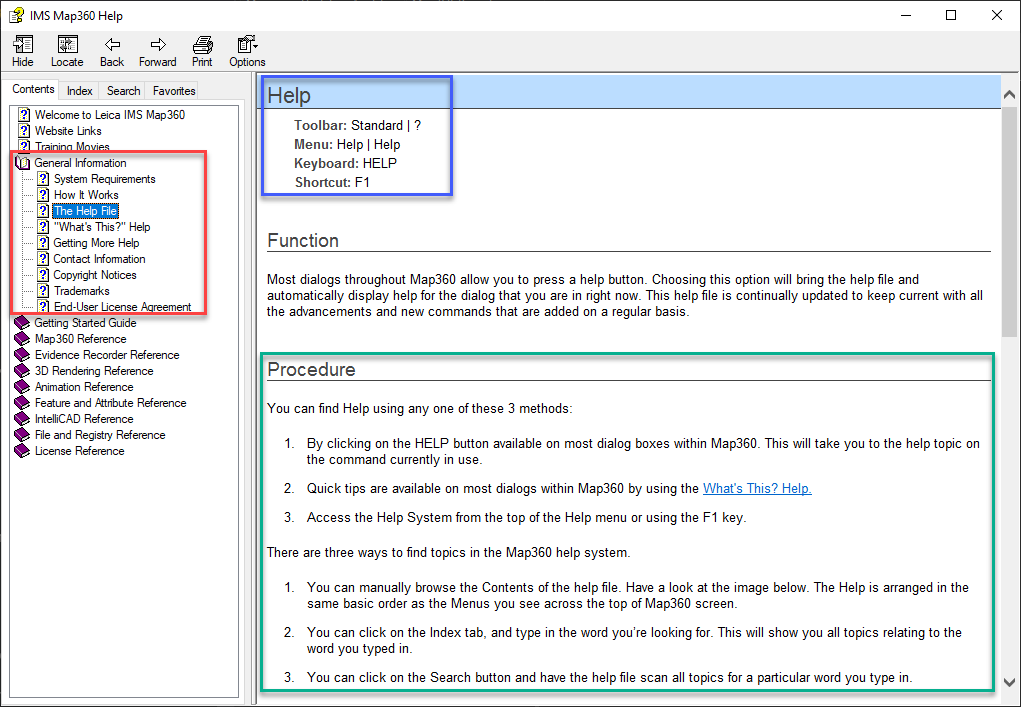
When you find your topic you will note that it is comprised of three main parts as shown below.
In the Red box, you will see the topic you have chosen highlighted in gray.
In the Blue box,you will see information about how to execute the function.
In the Green box,you will find instructions on how to use the command.