Function
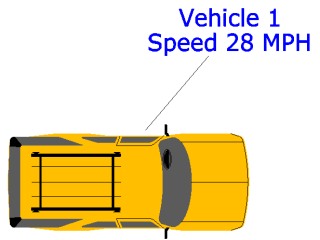
Text labels can be easily added to the scene with a variety of text style. A leader line can be added to associate the text with a position or object. These labels will adjust as you navigate in the scene.
Procedure
Select the dynamic text button and click in the drawing for the location of the text.
A ribbon will open with options to set the style for the text. This includes text size, font, color, text masking color, and alignment.

Start typing and the text will appear on the screen. Hitting enter allows multiple lines of text. Click anywhere in the drawing area to finish. The text can be edited at any time by double clicking on the text to reopen the editing ribbon.
There is a grip at the center of the text. Moving this grip will add a leader line. Both ends of the leader line can be adjusted. To remove the leader line, simply move the text grip over top the end of the leader line grip.