Function
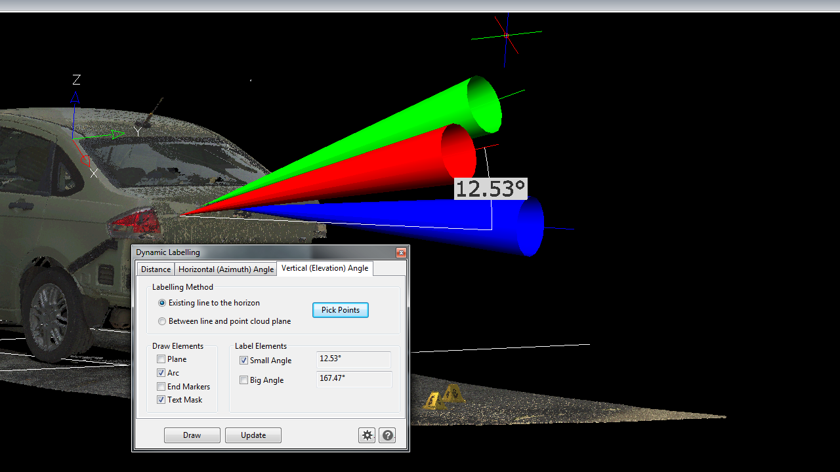
Easily add dynamic labels to your diagram! There are three labeling options: Distance, Horizontal (Azimuth) Angle, and Vertical (Elevation) Angle. The dynamic label for distance is particularly useful for obtaining the slope distance, the perpendicular wall distance, or the distance to a plane such as a road surface. The dynamic labels for the angles are useful for labeling the trajectories from bullet paths or blood stains. The labels are dynamic because they will automatically update to face the user after they are drawn.
Procedure
When you start the Dynamic Labeling command, the dialog will appear with three tabs: Distance, Horizontal (Azimuth) Angle and Vertical (Elevation) Angle.
Dynamic Label - Distance
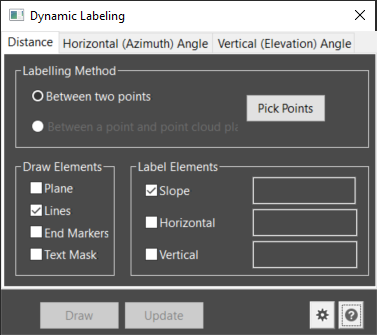
Labeling Method: Two options are available allowing the user to label the distance between two points or the distance between a point and a point cloud plane.
Between Two Points: Choose the option to label between two points method and select Pick Points. Click on two points in your drawing to label the distance.
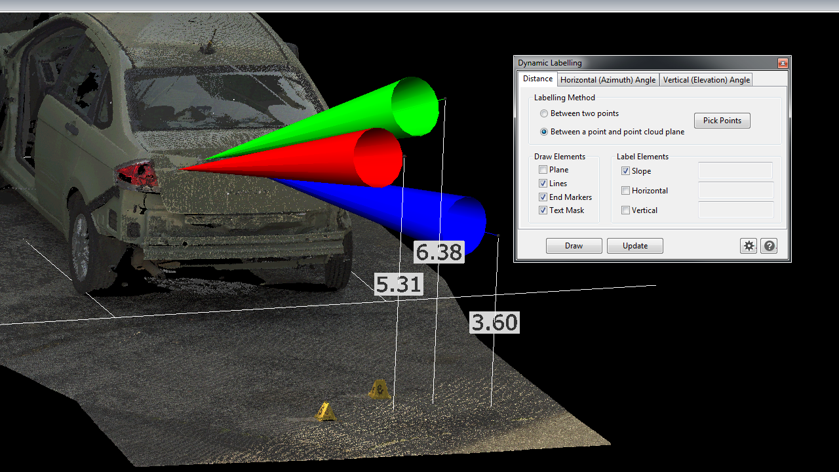
Between a Point and Point Cloud Plane: Choose the option to label between a point and point cloud plane method and select Pick Points . Click a point then click another point on a point cloud plane such as a wall or road surface.
Check the boxes for the draw and label elements you would like included.
Draw Elements: A plane can be drawn on the point cloud when using the label between point and point cloud plane method. A plane will not be drawn when picking between two points.
A line can be drawn between the two picked points and end markers can be added to the ends of the line. Text Masking can also be added to ensure the label is visible.
Label Elements: There are three distances that will be displayed between the picked points: slope distance, horizontal distance, and vertical distance. When checked, the distances will appear in the corresponding box beside the element.
When labeling the distance between a point and point cloud plane, the slope distance will be the same as the horizontal distance and the vertical distance will be zero for most cases.
Settings: The user can select the settings icon from the Dynamic Labeling dialog to access additional properties of the label. The text color, size, and style can be changed as well as the mask color, marker size, precision, and the layer that the label will be drawn on. By default the text color is set to a light gray and the mask color is set to a dark gray.
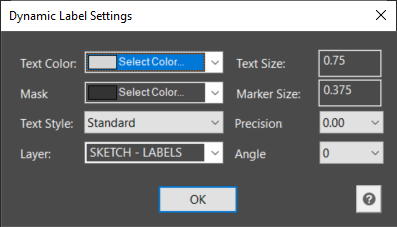
Draw and Update: Select Update to preview the changes made to the draw and label elements and to the settings.
Once you are finished making changes to the label, select Draw and the label will be drawn with the latest changes.
Dynamic Label - Horizontal (Azimuth) Angle
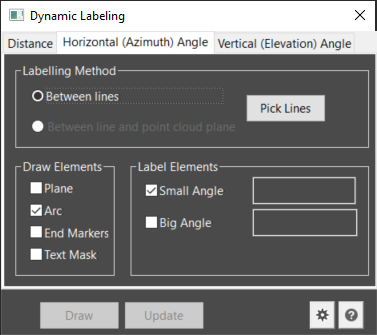
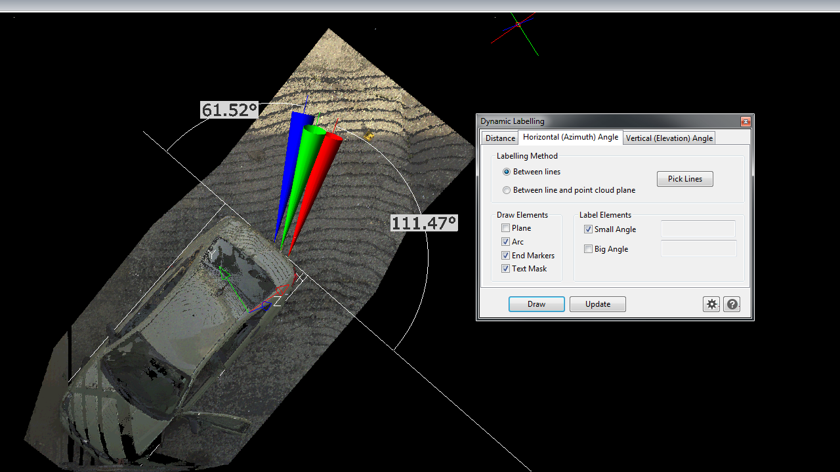
This option is used for a top-down view of a scene. Two options are available allowing the user to label between two lines (that don’t have to be on the same plane), and a line that intersects a point cloud plane.
Between Lines: Choose the option to label between lines and select Pick Points. Click on two lines in your drawing to label the angle between 0 and 360 degrees.
Between line and Point Cloud Plane: Choose the option to label between line and point cloud plane and select Pick Points . Click a line then click a point on a point cloud plane to label the angle between 0 and 180 degrees.
Check the boxes for the draw and label elements you would like included.
Draw Elements: A plane can be drawn on the point cloud when using the label between line and point cloud plane method. A plane will not be drawn when picking between lines.
An arc can be drawn depicting the angle, and end markers can be added to the ends of the arc. Text Masking can also be added to ensure the label is visible.
Label Elements: There are two angles that can be labeled. When checked, the angles will appear in the corresponding box beside the element.
The sum of the angles will be 360 degrees between lines and 180 degrees between a line and point cloud plane.
Settings: The user can select the settings icon from the Dynamic Labeling dialog to access additional properties of the label. The text color, size, and style can be changed as well as the mask color, marker size, precision, and the layer that the label will be drawn on. By default the text color is set to a light gray and the mask color is set to a dark gray.
Draw and Update: Select Update to preview the changes made to the draw and label elements and to the settings.
Once you are finished making changes to the label, select Draw and the label will be drawn with the latest changes.
Dynamic Label - Vertical (Elevation) Angle
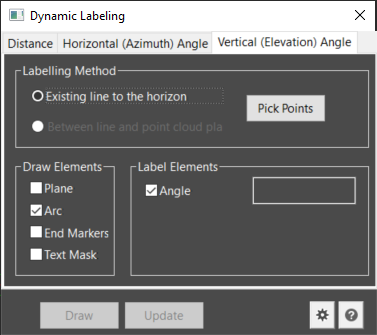
This option is used for a side view of a scene. Two options are available allowing the user to label an existing line to the horizon, or a line that intersects a point cloud plane.
Existing Line to the Horizon: Choose the option to label an existing line to the horizon and select Pick Points. Click a line in your drawing to label the angle between 0 and 90 degrees measured from the horizon. A horizon line will also be drawn.
Between line and Point Cloud Plane: Choose the option to label between a line and point cloud plane and select Pick Points . Click a line then click a point on a point cloud plane to label the angle between 0 and 90 degrees measured from the horizon. A horizon line will also be drawn. Note: The angle is always labeled to the insertion/start of the line.
Check the boxes for the draw and label elements you would like included.
Draw Elements: A plane can be drawn on the point cloud when using the label between line and point cloud plane method. A plane will not be drawn when picking an existing line to the horizon.
An arc can be drawn depicting the angle, and end markers can be added to the ends of the arc. Text Masking can also be added to ensure the label is visible.
Label Elements: Only one angle is labeled. When checked, the angles will appear in the corresponding box beside the element.
The angle measures from 0 to 90 degrees measured from the horizon. A negative angle indicates a downward trajectory and positive angle indicates an upward trajectory.
Settings
The user can select the settings icon from the Dynamic Labeling dialog to access additional properties of the label. The text color, size, and style can be changed as well as the mask color, marker size, precision, and the layer that the label will be drawn on.
By default the text color is set to a light gray and the mask color is set to a dark gray.
Draw and Update
Select Update to preview the changes to the draw and label elements and to the settings.
Once you are finished making changes to the label, select Draw and the label will be drawn with the latest changes.