Function
Adds horizontal and vertical dimensions to entities.
Procedure
ENTER to select entity · <Origin of first extension line>: Select the starting point of the first extension line, or press Enter to select the entity.
To manually create the dimension line by selecting points
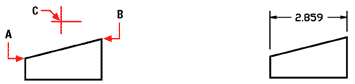
Select the origin of the first extension line.
Select the origin of the second extension line.
Move the pointer to position the leader and dimension text.
Origin of second extension line: Select the point for the second extension line.
Angle · Text · Orientation of dimension line: Horizontal · Vertical · Rotated: To add a horizontal dimension, choose Horizontal. To add a vertical dimension, choose Vertical. To add a rotated dimension, choose Rotate. To specify the angle of the dimension text, choose Angle. To change the dimension text, choose Text.
To automatically create the dimension line by selecting an entity
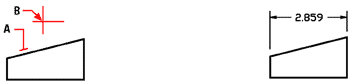
Select the entity you want to dimension.
Move the pointer to position the leader and dimension text.
Angle · Text · Orientation of dimension line: Horizontal · Vertical · Rotated: To add a horizontal dimension, choose Horizontal. To add a vertical dimension, choose Vertical. To add a rotated dimension, choose Rotate. To specify the angle of the dimension text, choose Angle. To change the dimension text, choose Text.
To add a horizontal measurement

An example of a horizontal dimension
Choose Horizontal.
Angle · Text · <Location of dimension line>: Select the location of the dimension line. To change the angle of the dimension text, choose Angle. To change the dimension text, choose Text.
To add a vertical measurement
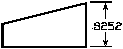
An example of a vertical dimension
Choose Vertical.
Angle · Text · <Location of dimension line>: Select the location of the dimension line. To change the angle of the dimension text, choose Angle. To change the dimension text, choose Text.
To add a rotated measurement

An example of a rotated dimension
Choose Rotated.
Angle of dimension line <0>: Enter the angle of the rotated line.
Angle · Text · <Location of dimension line>: Select the location of the dimension line. To change the angle of the dimension text, choose Angle. To change the dimension text, choose Text.
To change the angle of the text

An example of an oblique dimension with rotated text
Choose Angle.
Angle of text: Enter the angle of rotation for the text included within the dimension.
Angle · Text · <Location of dimension line>: Select the location of the dimension line. To change the angle of the dimension text, choose Angle. To change the text included in the dimension, choose Text.
To change the text
Choose Text.
Dimension text <value>: The dimensions of the selected entity are displayed as the default setting. To change the text within the dimension line, type new text and press Enter.
Angle · Text · <Location of dimension line>: Select the location of the dimension line. To specify the angle of the text, choose Angle. To change the text included in the dimension, choose Text.