Function
This command allows you to import Collada models (.dae and .kmz files), such as those downloaded from the SketchUp 3D Warehouse.
Procedure
On running this command, you will see the Collada Import dialog.
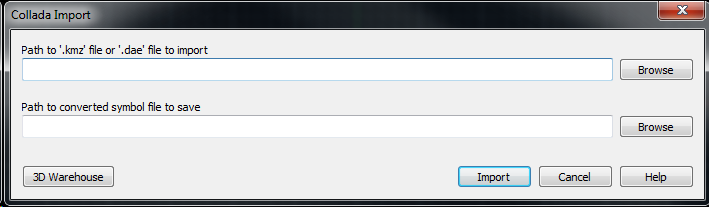
You can use the 3D Warehouse button, near the bottom-left corner, to open the SketchUp 3D Warehouse in your web browser. The SketchUp 3D Warehouse contains millions of free 3D symbols in various formats. Only collada-based formats (.dae or .kmz) can be imported, other formats such as .skp are not currently supported.
First, Browse to the downloaded .dae or .kmz file that you want to import. (It may be located in your web browser's Downloads folder.)
Next, the path and filename of the .dwg file that will be created will be automatically displayed in the second box. The filename will match that of the selected model, but in some cases if the default name is generic like "model" or "untitled" you can specify a more descriptive filename as appropriate. By default it will save the converted .dwg file into program's Symbols folder, so that it can be subsequently accessed directly from within the Symbol Library command.
Finally, press the Import button. The Collada model will be converted to a .dwg file and inserted as a block into your current drawing. It will be inserted on your current layer, and you will be prompted for an insertion point and rotation direction to place the model as desired.
In some cases, you may find it easiest to initially place the model randomly within your drawing and then use the Align command to position it accurately.
SketchUp and 3D Warehouse are trademarks of Trimble Navigation Limited.