Function
Quickly and easily draw advanced lines in your diagram such as roadway lines, tire marks, guardrails, barriers, fences and many more. Choose from nearly 100 common 2D and 3D line types.
Procedure
When the Advanced Linetypes command is run, the dialog will appear consisting of two selections from the user.
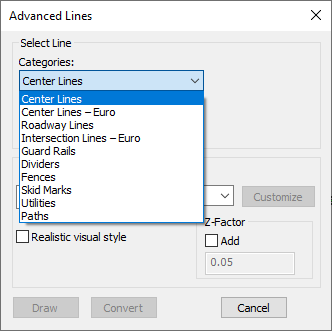
Select the Linetype Category
The user can select a category from the drop down list to access the corresponding linetypes.
Select the Linetype
A drop down menu contains the linetypes associated with the selected category.
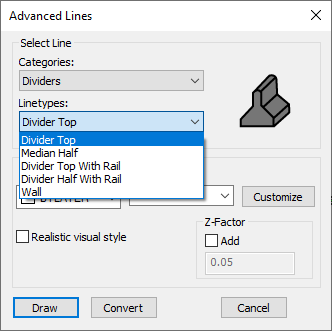
A preview will appear for each linetype selected.
Settings
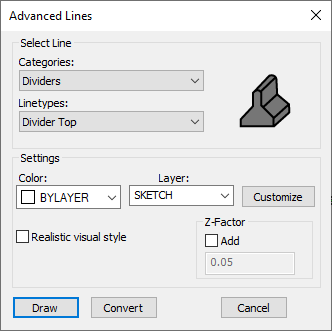
Change the Color or Layer: The user has the ability to change the color of most linetypes and the layer prior to drawing. To change the layer, either select a layer from the drop down list or create a new layer by typing the new layer name in the layer box on the dialog.
Customize: The properties of each linetype can be changed to match the scene.
Realistic Visual Style: Checking this box will draw the linetype with a solid color. With this box unchecked, the linetype will be an outline/wireframe.
Z-Factor: Adding a Z-factor will draw the linetype offset above the selected point in the drawing. This is useful when drawing a flat linetype such as roadway lines over a surface or pointcloud where the line may fall above or below the uneven terrain.
Convert
Convert existing linework or existing advanced lines. Once convert is selected, the user will select the lines in the drawing to convert.
A prompt will appear asking to delete the existing line(s). Select yes or no.
Draw
Select Draw and click in your drawing where you would like the start of your linetype. Continue selecting points to draw straight lines.