
System configuration | Desktop/Laptop
Hardware
Use a machine with a dedicated GPU. A machine with only integrated Graphics (Intel UHD, Intel HD) will have a poorer performance.
It is recommended to configure your workstation for best performance in Reality Cloud Studio. There are some cases where Windows blocks access to the systems GPU. This may apply if:
Using Windows OS
Task Manager performance shows two GPU, one which is named "Intel(R) UHD ..."

Please refer to The Visualization Settings Quality topic for additional options to optimize your experience in Reality Cloud Studio.
Browser
Chrome is the recommended browser for best performance.
Visualization settings
After opening a file, open the Visualization Settings dialog by clicking on the icon on the upper
right of your screen. In the Quality tab of this dialog, users can control the visualization of the
point cloud or mesh. The visualization settings may have a large impact on performance,
depending on the user’s computer and network bandwidth.
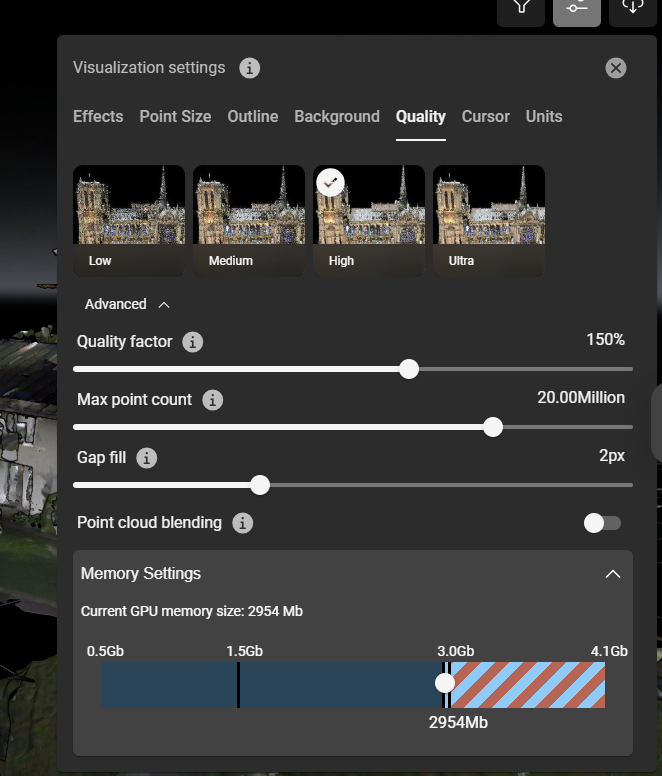
Recommended settings for good hardware and good bandwidth
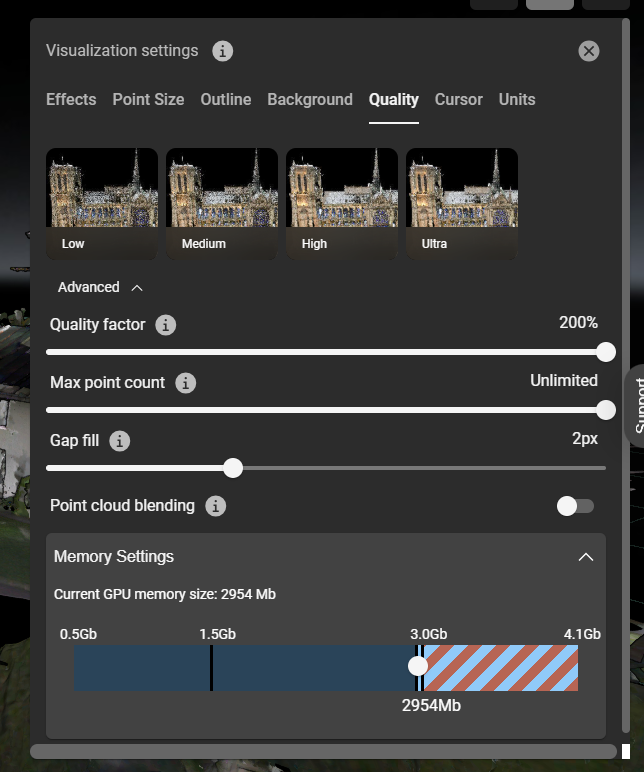
Recommended settings for very good hardware and very good bandwidth
Low: Use this setting for older computers with Intel integrated graphics, less than 16GB RAM, or internet bandwidth less than 100 Mbps.
Medium: Use this setting for newer computers with Intel integrated graphics, 16GB RAM, and internet bandwidth less than 100 Mbps.
High: Use this setting for computers with Intel IRIS, or discrete GPU’s from NVIDIA or AMD, 16GB or more RAM, and more than 100Mbps internet bandwidth.
Ultra: Use this setting for computers with a discrete GPU from NVIDIA or AMD with dedicated GPU memory and bandwidth greater than 200Mbps.
Point Cloud Blending: This feature smooths the point cloud to make it look more like a mesh. This feature is very resource intensive and requires a mid/high-end NVIDIA or AMD discrete GPU with dedicated GPU memory, otherwise performance may be significantly degraded.
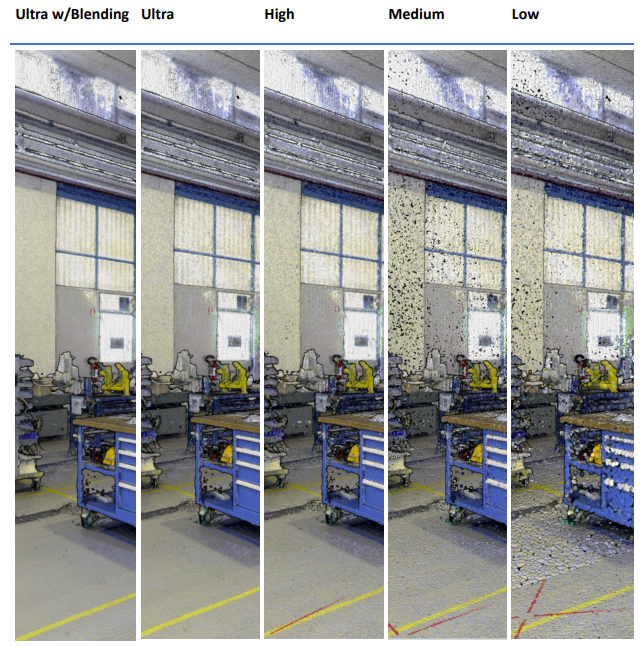
Examples for the different visualization settings
Visualization Settings: Browser Memory
To make the Reality Cloud Studio usable on computers with limited RAM memory, the default is
set to 1.5GB. In computers with 16GB or more RAM, you can increase the amount of memory
that is available to be used.
Open a file within Reality Cloud Studio
Click on the Visualization Settings icon on the upper right corner of your screen.
Click on the Quality tab and open the Memory Settings section.
Drag the white dot to the right until it is just to the left of the blue and red striped area
(about 2600-2800Mb)
Browser GPU Acceleration
Go to
chrome://settings/systemand toggle "Use hardware acceleration when available" to ONForce Chrome to use the GPU (Windows only)
Go to Settings > System > Display > Graphics settings. Choose "Desktop app" under "Choose an app to set preference", click "Browse", and locate your browser's executable file (e.g.,
chrome.exefor Chrome). Select the browser, click "Options", and choose "High performance …" to force it to use your dedicated GPU
IMPORTANT: In some cases there might be multiple “chrome.exe” on a machine. Ensure settings are changed to the “chrome.exe” used to show HxDR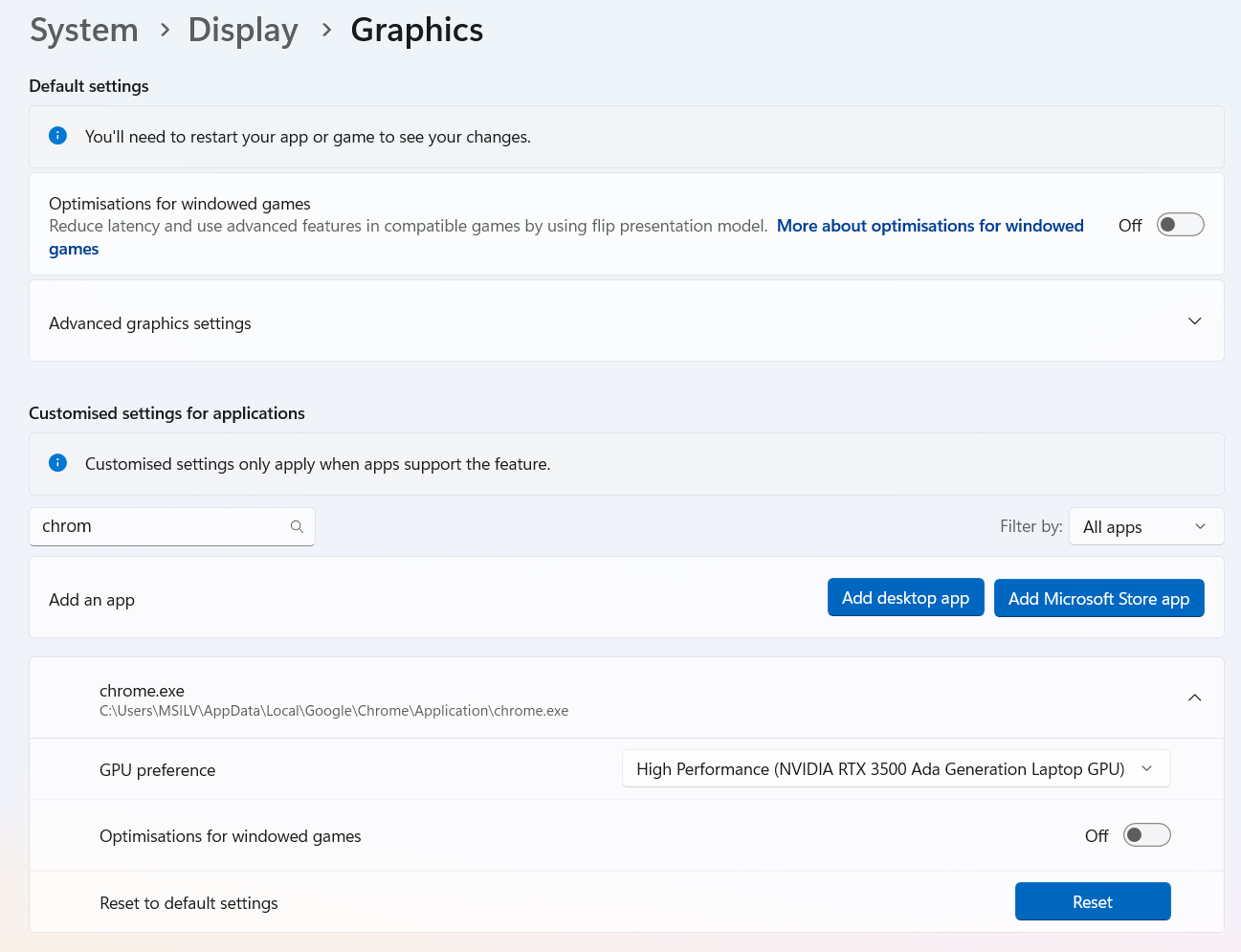
Validate GPU access as follows:
Open the “Task manager” → “Performance”
Go to HxDR, and open an asset
This action should have caused a spike on load on the GPU and not on the Intel UHD/HD
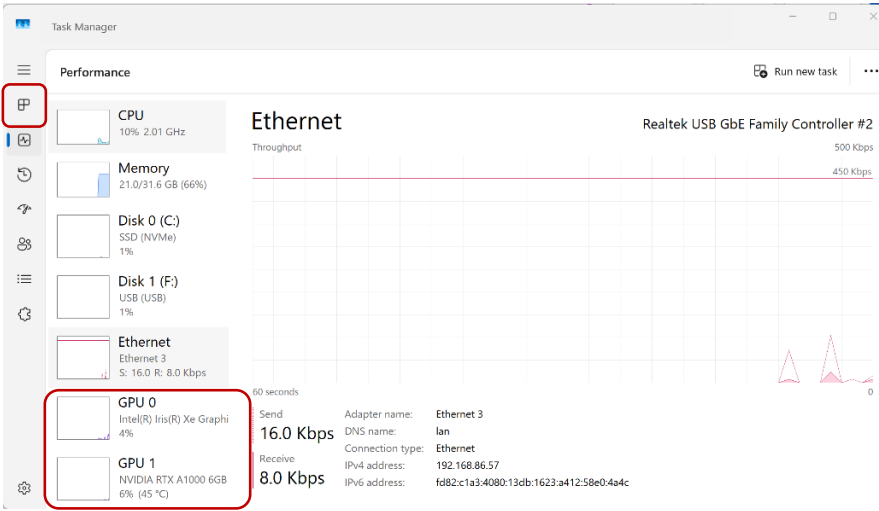
Checking if HxDR is able to use the GPU. In this case “NVIDIA RTX A1000 6 GB”
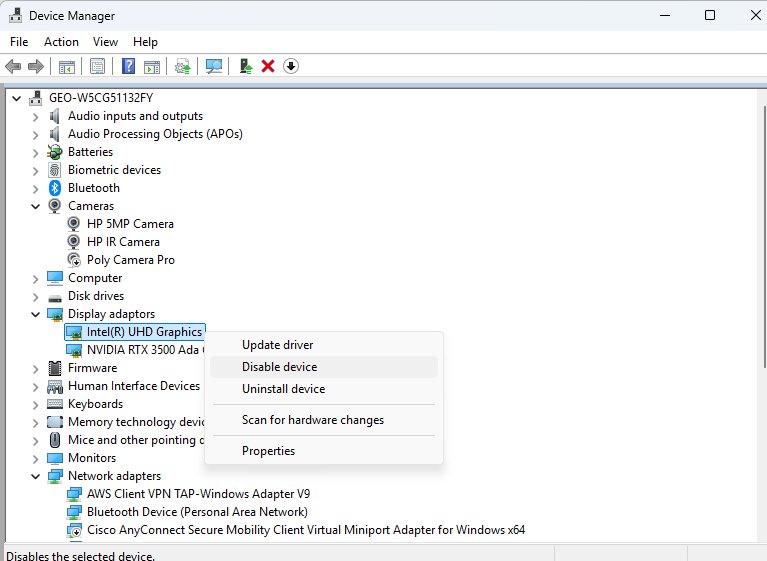
As a last option one may disable UHD/HD on Device manager. This is only recommended as temporary solution.
Bandwidth / Data caching
Ensure there is a good internet connection (> 200 Mbps). To check your connection, use https://www.speedtest.net/
Network
Quality of Service:
It is common in office network environments to have Quality of Service (QOS) settings to prioritize traffic with critical business systems. Ask your IT team to add hxdr.app as a priority application.
Firewalls:
Firewalls might also restrict traffic to Reality Cloud Studio. If access to Reality Cloud Studio is blocked or extremely slow compared to http://speedtest.net , ask IT to check firewall logs to see if the application is being blocked.
Corporate VPN:
VPN’s can route traffic through a central location, adding latency. Ask IT about an exception for hxdr.app (called selective routing or split tunneling), so the traffic does not have to go through the VPN.
Desktop / Laptop issues troubleshooting
Some software that is added to computers have features that might reduce the performance of Reality Cloud Studio.
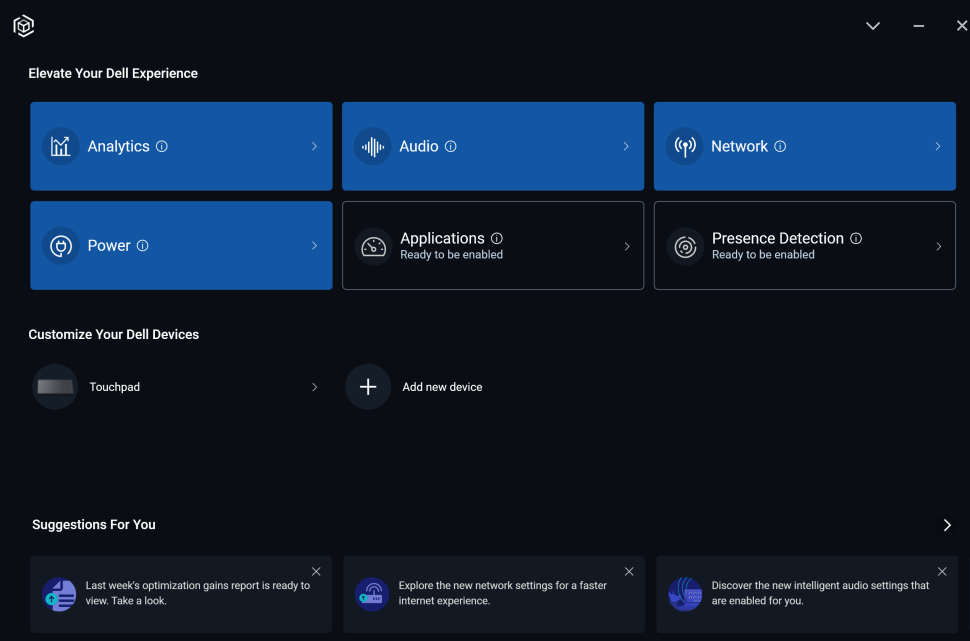
Dell Optimizer
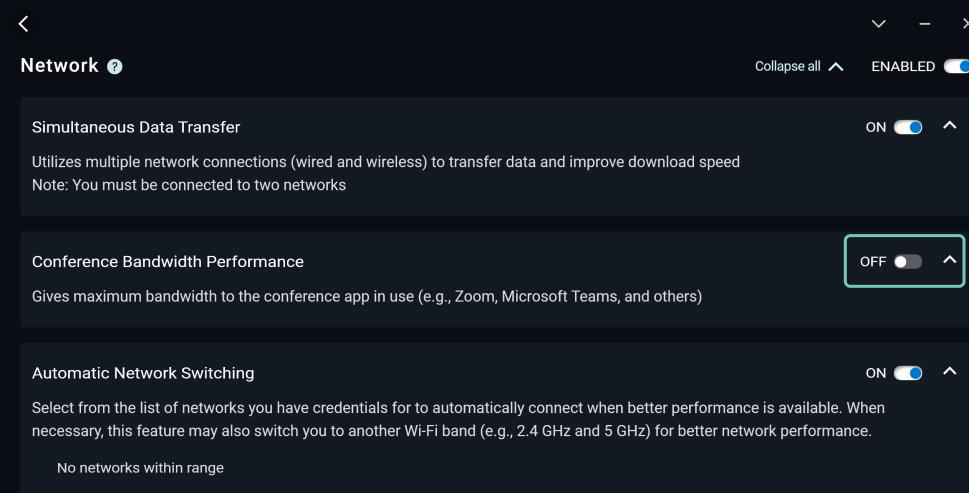
Dell Optimizer has a default setting to prioritize traffic to Teams and Zoom. When this setting is turned on, it limits all other network traffic to 40Mbps, which will impact the performance of Reality Cloud Studio. In Dell Optimizer, go to Network and turn off Conference Bandwidth Performance.
Other Potential Desktop / Laptop Issues
Some customers have also experienced slow performance due to the configuration of locally installed software such as:
Antivirus software that scans network traffic in real time.
Endpoint protection systems with deep packet inspection or behavioral analysis.
Local firewall clients that can throttle ports or cloud endpoints.