
Point Cloud Classification for Segmenting and Filtering Data
With industry-proven AI classification models from Cyclone 3DR, you can remove or hide objects and noise, declutter point clouds, and improve Scan to BIM efficiency and accuracy.
The AI Point Cloud Classification feature includes the following Class Models:
Model | Description | Supported scans | Classes |
|---|---|---|---|
Indoor | This model works best on point cloud data collected by terrestrial or kinematic laser scanners at indoor housing and/or office sites. | Terrestrial and kinematic laser scanners. | Ground, Curbstone, Other, Wall outdoor, Vehicle static, Paved terrain, Wall, Ceiling, Floor, Door, Window, Stairs, Column, Beam, Sub-ceiling, Cable, Pipe, HVAC, Ceiling equipment, Chair, Desk, Furniture, Electrical, Footing, Radiator, Plumbing, Railing, Ramp, Inclined roof, Flat roof, Roof equipment, Steel structure, Valve handle, Valve body, Vegetation indoor, Noise indoor, Inclined ceiling, Wire installation, Pipe installation |
Indoor Construction Site | This model works best on point cloud data collected by terrestrial or kinematic laser scanners at indoor construction sites. | Terrestrial and kinematic laser scanners | Wall, Ceiling, Floor, Door, Window, Stairs, Column, Beam, Pipe, HVAC, Footing, Reflection, Noise indoor, Wall skeleton, Other, Installed wire |
Outdoor | This model works best on point cloud data collected by terrestriallaser scanners in built outdoor environments. This is the most generic model and is useful for classifying objects like buildings or vegetation. | Terrestrial laser scanners | Ground, High vegetation, Building, Hardscape, Artifact |
Outdoor Construction site UAV | This model works best on point cloud data derived from UAV-based photogrammetry data at outdoor construction sites. This model segments outdoor work sites and is particularly useful for creating terrain models, monitoring operations, and calculating volumes. | Photogrammetry data from UAVs | Building, Ground, Artifact, Vegetation, Manmade object, Road and hardscape, Street furniture, Fencing, Trenching, Underground utilities, Construction material, Construction vehicle, Manhole, Curb, Material stockpile. |
Plant | This model works best on point cloud data collected by terrestrial laser scanners at industrial processing (plant) sites. This model directly serves the Scan-to-Pipe workflow. | Terrestrial laser scanners | Unclassified, Steel structure vertical, Steel structure horizontal, Steel structure diagonal, Steel connection element, Footing, Valve handle, Valve body, Pipe Bend, Pipe Cylinder, Pipe Connection, Pipe Reducer, Pipe flange, Pipe equipment, Pipe asset, Tank, Pipe instrument, Pipe special. |
Rail | This model works best on point cloud data collected by mobile mapping laser scanners along rail networks. | Mobile mapping systems | Low vegetation, Mid vegetation, High vegetation, Building, Water, Rail, Road surface, Wire, Natural terrain, Hardscape, Curbstone, Stairs, Clutter, Scanning artifact, Moving object, Pedestrian, Animal, Wall outdoor, Retaining wall, Pole, Tunnel, Bridge, Viaduct, Signal road, Road surface bridge, Road surface tunnel, Road surface viaduct, Guard rail, Vehicle moving road, Vehicle static road, Paved terrain, Paved terrain bridge, Paved terrain tunnel, Paved terrain viaduct, Trackbed, Trackbed bridge, Trackbed tunnel, Trackbed viaduct, Platform, Sleeper, Level crossing, Signal rail, Vehicle moving rail, Vehicle static rail. |
Road | This model works best on point cloud data collected by mobile mapping laser scanners along roadways and road networks. This model can classify any point cloud to segment outdoor assets (e.g., roads, buildings, guard rails, poles, etc.). | Mobile mapping systems | Low vegetation, Mid vegetation, High vegetation, Building, Water, Rail, Road surface, Wire, Ground, Hardscape, Curbstone, Artifact, Wall, Retaining wall, Pole, Tunnel, Bridge, Viaduct, Signal sign, Guard rail, Vehicle moving road, Vehicle static road, Paved terrain, Trackbed, Platform, Sleeper, Level crossing, Signal rail, Vehicle moving rail, Vehicle static rail. |
Point Cloud Classification processing consumes your subscription quota.
Guided Workflow: Classify a Point Cloud
On the Left navigation bar, under the “Artifacts” tab, the “Point Cloud” card will provide the option to run the Classification process. Click the Classification “Start” command.
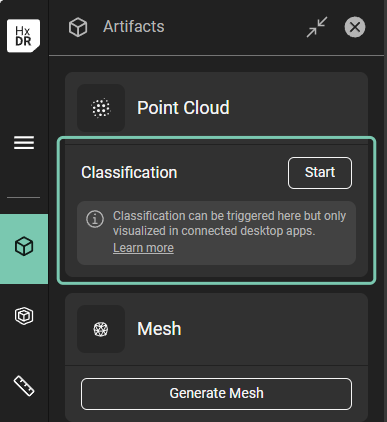
“Start” classification command in the Artifact tab
Initiating “Start” will open a dialogue with available AI models. Select the model based on the type of point cloud data to be classified. For this example, we will select “Indoor Construction Site”.
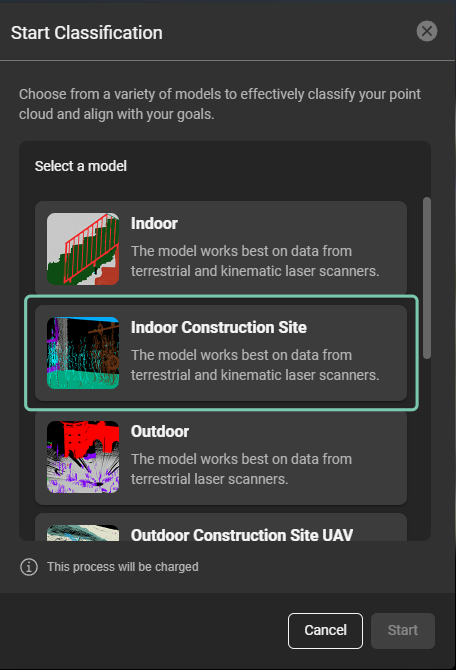
Start Classification dialog with available AI models.
After selecting the AI model, click “Start”.
Successful completion of the classification process is identified by a check mark next to “Classification” in the Artifact tab’s Point Cloud card. Once successfully completed, the classified data can be visualized in Reality Cloud Studio, and also by streaming it to Cyclone 3DR or one of the supported CloudWorx plugins.

Displaying point cloud classes is supported in CloudWorx for AutoCAD, CloudWorx for BricsCAD, CloudWorx for Navisworks, CloudWorx for Revit, and CloudWorx Viewer for Revit
Visualize classified data
In the “Visualization settings”, “Effects”, a new “Classification” option is available. By choosing it, class colors will be applied to the point cloud.
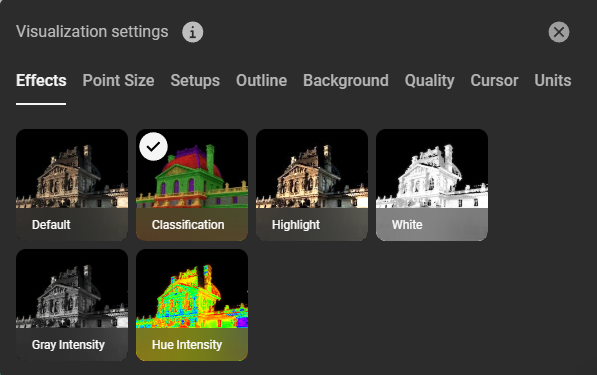
“Classification” option in the Visualization settings dialog.
In the “Artifacts” tab on the navigation bar select the model name used for classification. Visibility for each class can be toggled using the eye icon next to the class.
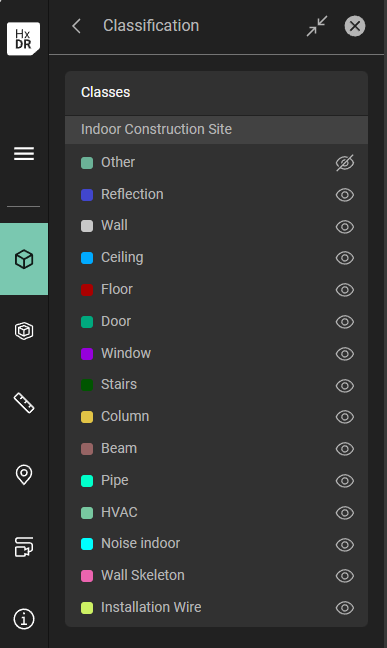
Toggle visibility of the identified classes.
View or hide identified classes by toggling the eye icon next to the class name:
Hide identified classes
Visualize classified data in CloudWorx
For this example, we will visualize point cloud classes, as generated from the HxDR Reality Cloud Studio Classification feature, in CloudWorx for Revit.
Follow the Guided workflow to stream data from Reality Cloud Studio.
In the Revit UI’s CloudWorx tab, find the “Rendering” group and select the “Color mapping” command. In the opened dialog, select “Classification” from the “Color Mapping” drop-down list and click “Apply”
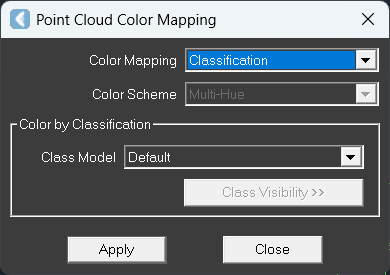
Point Cloud Color Mapping command from the CloudWorx tab in the Revit ribbon.
As soon as the color mapping is applied, the “Class Visibility” button will appear active. Initiating the “Class visibility” command will open the list of identified classes:
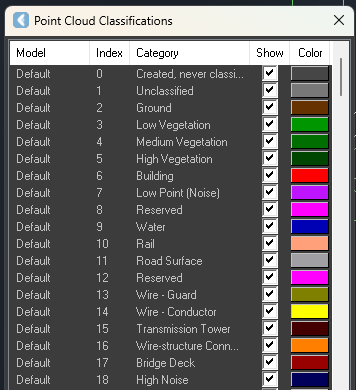
Point Cloud Classifications window with options to show or hide specific classes
In the “Point Cloud Classifications” list, you can check on/off visibility of the identified classes and change their color if needed.
Visualize classified data in Cyclone 3DR
In Cyclone 3DR, follow the Guided Workflow to stream data from Reality Cloud Studio.
Right click on the asset, navigate to “Representation” and choose “Classification”. After “Classification” is selected, the point cloud in the canvas will take the colors of the identified classes.
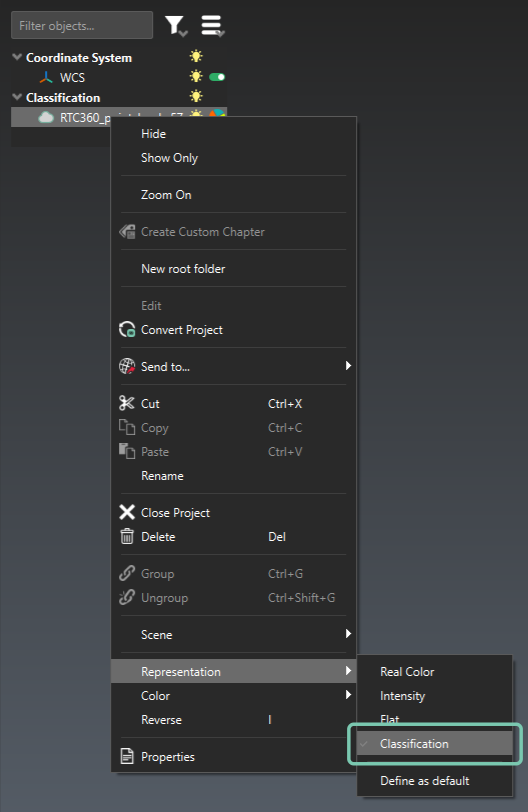
Enable Classification representation of the point cloud.
To be able to filter data based on the identified classes, right-click and select the “Convert project” command. This will enable Cyclone 3DR tools to be used on the classified data set.
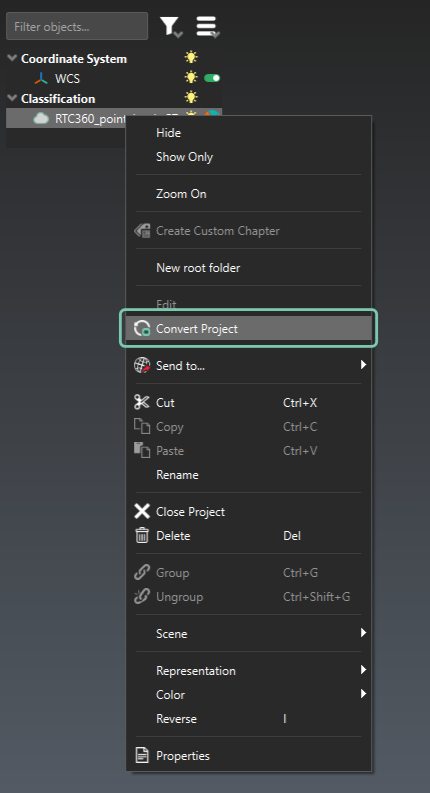
Convert the project to be able to use Cyclone 3DR tools with a classified data set
After the project is converted, you can separate and visualize each of the identified classes. Go to the “Clean” tab and in the “Cloud Manual Segmentation” section, click the “Separate by Attributes” command.
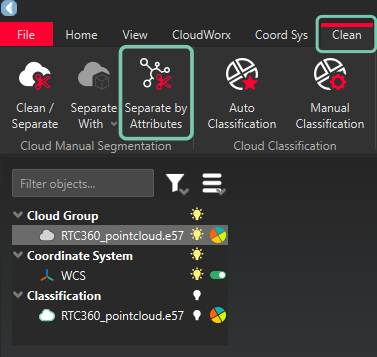
“Separate by Attributes” command in the “Clean” tab
Initiating the “Separate by Attributes” command will open the “Separate by Attributes” wizard. For Source, choose “Classification” and click “Ok”.
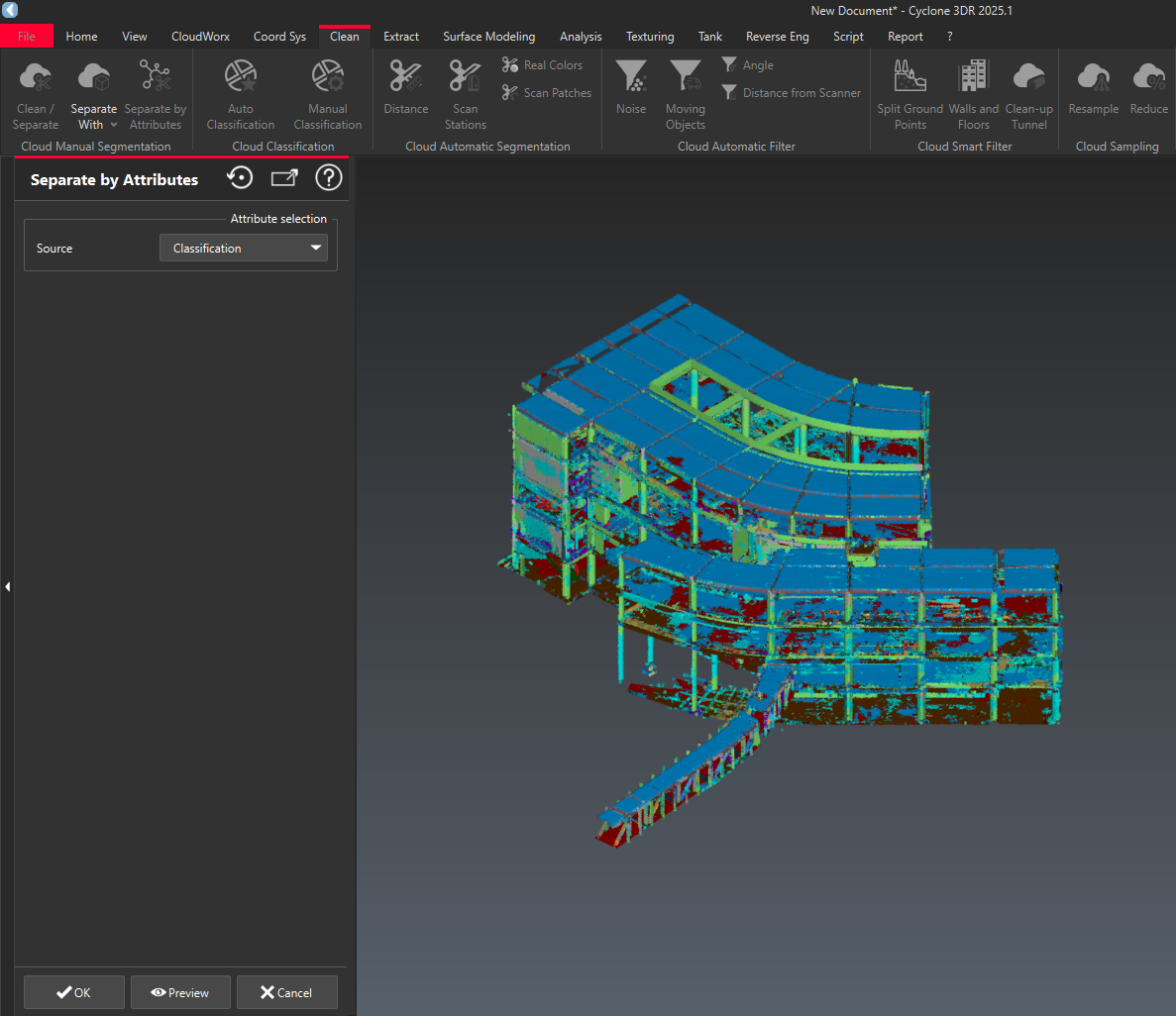
“Separate by Attributes” flow
The resulting list of attributes will be made available, allowing you to toggle the visibility of each class by clicking on the light bulb icon. By hiding specific classes, you can filter out noise or irrelevant data in preparation for inspection or scan to BIM operations.
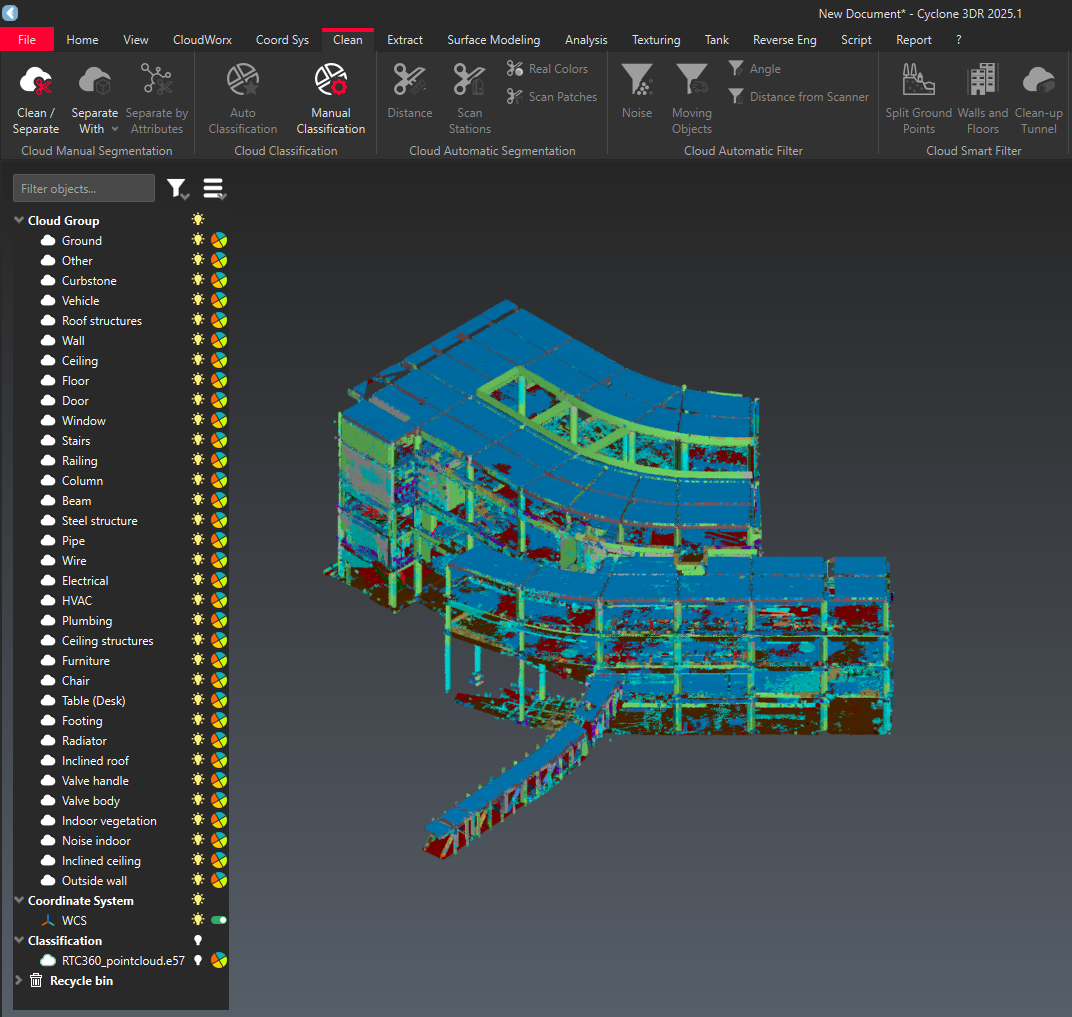
Toggle visibility for each of the identified classes
Known Issues
Class names not available with CloudWorx integrations
Class Names (“Category” column) in the Class Visibility dialogue are not available with CloudWorx 2025.1.0 or earlier. Upgrade to 2025.1.1 or newer to see the Class Names in the Category column.
Model names not available with CloudWorx integrations
“Model” column currently doesn’t show correct name of the model used for Classification.
Some data sets fail to process completely
This is the result of one or a combination of the following:
High Density of the Point Cloud.
High number of Classes in the chosen "Model".
The Class Models with the most classes are Indoor Construction, Rail, and Road.
High density point clouds together with one of these three Classification Models is likely to result in the failure.