
Mini map
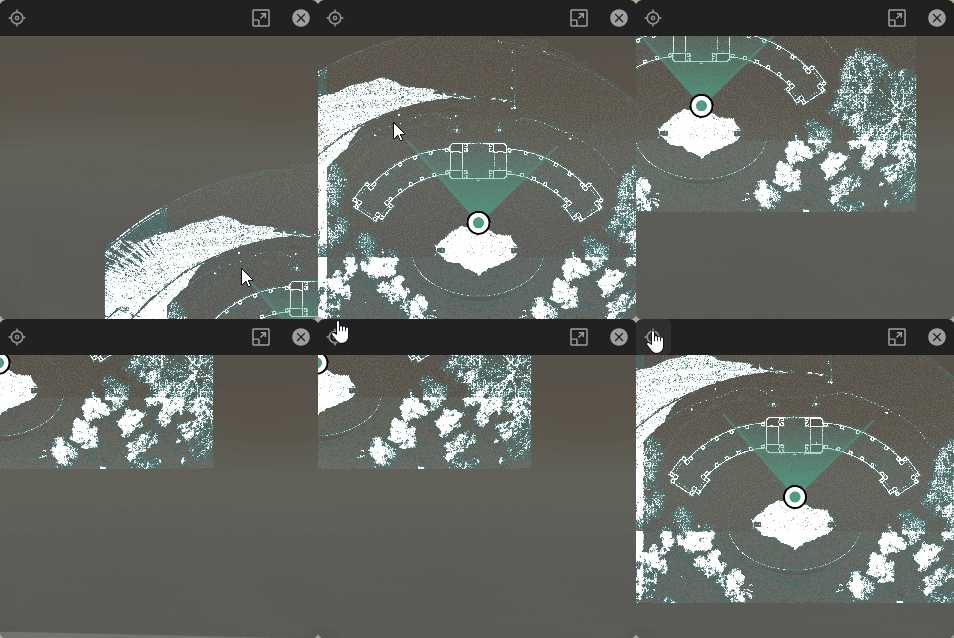
Reality Cloud Studio now displays a Mini Map view of the asset, familiar to users of other Reality Capture products. The Mini Map offers a static, top-down view of the asset with a location dot and direction of view indicator cone. Within the Mini Map window, users can pan and zoom the map as well as (re)center the map to the user’s current location. The Mini Map window can also be enlarged, reduced (back to default size) or closed entirely to create an unobstructed view of the asset.
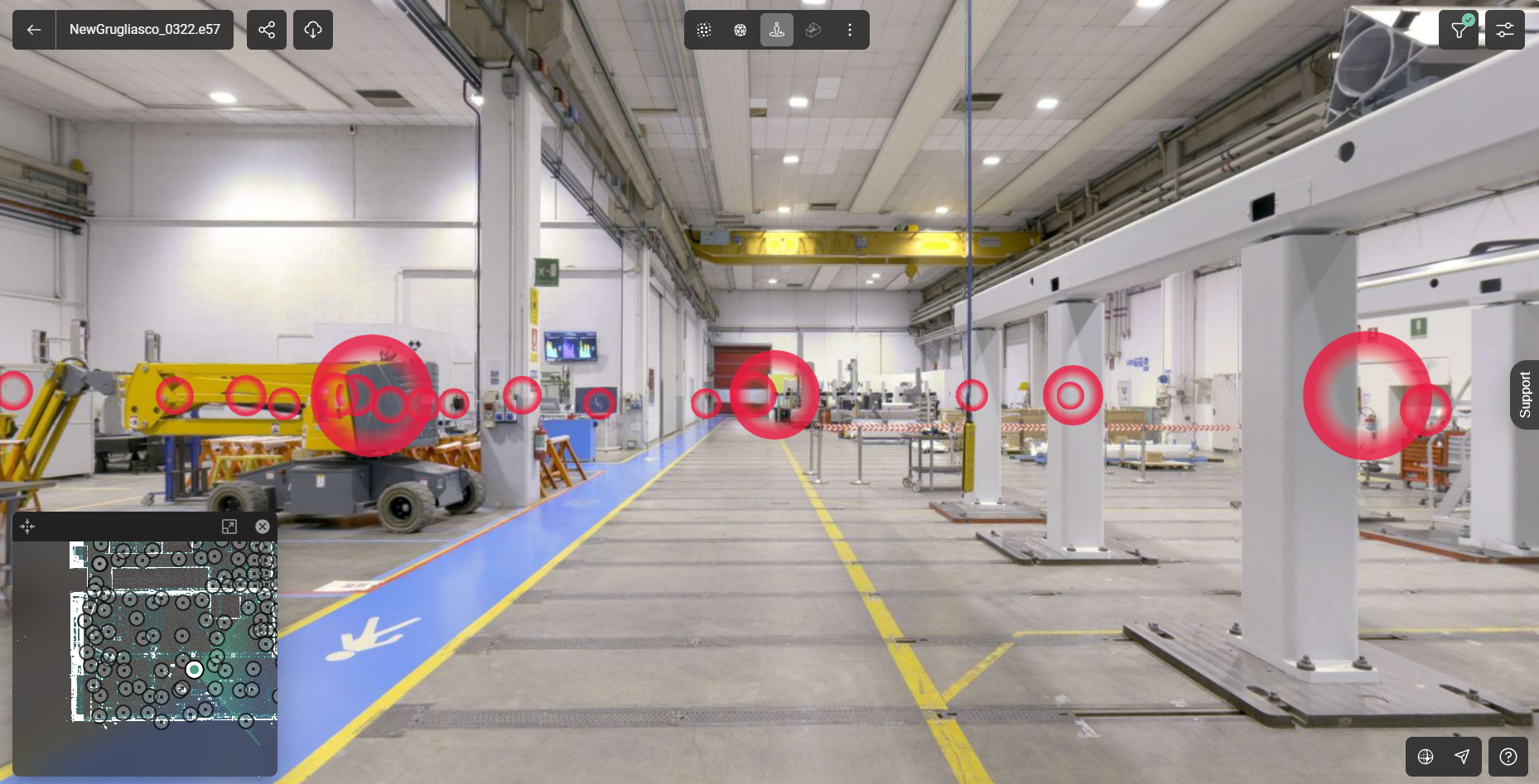
Mini map showing the setup disks
Unlike the Mini Map found in TruView and TruSpace, the Reality Cloud Studio Mini Map is created within Reality Cloud Studio from the full extents of the available data and displayed in a silhouette mode, which allows users to better identify features of the data particularly in indoor environments.
Users can navigate around the Mini Map by dragging the map within its window. To center again on the position indicator click the Reset View button in the top left of the Mini Map window.
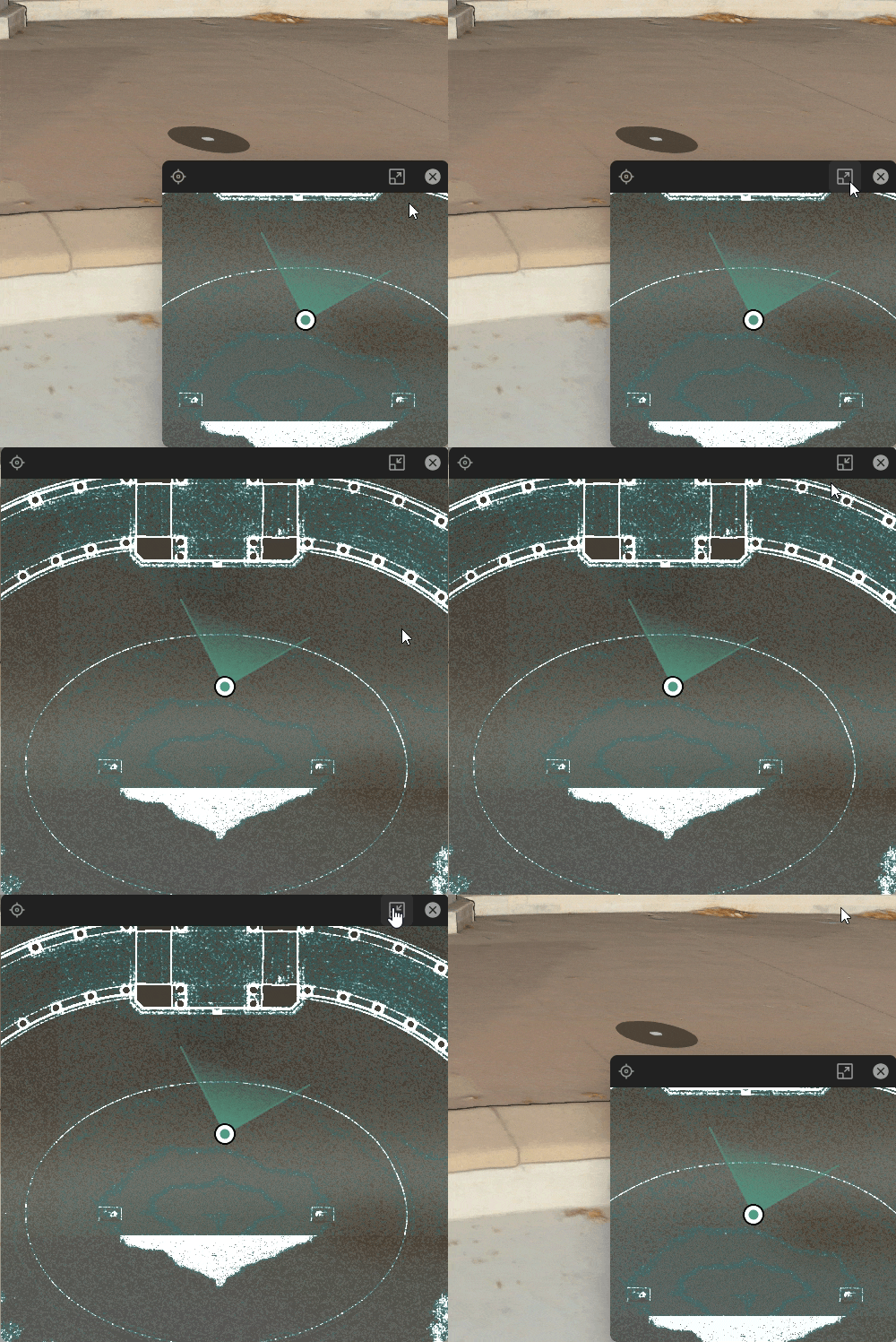
To enlarge or reduce the Mini Map, click the Window Scaling button.
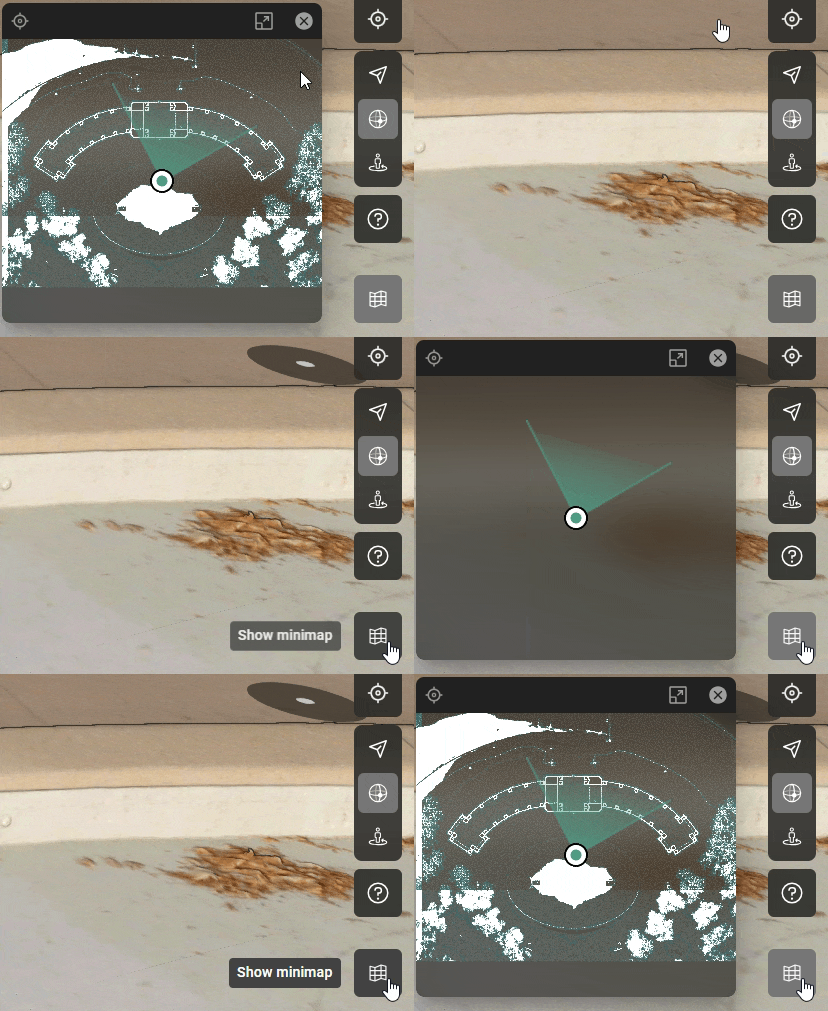
To close the Mini Map, either click the X in the top right corner of the window or the Mini Map Visibility icon at the bottom right of the Asset viewing Window. Use the same Mini Map Visibility icon to turn the Mini Map back on once hidden.
Panoramic images are available on the Mini Map. Switch to pano mode by double clicking on a panoramic image in the Mini Map.