This article explains registration parameters in PinPoint Registration Tool.
Threshold Value
The Threshold Value defines the limit used by the registration algorithm to determine valid correspondences between point clouds in both Standard Mode and Expert Mode. A suitable threshold ensures that only meaningful point matches are considered during alignment.
Standard Mode
Standard Mode is the default operating mode. 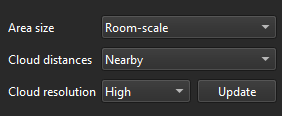
Each registration parameter is presented with a drop-down menu offering several predefined options. These presets are optimised for typical use cases and help ensure reliable registration without requiring manual finetuning.
Expert Mode
Expert Mode can be activated from the Registration menu. 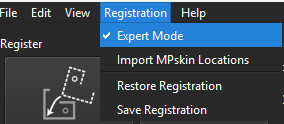
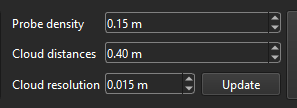
This mode provides direct access to the exact parameter values underlying the Standard Mode presets.
Users can review these values and manually adjust them to refine registration behaviour and optimise results for advanced or specialised workflows.
Impact on Registration Results
The choice of parameter values has a direct impact on registration quality.
Area Size & Probe Density
Defines the spacing between the sample points ("probes") selected from one cloud when searching for correspondences in the other cloud:
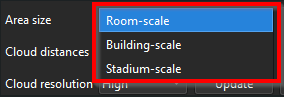
Standard Mode: Uses predefined scales, such as Room-scale, Building-scale, and Stadium-scale.
Expert Mode: The probe density is set to 0.15, 0.30, 0.70 corresponding Room-scale, Building-scale, and Stadium-scale, but the user can manually adjust it to refine sampling behaviour.
A smaller distance (denser sampling) uses more probe points per iteration, producing a more robust fit that better captures fine surface detail, at the cost of slower computation per iteration. A larger distance (sparser sampling) speeds up each iteration but relies on less geometric detail, which can make the fit noisier or less accurate on complex or curved surfaces.
Cloud Distances
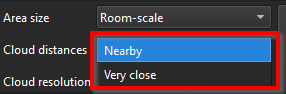
A larger cloud distance allows the algorithm to bridge bigger initial misalignments and produces larger per-iteration correction steps, speeding up convergence. However, setting it too high increases the risk of matching points that don't actually correspond, which can lead to incorrect or unstable registration. Setting it too low may prevent convergence if the clouds start out significantly misaligned.
When correspondences are detected within the defined distance, the involved point clouds are aligned through translation and rotation.
The selected cloud distance directly influences the maximum achievable registration accuracy, as correspondences outside this range will not be considered.
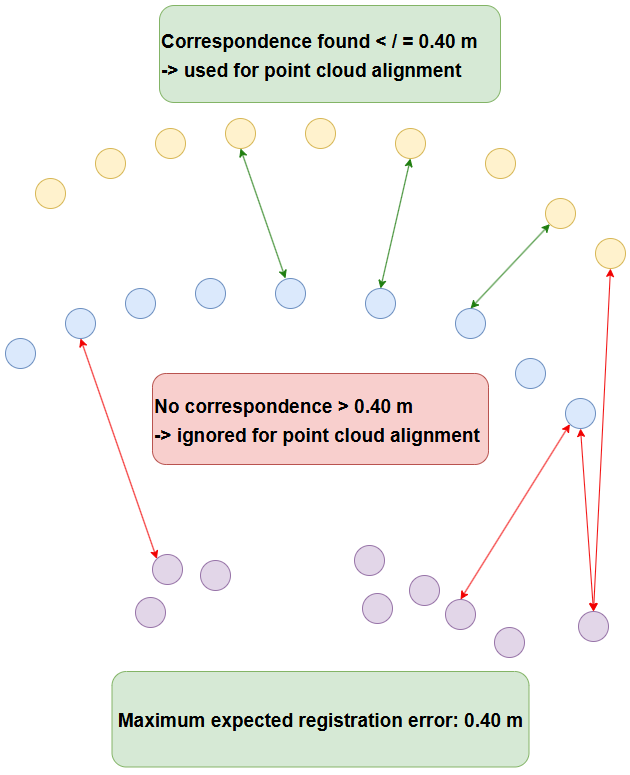
For example, when the Cloud Distance parameter is set to 0.40 m, the registration algorithm attempts to align the point clouds so that corresponding points fall within this range.
If a correspondence is found within 0.40 m, the algorithm uses it to snap the point clouds toward each other. The maximum expected registration error is therefore 0.40 m.
If a point in one cloud does not find a matching point within 0.40 m, it is ignored during the computation and does not contribute to the final registration statistics. This ensures that only meaningful and spatially relevant correspondences influence the alignment result.
Cloud Resolutions
This parameter controls the resolution of the point clouds used during the correspondence search.
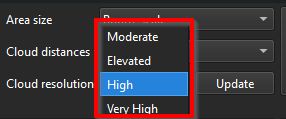
Higher resolutions include a larger number of points in the computation, which can improve accuracy but also increase processing time and computational load.
Lower resolutions reduce processing effort but may result in fewer detected correspondences.