Initial SSO Login and Admin Setup
The following steps apply to all accounts, whether new or existing, when setting up SSO for the first time.
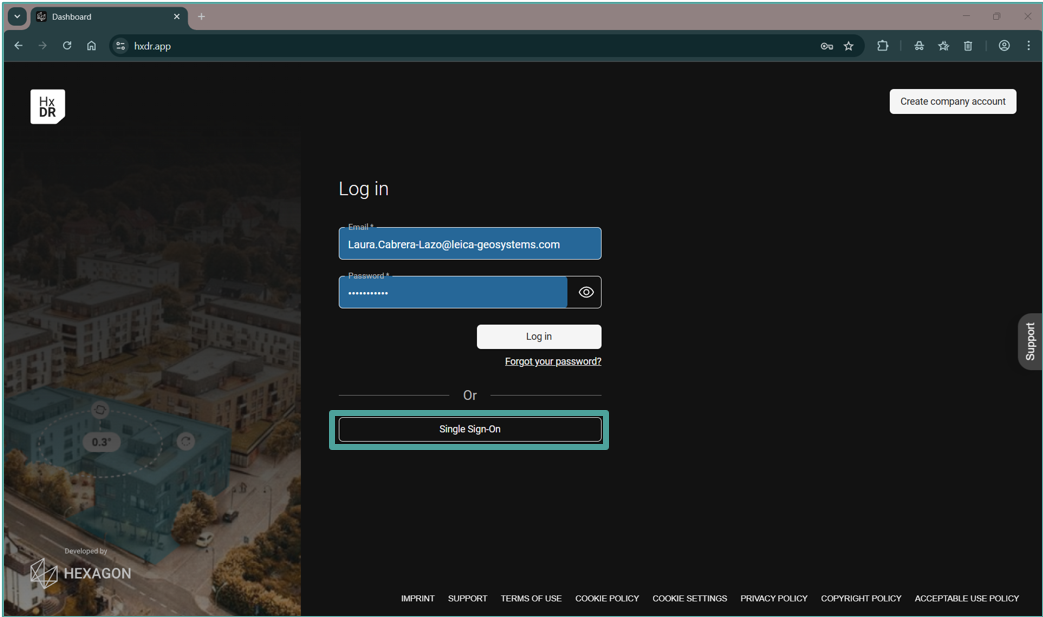
On the login page, select "Single Sign-On"
Go to https://hxdr.app/ and log in using Single Sign-On (SSO).
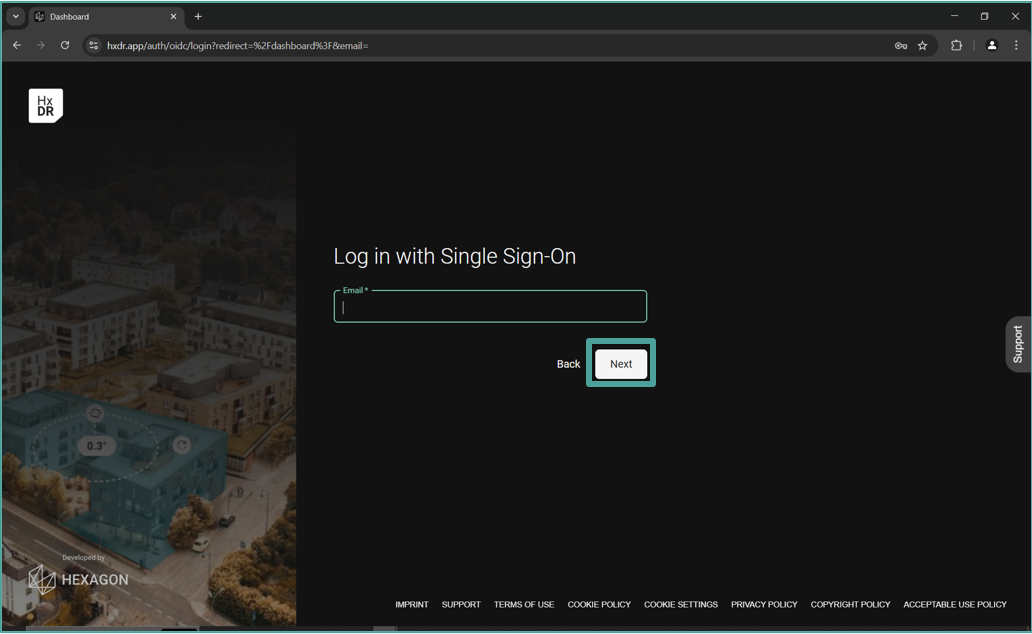
Enter your email
Use your company email address.
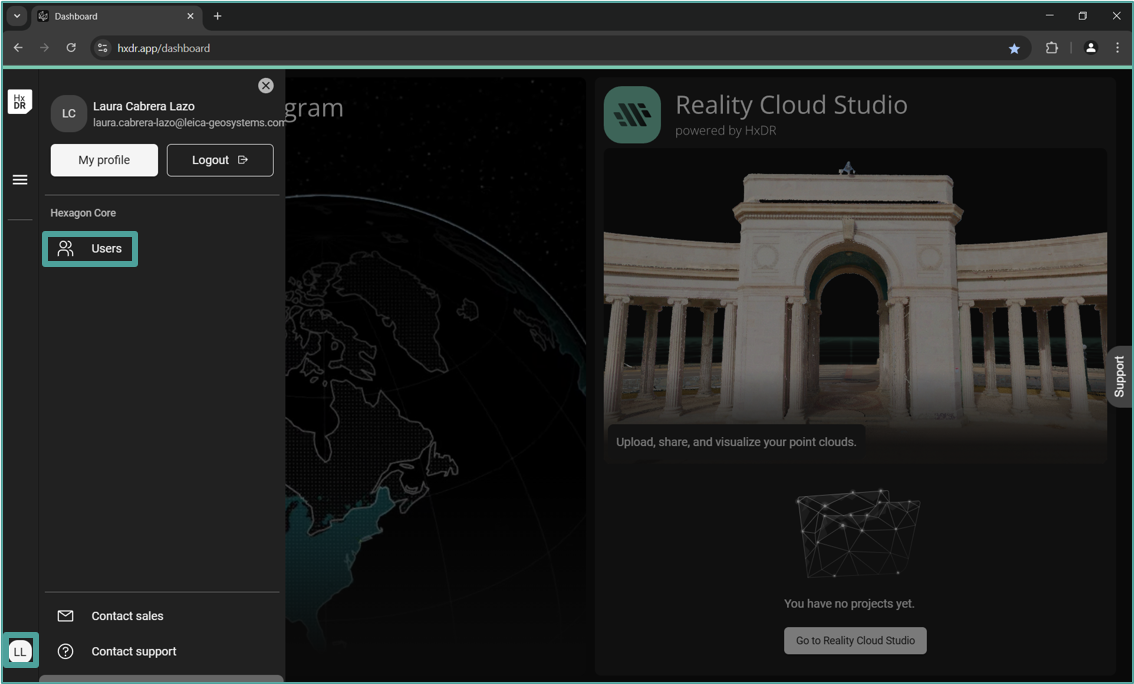
Access the user menu
Once logged in, click on the icon with your initials located on the lower left-hand side to access the user menu.
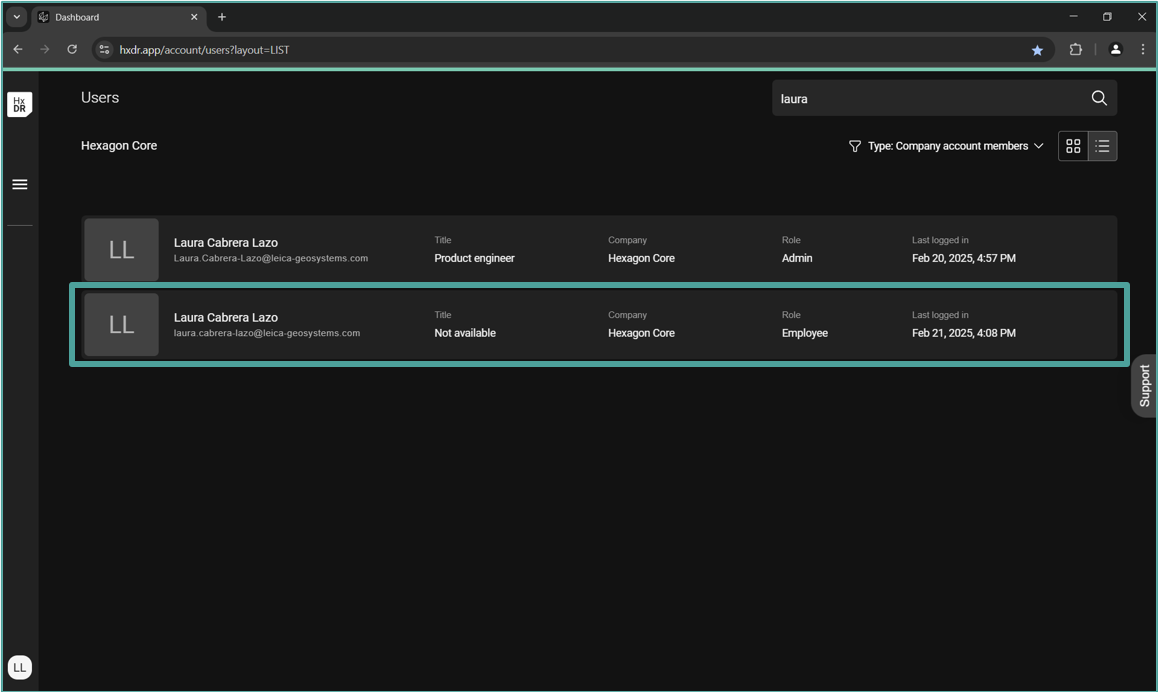
Identify your SSO user
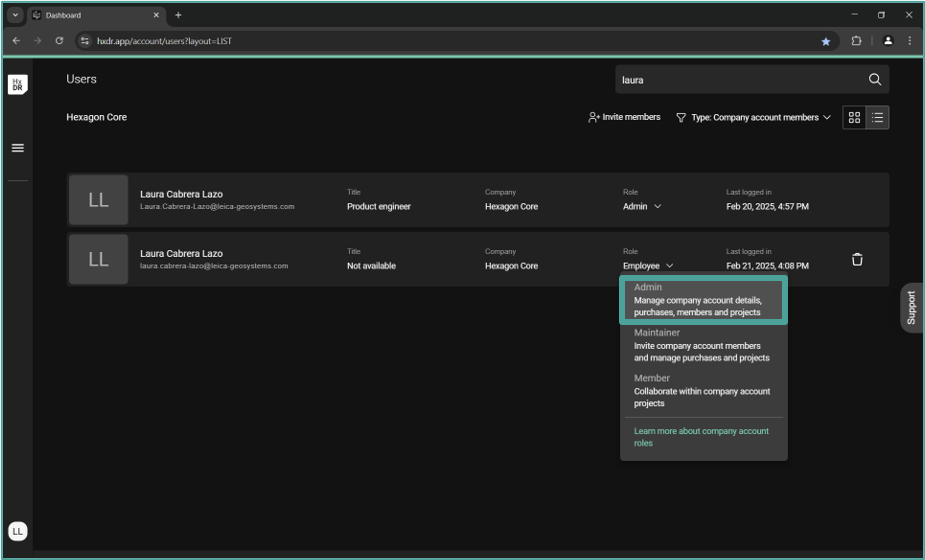
In the "User" menu, you will see two users: the one created without SSO and one with SSO login. The user with the role "Employee" and title "Not Available" is the SSO user.
Make your SSO user an admin
To manage the account and users, you need to make your SSO user an admin:
Log out and log in again using your non-SSO user credentials.
Go to the user menu and change the role of your SSO user to "Admin".
Transfer your projects (skip if none)
If your non-SSO user owns any projects, transfer ownership and memberships to your SSO user before continuing. Follow the Moving project ownership to SSO user guide for each project.
Skip this step if your non-SSO user does not own any projects.
Remove your legacy account
Log in again with your SSO user. Once logged in, clicking on the icon with your initials will now show the full Admin menu, including company, users, and subscription information.
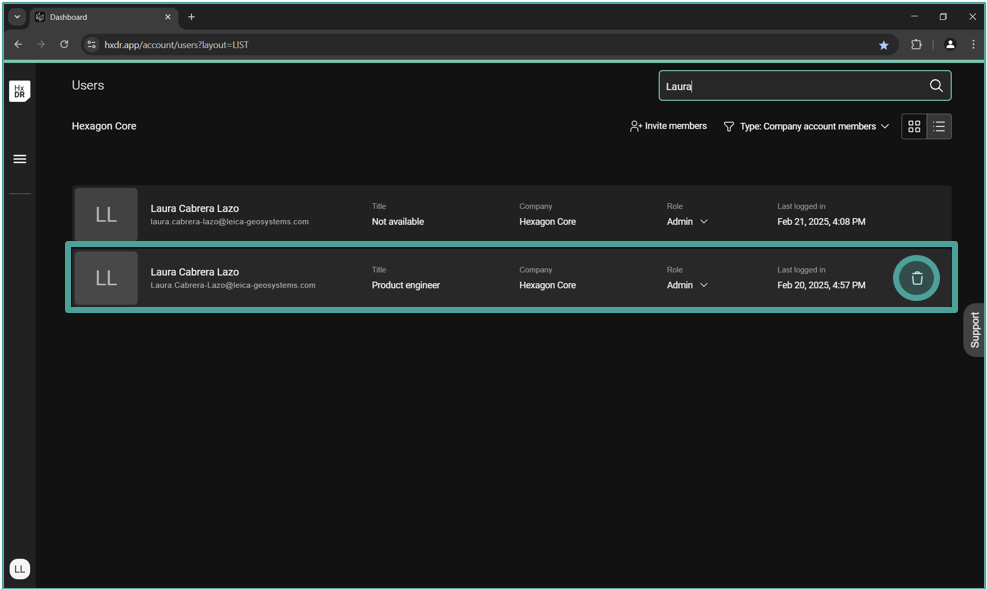
Go to the user menu and delete your non-SSO user (the one with a title).
Adding new users
New accounts
Once SSO is configured, colleagues join by logging in to hxdr.app with their company credentials — no invitation email is needed. Their account is created automatically on first login and appears in the Users menu for the admin to assign a role.
Existing accounts (with prior non-SSO users)
For an existing account where users were already invited and need to migrate to SSO, follow the Roll out SSO to your team guide for the full migration sequence.
Activate subscription (new accounts only)
To start using Hexagon GeoCloud, a subscription must be activated. Please follow the steps of Activating your subscription for subscription activation.