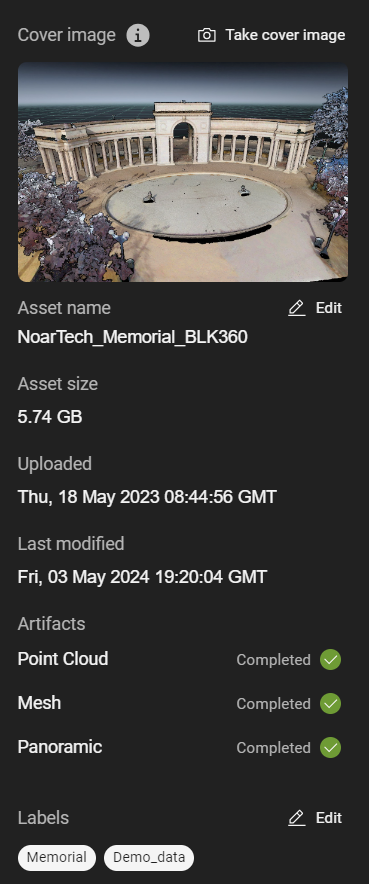
The Asset details section allows the user to quickly review and modify information about the asset.
Edit asset details
Click Asset details to access the section.
From this section the following actions can be taken:
Add or edit the asset cover image. The cover image appears in the list of assets within a project to preview the asset without opening.
Edit the asset name.
Add or edit the asset labels. Asset labels can be used to search and filter for the asset to quickly locate it.
To add or edit the asset cover image, click Take cover image.
Adjust the view to the desired perspective.
Click the white shutter button to capture the view.
To edit the asset name, click the Edit button next to the name.
Rename the asset.
Click Save.
To add or edit the asset labels, click the Edit button next to the labels.
Delete or add any desired labels.
Click Save.
Labels are separated by a space. If needing to use multiple words separate words with an '_' (e.g. Demo_data)
Review asset details
Some asset details cannot be edited, as they are innate to the project.
Asset size - displays the file size of the asset. This size represents the amount of data that would be consumed from the user’s subscription if the asset was exported.
Uploaded - displays the date and time when the asset was uploaded.
Last modified - displays the date and time when the asset last had additions (e.g. GeoTags added) or changes were made.
Artifacts - artifacts are the sub-components of an asset.
Point Cloud - Reports Completed if point cloud was processed.
Mesh - Reports Completed if a mesh was already generated.
Generate - Automatically generate a mesh if one was not previously generated.
Panoramic - Reports Completed if panoramic images were included and processed.
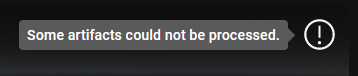
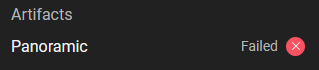
If any of the artifacts fail to process you will see the following on the asset tile and asset artifacts (e.g. Panoramic images failed)
Generating a mesh will consume data from a user’s subscription.