Function
Body Poser allows you to insert a 2D human form into your drawing providing accurately scaled non-graphical representations for your diagrams.
Procedure
Select the Body Poser command and from the drop-down list select the Male, Female or Child form as depicted below.
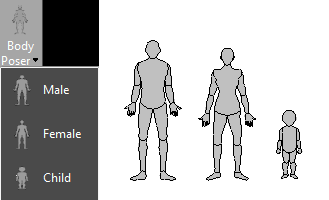
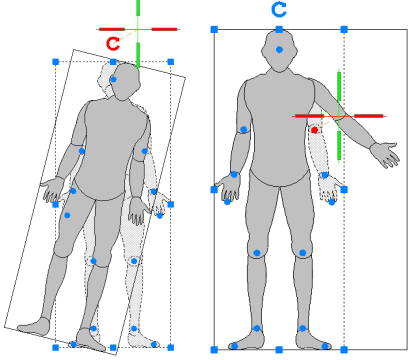
After you have made your selection, left click where you wish to place the body into your drawing. Once placed you can select the body for grips to display, which allows you to rotate, move or stretch the body.
Hovering the mouse over the rotation arrow turns it red; click to activate it, and click a second time to set the rotation angle. Hovering over an articulation point turns the grip red. Left-click and use the mouse to reposition the limb, then click a second time to place it.
Modifying Properties
Select the body to display the Properties panel on the left side, as shown below. If Properties are not open, right click and select Properties from the menu.
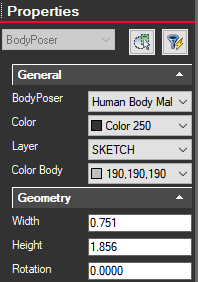
In Properties under the Body Poser drop down you can select to change to back or side views. You can also modify the overall color, change the layer, rotation or modify dimensions including entering an exact height.
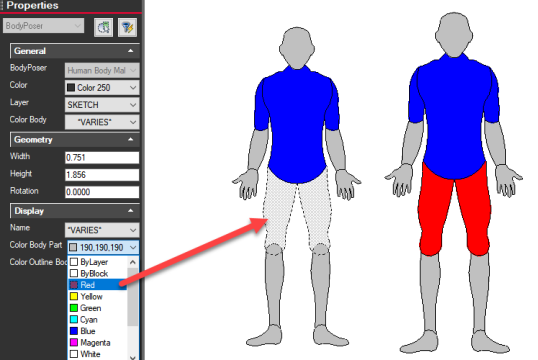
Add solid fill color to specific areas by left clicking on section or use Ctrl and left mouse to select more than one area. The selected area will then display as shaded with dashed outlines. On the Properties dialog select Color Body Part and from drop down select color or choose Select Color option that will display a color palette to choose from.
In this example red shorts were added to the figure: