Improvements
Name your scene straight away - When you create a new scene from your assets, the scene name field is ready for typing as soon as the dialog opens, the same way it works for visual comparison scenes.
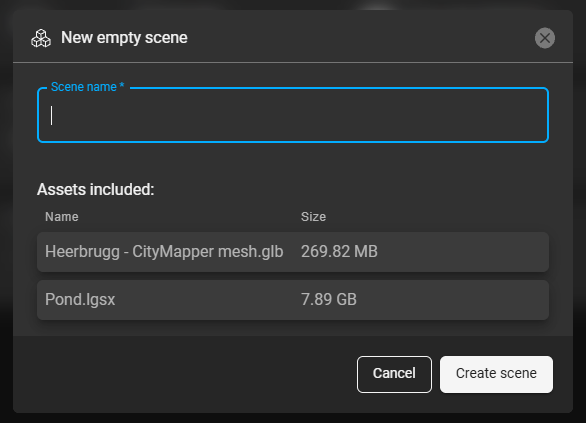
New empty scene dialog
See full asset names in scenes - When an asset name is too long for the scene drawer and is cut off, hover over it to see the full name. This makes it easy to tell apart assets with similar names.
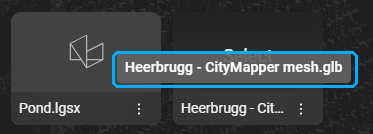
Full asset name in the scene drawer
Know which way you're facing in Panorama mode - In Panorama mode, a compass now takes the place of the view cube and shows which way you're facing. Its axes use the same colours as the view cube, and a shaded cone shows your field of view. When you zoom in or out in the panoramic image, the cone narrows or widens with your field of view, giving you a better feel for your orientation. When you change the coordinate system, the compass follows it, as the view cube does.
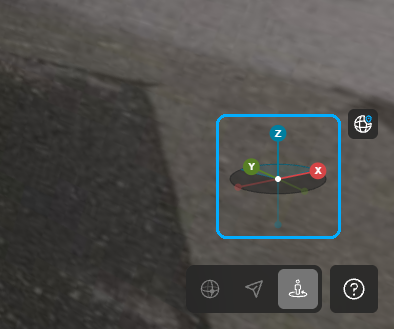
Compass in Panorama mode
Clearer pointer over measurements - Your pointer now changes to a hand when you hover over any measurement in the viewer, so you can see what you're about to select.
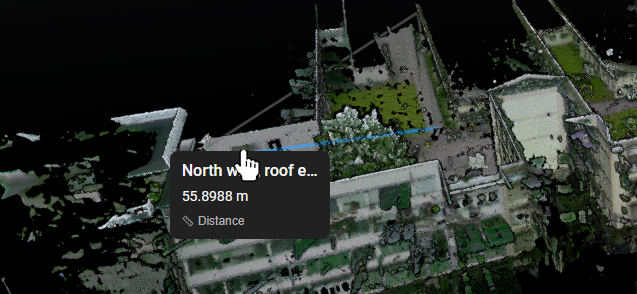
Hand pointer over a measurement
Bug fixes
Previously, on some screen sizes the button to continue creating a company account was covered by the page footer and couldn't be clicked. The button now works at any screen resolution or window size.
Before this release, an area measurement could look wrong while you moved its points, even though the saved result was correct. The area now displays correctly while you edit it.
Until now, opening a shared GeoTag link opened the asset but didn't select or go to the GeoTag. Shared GeoTag links now take you straight to the referenced GeoTag.
Previously, after signing in you were sometimes sent back to the login page and had to click Log in again. You now go straight to Hexagon GeoCloud after you sign in.
Before this release, processing could fail for assets in projects stored in AP - India. Processing now completes for these projects.
Until now, creating a visual comparison scene from two B2G assets showed two empty previews. Both assets now display so you can compare them.
In earlier versions, when you created a scene from two B2G assets and chose Align to other nodes, only one of the two nodes was listed, so you couldn't complete the alignment. Both nodes now appear and you can align them.
Previously, if you moved to the second page of a folder in the scene library and then clicked the project name in the folder path at the top of the library, the library showed the project as empty. The library now shows all of the project's folders and assets.
In earlier versions, with the browser language set to German, the message shown after creating a project displayed its link incorrectly. The link now displays correctly.
Before this release, once your company reached its subscription quota, files you view in the browser, such as PDFs, images and text files, could no longer be opened. You can now keep viewing them.