Navigation modes allow the user to switch between different methods of navigating and engaging with the asset.
The Help button content will change depending on the active navigation mode.
Orbit
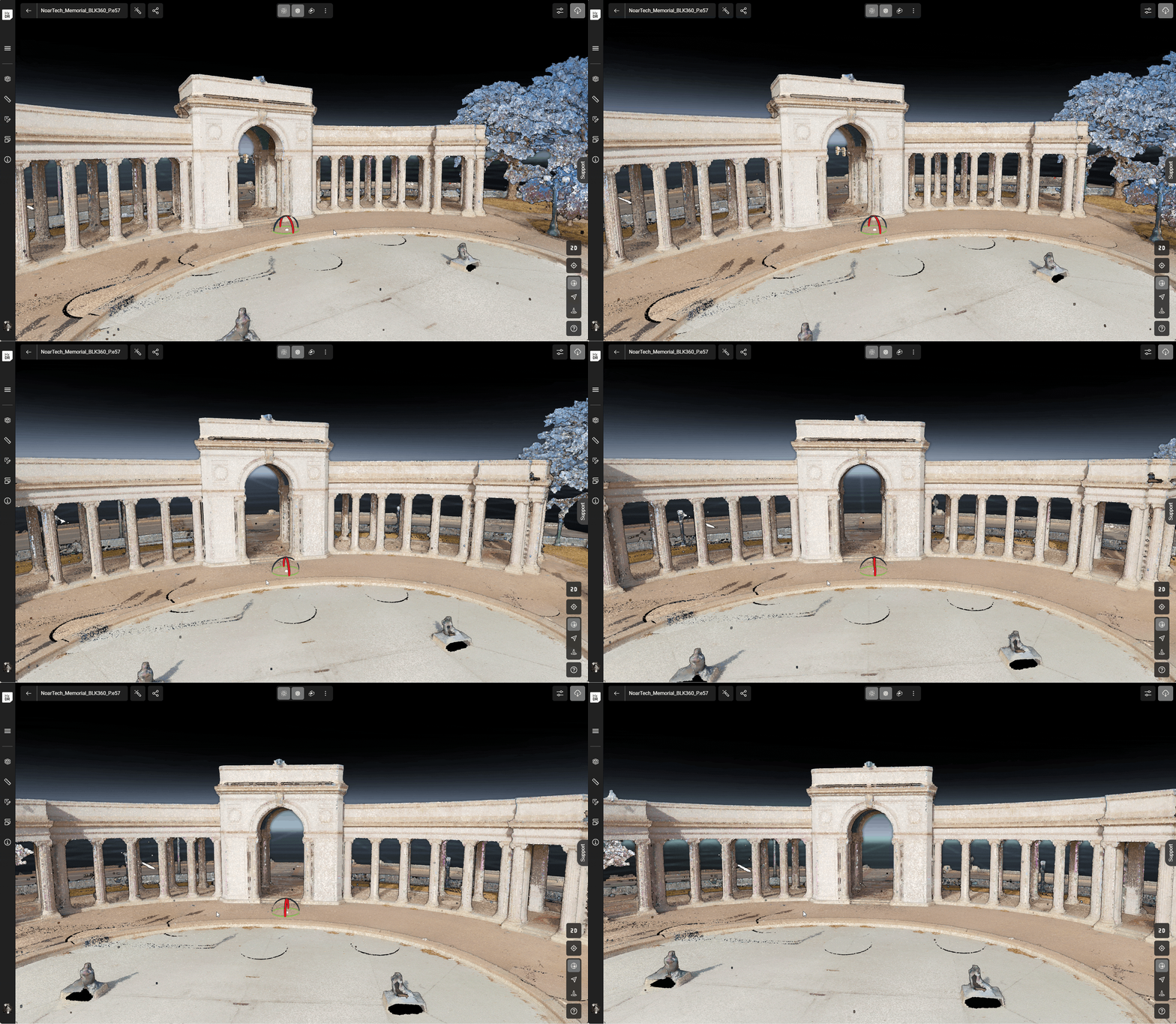
| Sets navigation control to orbit mode. Orbit Mode changes the orientation of the scene without changing your perceived distance from it. The user will orbit around the point clicked.
|
|
Fly
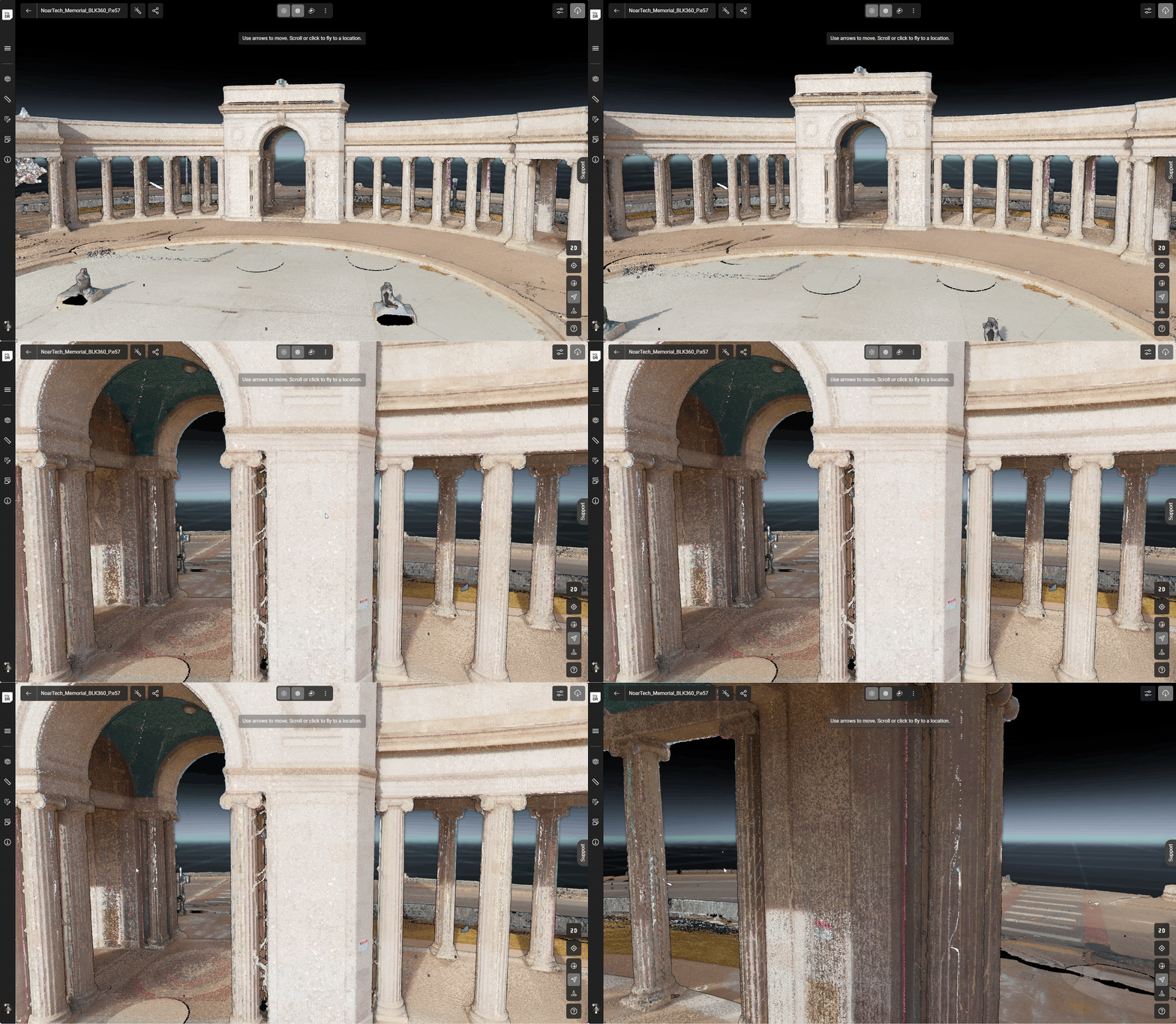
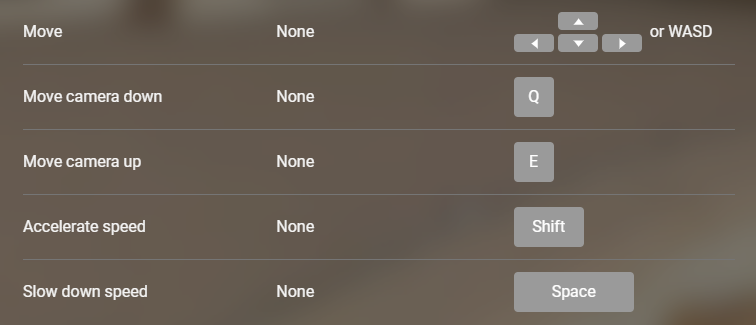
| Switches navigation into a fly mode. Fly mode moves the viewpoint through the scene in a flying manner (first-person). Movement is controlled by using the keyboard arrow keys or using WASD keys. Also Q (down) and E (up) to control altitude. Speed is controlled by holding either the space bar down (slow speed) or holding shift key down (increase speed). |
|
Walk
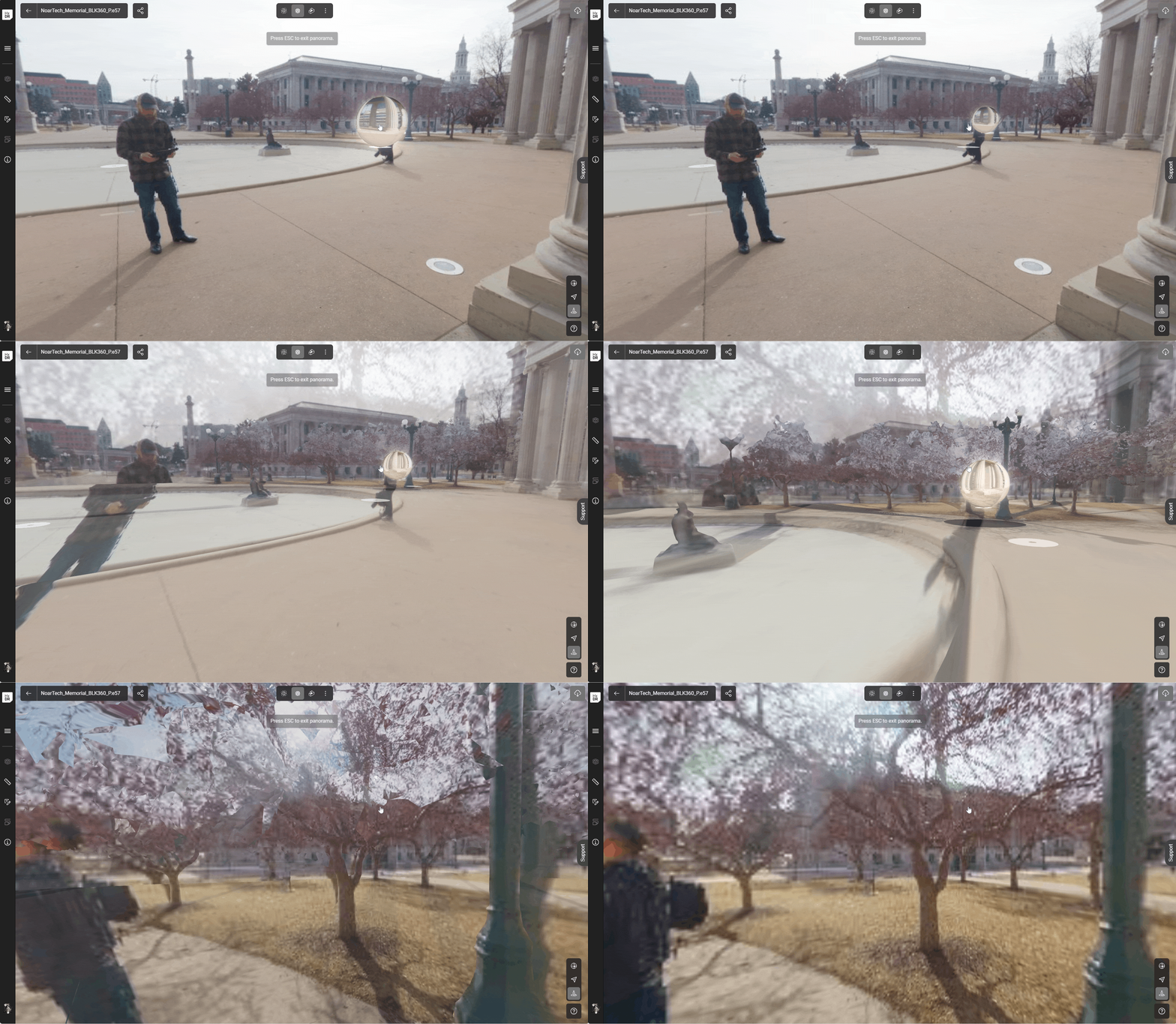
| Switches navigation into nearest panoramic image view. Walk mode moves the scene around a fixed point, and can be used only at defined panoramic viewpoint locations.
|
|
Navigation Controls Help
| Opens help for the active navigation mode controls dialog for control keys and shortcuts. |




Viewcube
The viewcube sits in the corner of the view and shows the current orientation of your data. Use it to switch to a preset view, such as looking straight down at the data from above.
The viewcube is available in the asset viewer and in every scene. For assets with a User Coordinate System (UCS), it aligns to the UCS axes.
In Walk mode, a compass takes the place of the view cube and shows which way you're facing. A shaded cone shows your field of view and narrows or widens as you zoom in and out. The compass follows the selected coordinate system, as the view cube does.
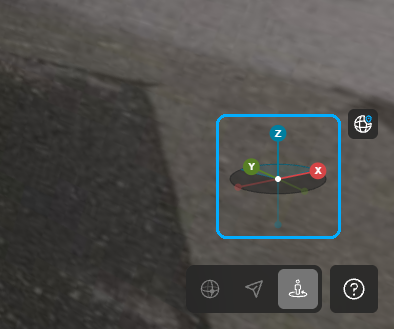
Compass in Walk mode