RTC300, RTC500, and RTC700 scanner Jobs may contain embedded Control Points directly inside the scanner Job structure.
This workflow simplifies project preparation and improves the overall user experience by eliminating the need for separate Control Point imports during post-processing.
Unlike workflows used with some previous scanner generations, Control Point information is stored directly inside the scanner Job itself.
When importing a Job that contains embedded Control Points, Cyclone REGISTER 360 PLUS automatically recognises and imports:
Control Point collections
Control Point coordinates
Target associations created in Cyclone FIELD 360
No separate TXT file import is required.
Users can load and manage Control Points directly in Cyclone FIELD 360 during field work.
Within Cyclone FIELD 360, users can:
Load Control Point coordinates
Connect Control Points to Targets detected or created in the project.
Once synchronised, this information becomes part of the scanner Job created by RTC300, RTC500, and RTC700 scanners.
Embedded Control Points are already visible during the import workflow.
In the Navigation Pane, Cyclone REGISTER 360 PLUS displays a dedicated Control Points section that contains the Control Point collections detected in the imported Job.
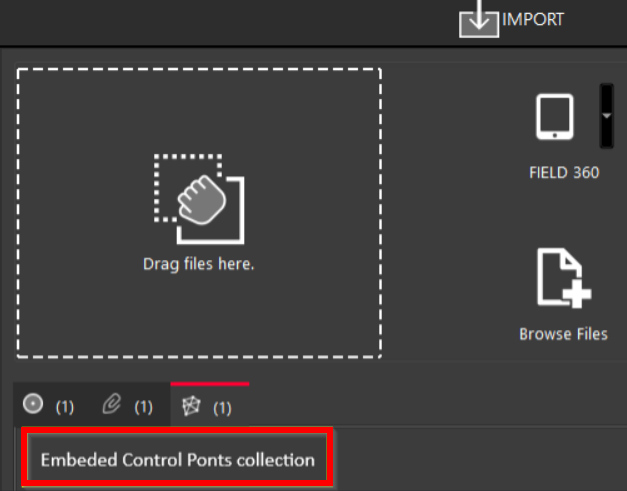
This allows users to verify the Control Point content before starting the import.
After the Job import is complete, the imported Control Points remain available in the project under the Control Points tab.
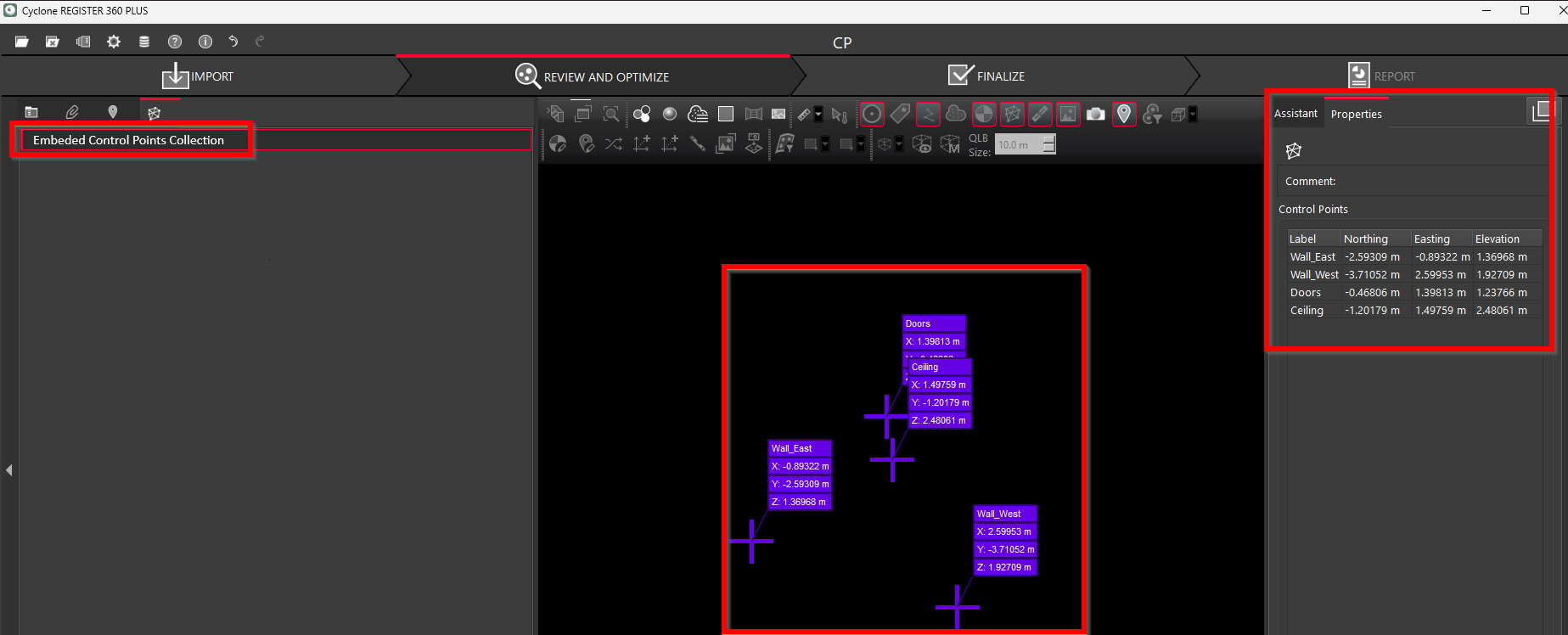
Since the Target associations are already included in the imported Job, users can immediately proceed with the Control Point workflow.
To apply the imported Control Points, simply click Apply Control from the context menu.
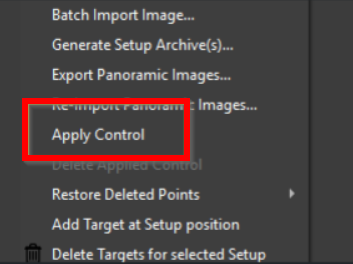
This streamlines the registration workflow and significantly reduces the amount of manual preparation required after import.
The traditional Control Point workflow is still fully supported.
Users can continue to:
Import Control Points manually after Job import
Load TXT-based coordinate files
Create or edit Control Point assignments directly inside Cyclone REGISTER 360 PLUS.
The Embedded Control Points workflow is therefore an extension of the existing functionality designed to improve workflow efficiency and user experience while maintaining compatibility with previous project workflows.