Setup/Bundle Rotation
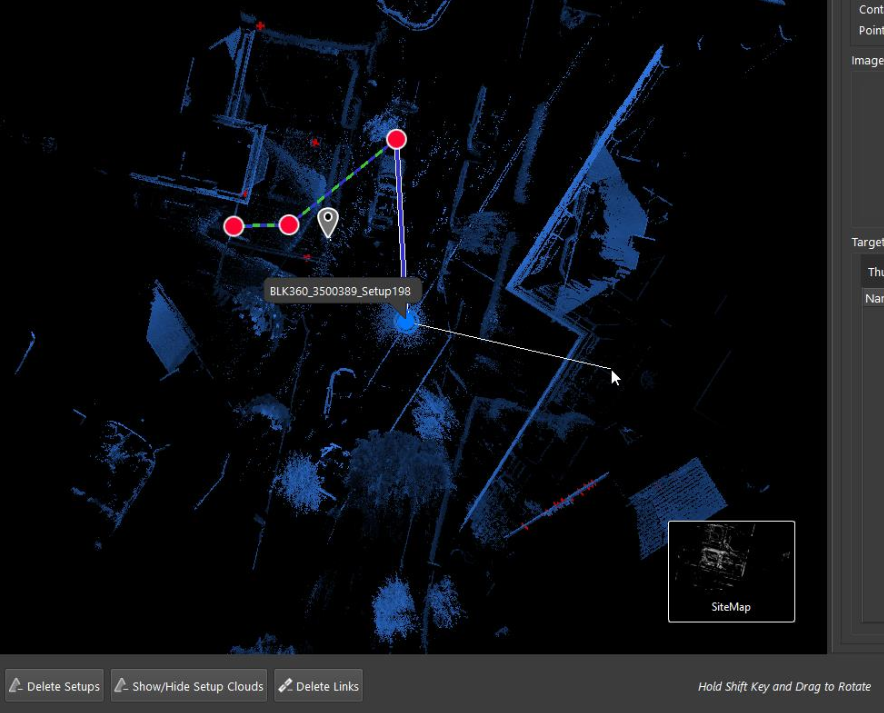
To rotate a setup or bundle, click a setup in the SiteMap view, then hold down the Shift key and drag the mouse away from the setup. A rubber band indicator will appear and allow rotation of the setup and/or bundle.
Tips for Viewing
Tips for Inspecting Bundles and Links
Links are colored GREEN, YELLOW, or RED to indicate the error.
By default:
GREEN indicates an overall error of less than 7 mm.
YELLOW indicates an overall error between 7 mm and 10 mm.
RED indicates an overall error of greater than 10 mm.
BLUE indicates a pre-registered or user created link.
WHITE indicates a suggested link.
A dashed link indicates that the link is un-optimized.
Defaults for error thresholds can be changed in the Settings area.
Bundle Inspection and Bundle Joining
Explanation of Strength in Bundles and Links
When a Bundle or Link is selected, there will be a value of Strength shown in the properties panel. The video below explains how this value is calculated and what it means to the user.
TruSlicer
Use horizontal slices to spot check your registration. Each setup scan is colored differently to easily view how well they align.