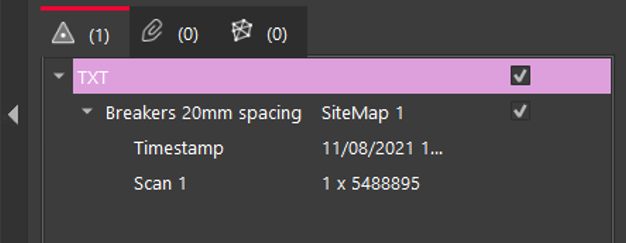
Point clouds as text can also be imported in a wide variety of formats.
To add a point cloud in a .txt format, follow the steps below:
Select Cloud points as .txt:
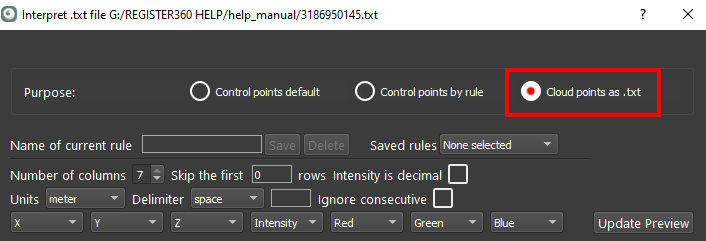
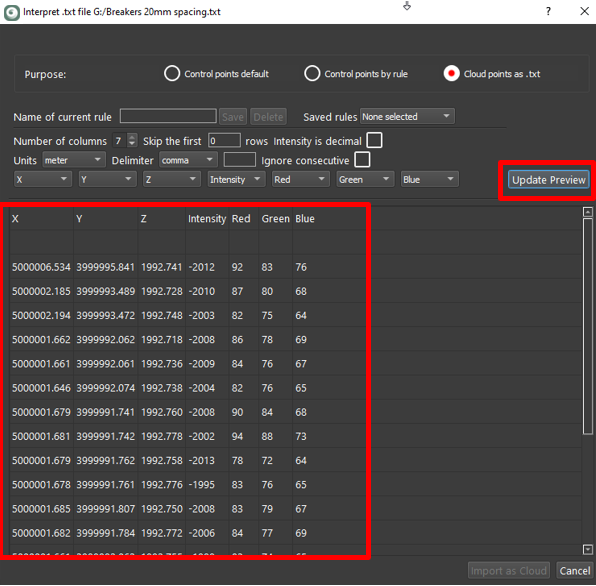
Select the correct designation for each column:
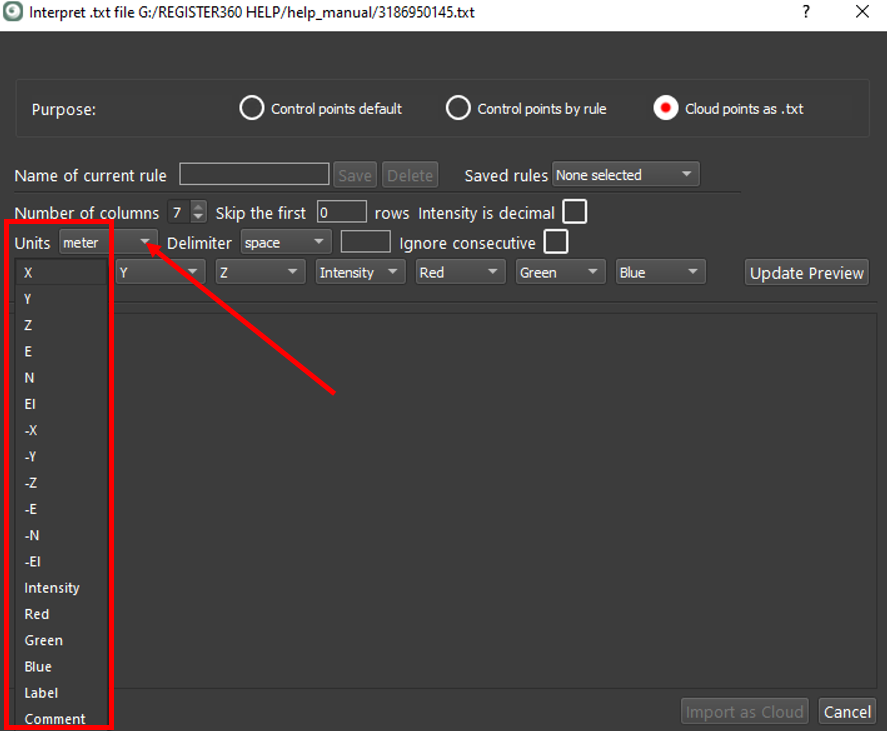
In this case, it is X, Y, Z, Intensity, R, G, B:
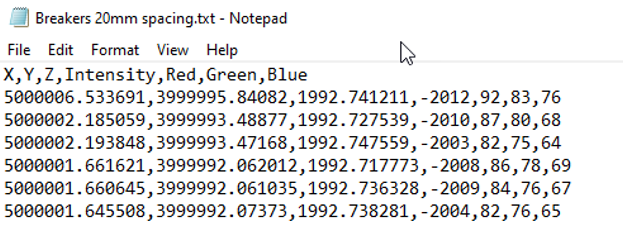
Select the Units, Delimiter, and other optional settings.
Double-check the intensity notation in a TXT file before importing it.
If the intensity information appears as a decimal value, select the Intensity is decimal check box to import the file accurately.
Note: In a TXT file for import, intensity can be expressed either as a decimal, with a range of 0 to 1 (for example, 0.1) or as a number ranging between -2048 and +2048.
Click the Update Preview button to verify the selected results before import:
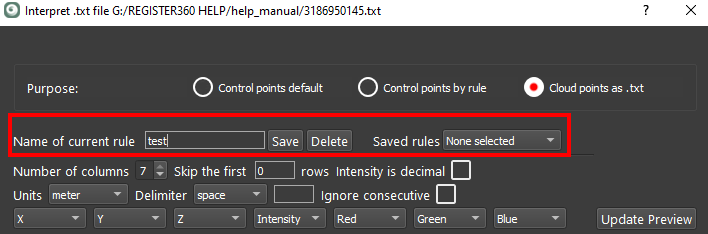
Once verified, name and then save a rule:
The Import as Cloud button will be enabled. Click the Import as Cloud button to finish the process.
The TXT file will be added to the Import area as a point source in the left side panel: