
Installers
CloudWorx for AutoCAD / CloudWorx Viewer for AutoCAD
What’s New
CloudWorx 2026.1.1 is a minor release that includes rendering enhancements in CloudWorx for AutoCAD, an updated Distance Units list across all CloudWorx plug-ins, and a few bug fixes to improve stability.
autocad
Enhanced Point Cloud Rendering in CloudWorx for AutoCAD
A new point cloud rendering method has been introduced in CloudWorx for AutoCAD to deliver improved visualisation performance for compatible datasets.
This enhancement is available for non-encrypted LGSx files and GeoCloud point clouds and also supports multi-cloud workflows. When multiple point clouds are loaded, the new rendering method is automatically applied if all are compatible. If any loaded point cloud is not compatible, the legacy rendering method is used for all loaded point clouds to ensure a consistent experience.
The new rendering method supports all clipping methods, colour mapping, visibility by class, Silhouette mode, TruSpace synchronisation, point picking, and Smart Pick viewport functionality.
For the best performance, it is recommended to use one of the following AutoCAD visual styles: Conceptual, Hidden, Realistic (AutoCAD 2027 only), Shaded, Shaded with edges, or Wireframe.
.png)
Note: When orbiting while using the 2D Wireframe mode, the user may notice a brief flash in the point cloud because AutoCAD briefly switches the visualisation modes to a 3D mode.
all cloudworx
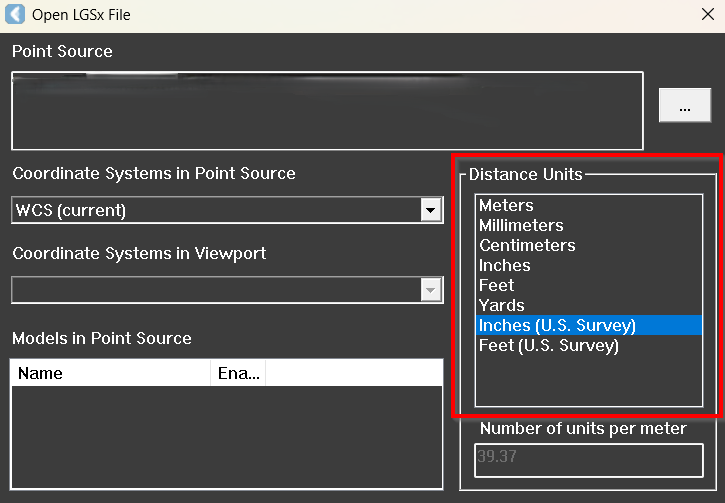
Updates to Available Distance Units
The Inches (U.S. Survey) unit has been restored and is now available in the Distance Units list.
Users can continue to import and measure data in U.S. Survey inches where required, ensuring greater flexibility when working with different measurement workflows.

Bug Fixes
all cloudworx
Fixed an issue that occasionally prevented users from connecting to or importing data from Hexagon GeoCloud. As part of this improvement, GeoCloud authentication now takes place in the user’s default web browser instead of the browser integrated into the login window.
revit
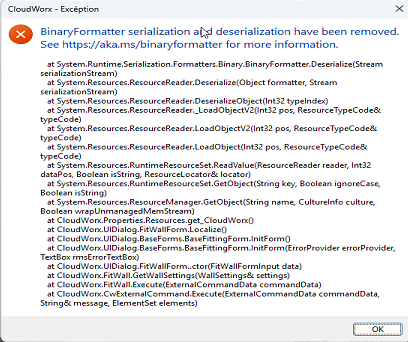
Fixed an issue where users may receive the error “BinaryFormatter serialization and deserialization have been removed” after using the Floor Plan or Set Level tools.

CloudWorx Compatibility
The currently supported host CAD application versions per product are as follows:
CloudWorx 2026.1.1 for AutoCAD
AutoCAD, Civil 3D, Plant3D and Map3D 2024 - 2027
Navisworks Simulate and Manage 2024 - 2027
CloudWorx 2026.1.1 for Revit
Revit Architecture, MEP and Structure 2024 - 2027
CloudWorx 2026.1.1 for BricsCAD
BricsCAD V24 - V26
Compatibility with Hexagon GeoCloud
CloudWorx 2026.1.1 is compatible with Hexagon GeoCloud.
Upgrades
Upgrading Leica CloudWorx Installation
Administrator-level privileges for the workstation are required to correctly install Leica CloudWorx software. CloudWorx requires at minimum CLM version 2.14.
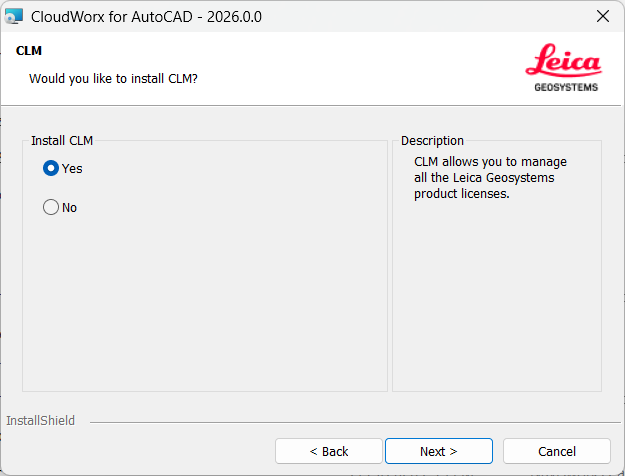
CLM 2.33.0 is packaged with the new MSI installers. If no previous version of CLM is detected, during the installation process, a prompt will be presented to install CLM per the image below:

If CLM is already installed, the installer will detect it and will not install the new version.
Note:
If the Install CLM option is selected, it will take a few minutes after the plugin installation wizard is closed for the CLM installation to complete. CLM will be installed in the background process, and no progress window will be shown.
Deprecated Features
Leica Geosystems strives to provide support for the widest array of operating systems and file formats given current technologies and support from third-party partners.
With each release, we review our list of currently supported formats and operating systems in line with industry trends and announced product terminations.
Leica Geosystems may add or terminate support for a file format during any release. Obsolete operating systems will be supported for six months after their announced termination or the next major software release, whichever comes first. Server products will be supported in alignment with Leica’s Client License Manager (CLM) supported servers to guard users against incompatibility.
CloudWorx (All)
Cyclone ENTERPRISE connection is no longer supported as of version 2026.1.0.
Automatic LGS-to-LGSx file conversion on import is discontinued as of version 2026.1.0.
Cyclone CORE is phased out as of version 2025.2.0.
CLM versions prior to 2.5 are no longer supported.
JetStream Enterprise is phased out after version 2024.1.
CloudWorx for Bentley (Microstation)
CloudWorx for Bentley is phased out after version 2025.1.0.
Known Issues
all cloudworx
Hexagon GeoCloud Limit Boxes
Projects uploaded to Hexagon GeoCloud between October 2024 and February 2025 may have an issue where limit boxes created in Hexagon GeoCloud have an incorrect origin or “anchor point” and should not be activated in the clipping manager in CloudWorx. To correct this issue, re-upload the original file to Hexagon GeoCloud.
Streaming From Hexagon GeoCloud
IT security measures, such as firewalls and packet sniffers, can affect the performance of streaming data from Hexagon GeoCloud. For the best streaming performance, all URLs associated with HxDR and Hexagon GeoCloud should be whitelisted by local IT departments.
Support for Hexagon GeoCloud Projects
When searching for a specific project file name in the Hexagon GeoCloud client browser, the search will be limited based on the user’s account to only the folders that the account has permission to access.
After rendering a point cloud dataset that is streamed from Hexagon GeoCloud to the CloudWorx workspace, the Setup names in the ScanWorld Explorer and TruSpace are not preserved.
CloudWorx Toolbar Is Missing After Installation
Some host applications do not show the ribbon toolbar by default. As such, a user may need to enable it to properly see all CloudWorx tools. To do so, right-click on the toolbar and select Ribbon to turn it on.
Unusual Empty Margin When Viewing in Perspective
Users will experience an unusual empty border around their point cloud view when the view is launched from TruSpace. Due to the nature of perspective rendering, the issue is exaggerated when the user zooms as well as when the viewing window is wider (e.g., 16:9 ratio).
Modified Usage for Asian Languages
Some actions and dialogs do not execute properly when operating CloudWorx in an Asian language.
Importing MultiStation Data
There may be a delay when importing MultiStation data into CloudWorx. Users may see an error message which states that the server is not available. However, this message will disappear, and data will be imported as expected.
autocad
CWVMOVE Command
Starting a move command and then closing the tool window can cause AutoCAD to crash. The recommended workflow is to click the Apply button in the tool window after each move is completed.
The tool window may hide after starting the Move command, but on subsequent uses, the tool window is still shown.
revit
TruSpace View Sync in Revit
When using TruSpace for point selection, such as pipe or steel fitting, the Revit 3D window will not sync views with TruSpace. Sync works only in view mode when another CloudWorx command is not activated.
CloudWorx for Revit Cable Tray Fitter
The cable tray fitter does not currently provide an accurate fit by size and may be rotated incorrectly. For example, a channel cable tray may be oriented upside down.
bricscad
BricsCAD COE 2025.2.0 Uninstallation Issues
For some users, the BricsCAD COE plugin may not uninstall completely. This problem can be identified when, after uninstalling the previous version of the plugin, the MSI installer for the latest version issues the following warning:
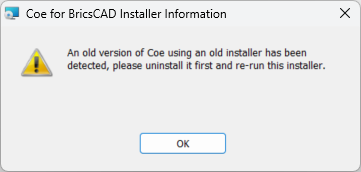

To resolve this issue, please download and run this .reg file to clear the registry of any artifacts left by the uninstallation. Administrator privileges are required.
Graphics Card Compatibility in BricsCAD
Some laptop computers with both integrated and dedicated graphics cards might experience an issue when connecting to Hexagon GeoCloud. Users can set BricsCAD program preferences to use the integrated graphics GPU to resolve the issue.
navisworks
Point Cloud Clipping When Using Navisworks’ Native Transform Tools
Point clouds imported by CloudWorx for Navisworks are not compatible with Navisworks' native transform tools. Using the Move, Rotate, or Scale commands will cause the point cloud to be clipped when orbiting and zooming.
Licensing
All users with currently valid CCP (Customer Care Package), or with CCP valid as late as 1 April 2026, can run this new version with no new license required.
CloudWorx Ultimate
A current CloudWorx Ultimate license will activate the following products and versions:
CloudWorx for AutoCAD
CloudWorx for Revit
CloudWorx for Navisworks
CloudWorx for BricsCAD
After updating to CloudWorx 2026.1, if a user is unable to activate CloudWorx in the host software using their current valid license, removing and re-adding the license in CLM solves the issue.
For instance, the Ultimate CloudWorx license on the server used to contain these features:
TLS_CLWRX.Any LGS 2026.1206 permanent
TLS_CLWRX.Ultimate LGS 2026.1206 permanent
TLS_CLWRX_Maint.Ultimate LGS 2026.1206 permanent
While after re-activation on the client this feature content is now:
TLS_CLWRX.ACAD_Pro_Ult LGS 2026.1206 permanent
TLS_CLWRX.Any LGS 2026.1206 permanent
TLS_CLWRX.BricsCAD_Ult LGS 2026.1206 permanent
TLS_CLWRX.NavWrk_Ult LGS 2026.1206 permanent
TLS_CLWRX.Revit_Ult LGS 2026.1206 permanent
TLS_CLWRX.Ultimate LGS 2026.1206 permanent
TLS_CLWRX_Maint.ACAD_Pro_Ult LGS 2026.1206 permanent
TLS_CLWRX_Maint.BricsCAD_Ult LGS 2026.1206 permanent
TLS_CLWRX_Maint.NavWrk_Ult LGS 2026.1206 permanent
TLS_CLWRX_Maint.Revit_Ult LGS 2026.1206 permanent
TLS_CLWRX_Maint.Ultimate LGS 2026.1206 permanent