
Summary
Starting with version 2026.0.0, Cyclone REGISTER 360 PLUS uses an updated point cloud library, which improves performance and significantly reduces the increase in project size after cleaning operations. Therefore, existing projects need to be updated to incorporate this change.
Why Update Projects?
-
The new point cloud library helps mitigate disk space issues caused by cleaning.
-
The updated projects are compatible with the 2026.0.0 version and future releases, but not with older versions.
-
The update may also help resolve other point cloud-related issues.
Pre-Update Considerations
Before starting the project update process, take into account the following information:
-
It is recommended to back up the existing projects.
Important: Once a project is updated to version 2026.0.0, it cannot be opened in previous versions (for example, 2025.0.1 or earlier).
-
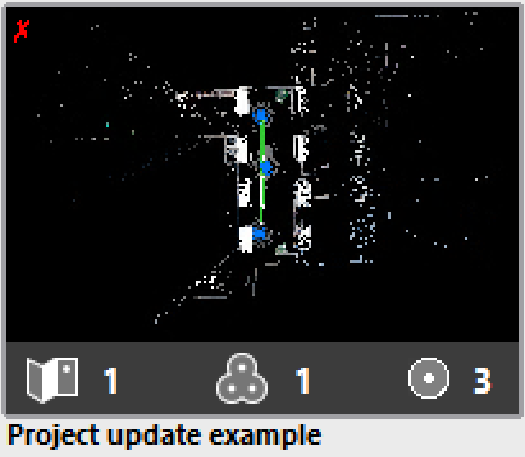
Projects that require updating will be marked with a red X (in the upper-left corner of the project preview) in the project list.
-
Projects that are not opened or updated will remain compatible with older versions.
Project Update vs. Project Conversion
The table below summarises the key differences in project handling between versions 2025.0.1 and 2026.0.0:
|
Feature |
2025.0.1 |
2026.0.0 |
|---|---|---|
|
Type of change |
Conversion |
Update |
|
Speed |
Slower |
Faster |
|
File handling |
Full file conversion |
Point cloud file update (HSPC) |
Therefore, in 2025.0.1, projects had to be converted, which involved rewriting all files. In 2026.0.0, the process is an update, which is significantly faster and safer.
How to Update a Project
After installing version 2026.0.0, the projects are not updated automatically. It’s necessary to update them manually, following the steps below:
-
Install Cyclone REGISTER 360 PLUS 2026.0.0 and open it.
-
Navigate to the project area where updates are managed.
-
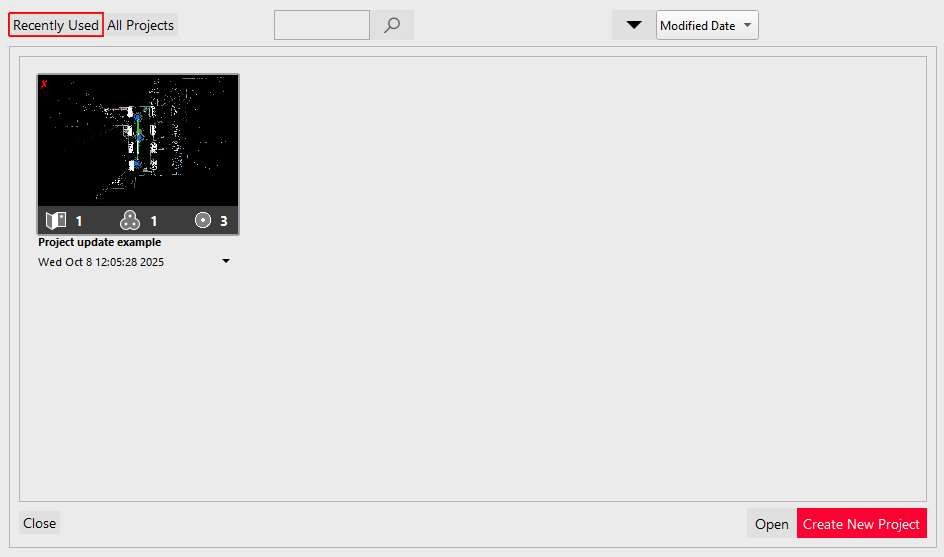
Select the project you want to update and click Open.
-
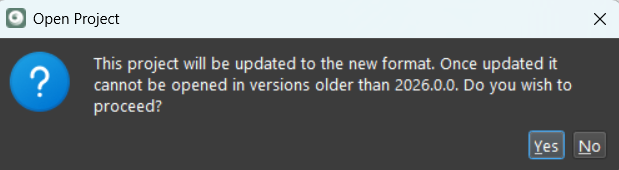
Confirm the project update when the confirmation dialog appears.
-
Once you confirm, Cyclone REGISTER 360 PLUS will:
5.1. Convert the project using the new point cloud library.
5.2. Use a temporary file during the conversion to ensure data integrity.
Validation Phase:
-
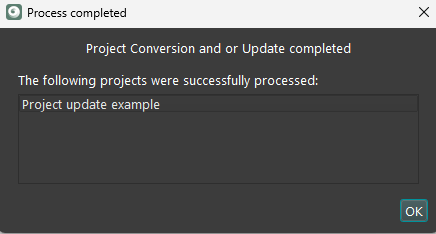
If all files are successfully updated, the system replaces the original files in the main project storage folder and displays the Process completed dialog.
-
If any file fails, the update is aborted, and the original project remains unchanged.
Important: Ensure sufficient disk space in the temporary folder. This is especially important for large projects or when updating the entire Project Storage folder. Lack of space may cause the update to fail.
-
Repeat Steps 3-4 for each project you want to update.
Useful Tips
-
Always verify available disk space before starting the update.
-
Keep a backup of the original project in case you need to revert or access it in an older version.
-
Inform clients or team members that updated projects are not backward-compatible.