Overview
This CycloneFIELD360 tutorial describes how to establish an Ethernet cable connection between the RTC360 / RTC360 LT scanner and Cyclone FIELD 360 running on an Apple device with iOS v18 or higher installed.
Introduction
In previous versions of Cyclone FIELD 360, the Ethernet connection between FIELD 360 on iOS devices and the RTC360 scanner was occasionally unreliable. This was due to changes in iOS settings introduced by Apple, which affected connectivity.
An Ethernet cable connection with FIELD 360 on Android devices is not supported.
Required Equipment
RTC360 / RTC360 LT scanner with:
Firmware v7.02 or higher installed
Two GEB461 batteries inserted to the scanner
MS256 USB stick inserted to the scanner
Ethernet cable GEV228 (Leica Geosystems article number 766567)
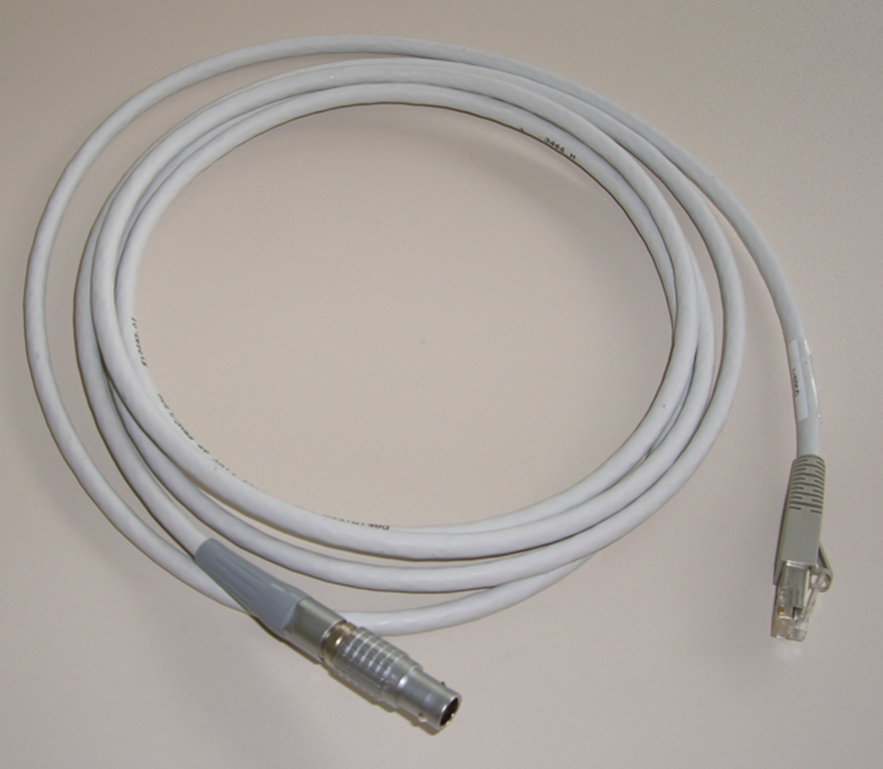
Ethernet cable GEV228 (Leica Geosystems article number 766567)
USB-C to Ethernet adapter
Adapters tested by Leica Geosystems:
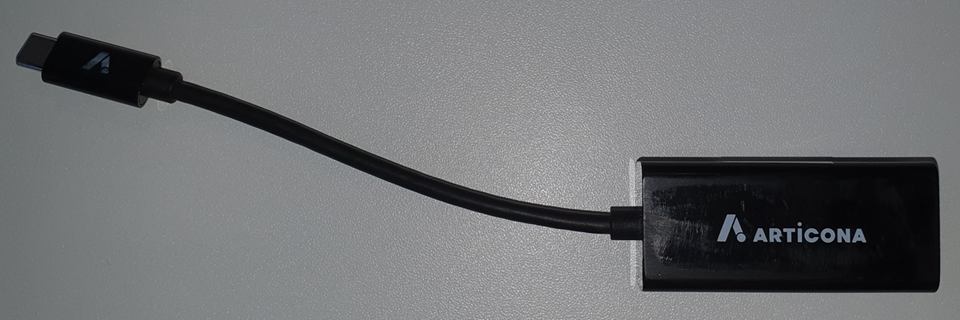
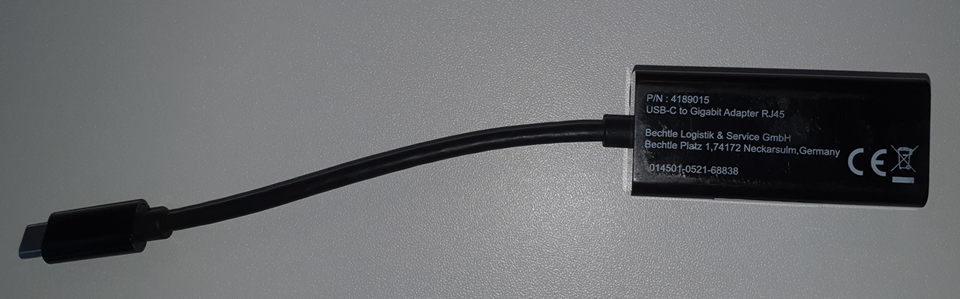
Articona USB3.0 Typ C – Gigabit Ethernet Adapter: P/N 4189015
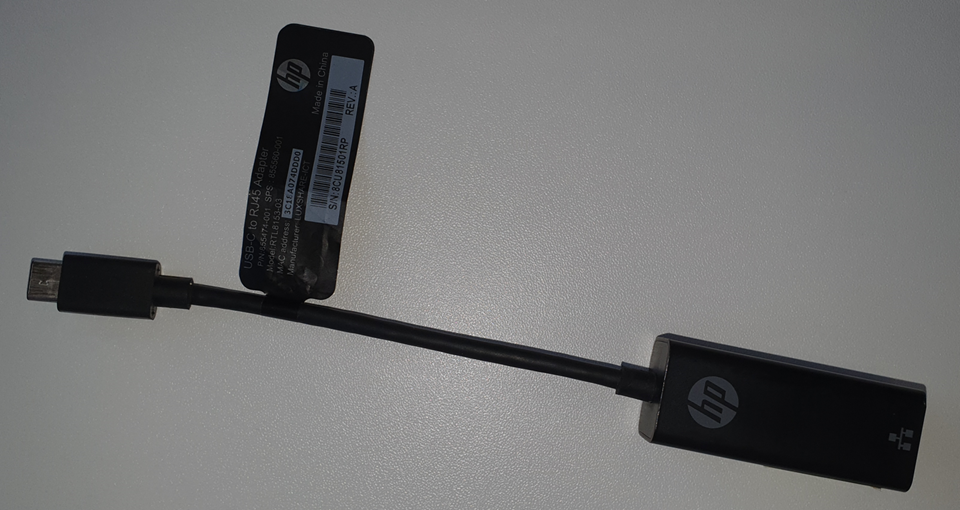
HP USB-C to RJ45 Adapter: P/N 855474-001, Model RTL8153-03
Preparation on the Scanner
Start the scanner and install firmware v7.02.2980 or higher: 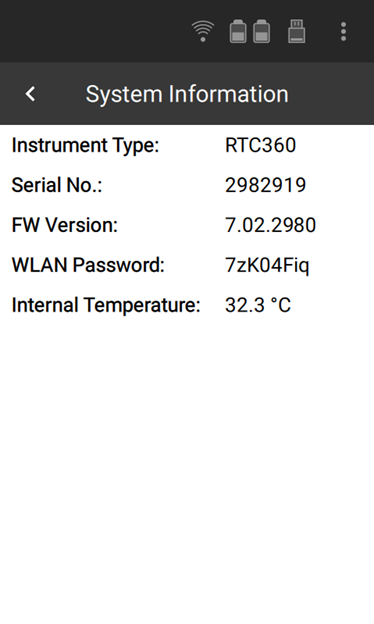
Go to the Settings menu and enable Cable Connection: 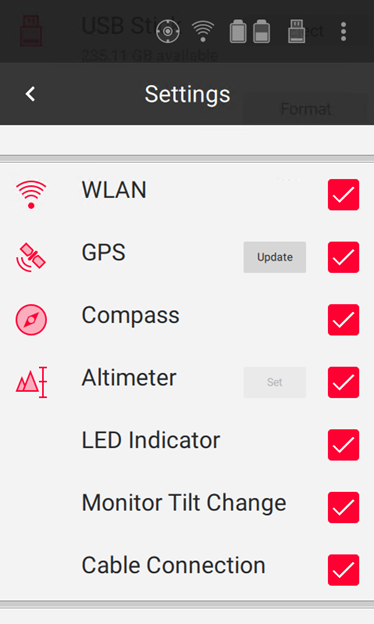
Reboot the scanner
The reboot starts the scanner configured with a static IP address 192.168.5.2 for a cable connection to an Apple iOS device.
Cable and Adapter
Connect the RTC360 with the GEV228 Ethernet cable and an USB-C to Ethernet adapter to the Apple device with Cyclone FIELD 360 app installed. 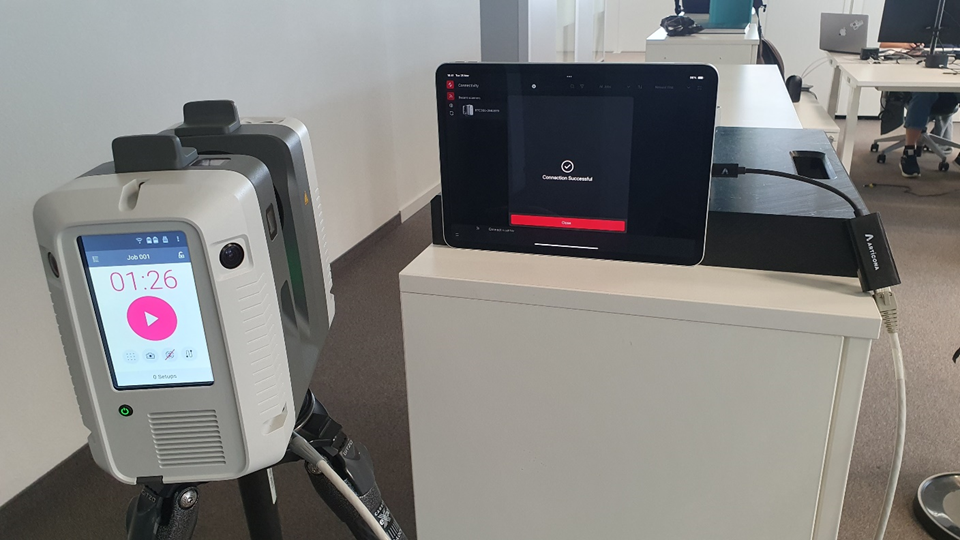
Preparation on the Apple Device
In the Settings select Ethernet setting and select the correct interface. Click on Configure IP to switch from Automatic to Manual. 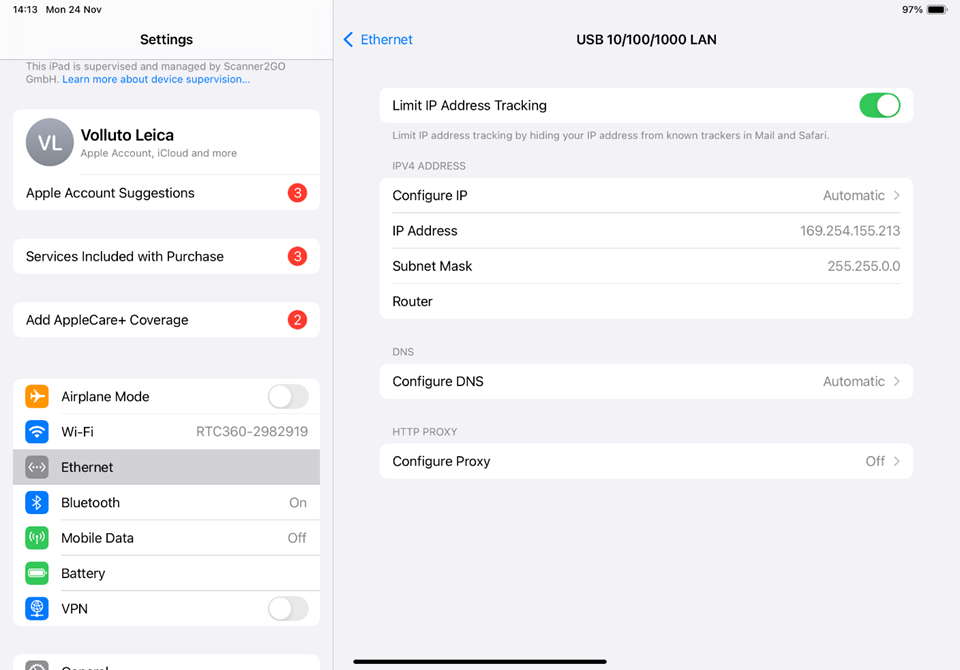
Select Manual and change the IP address:
Configure IP = Manual
IP Address = 192.168.5.99
Subnet Mask = 255.255.255.0
Press Save to save the new IP settings. 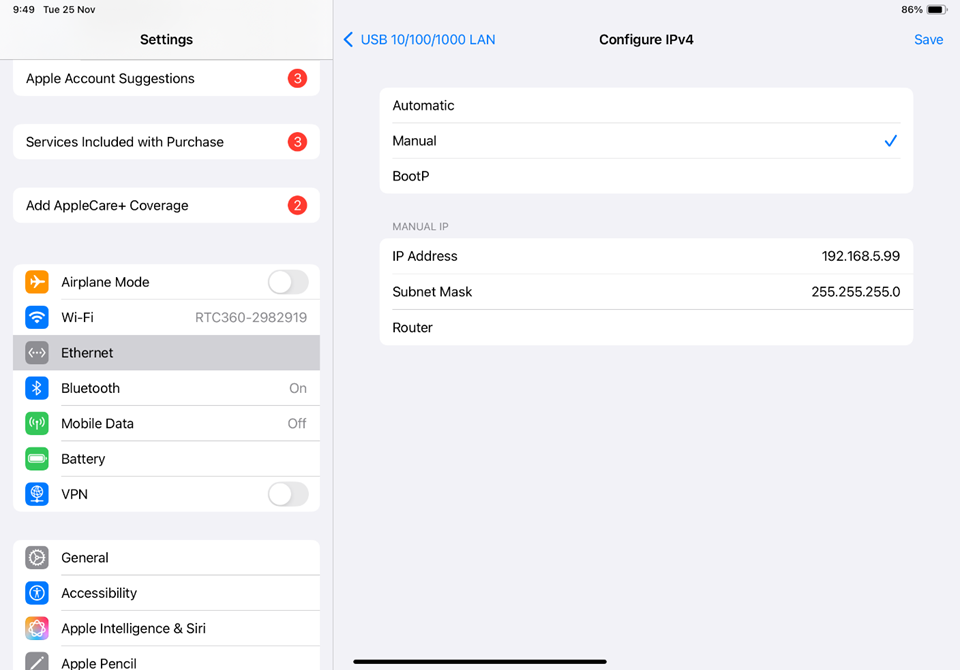
Establish Cable Connection in Cyclone FIELD 360 App
Open the FIELD 360 app.
Create WLAN connection as usual to the scanner. 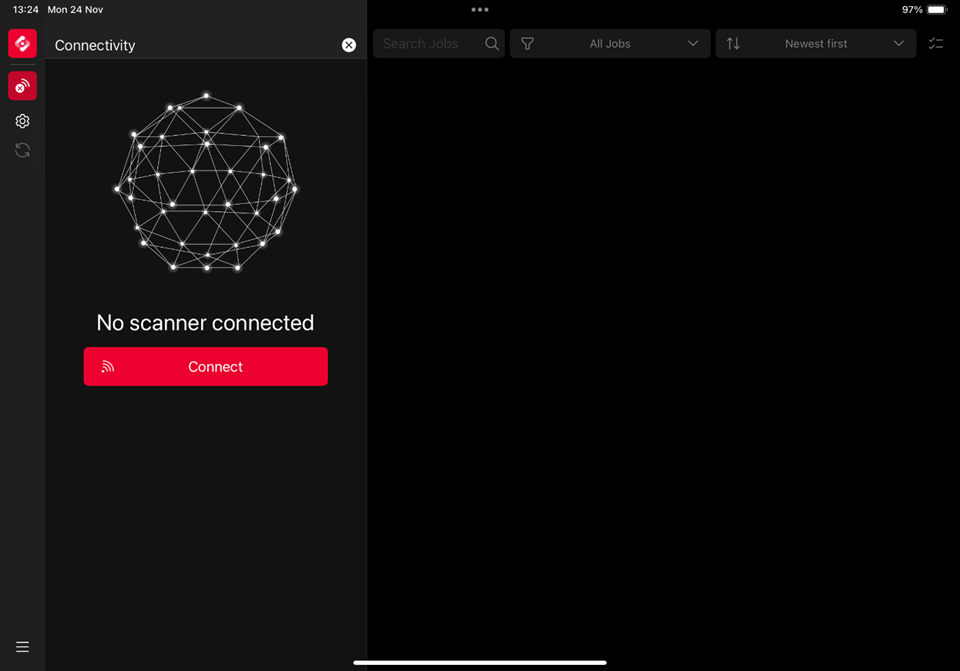
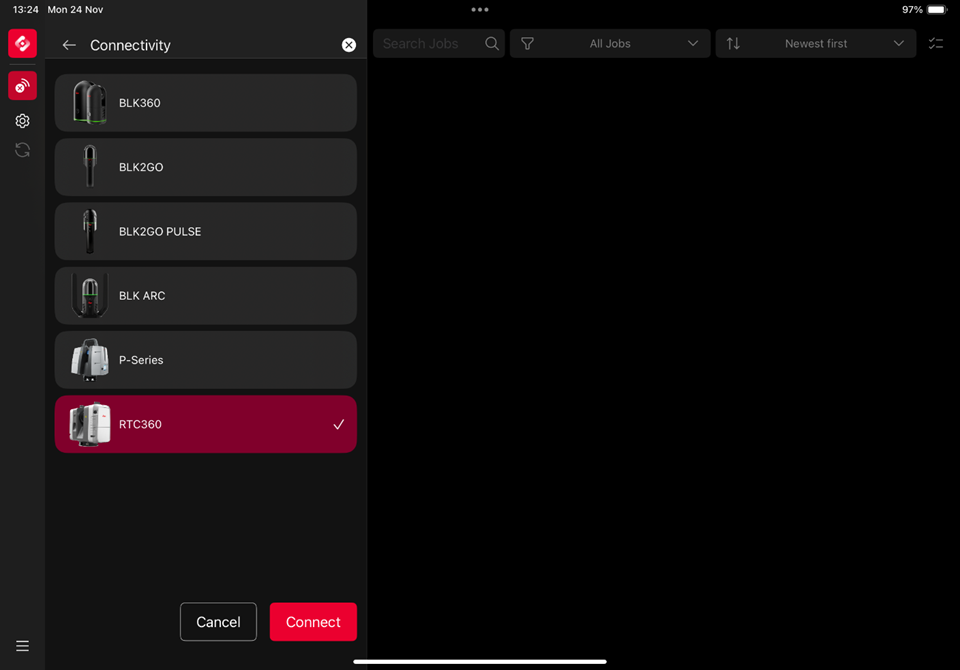
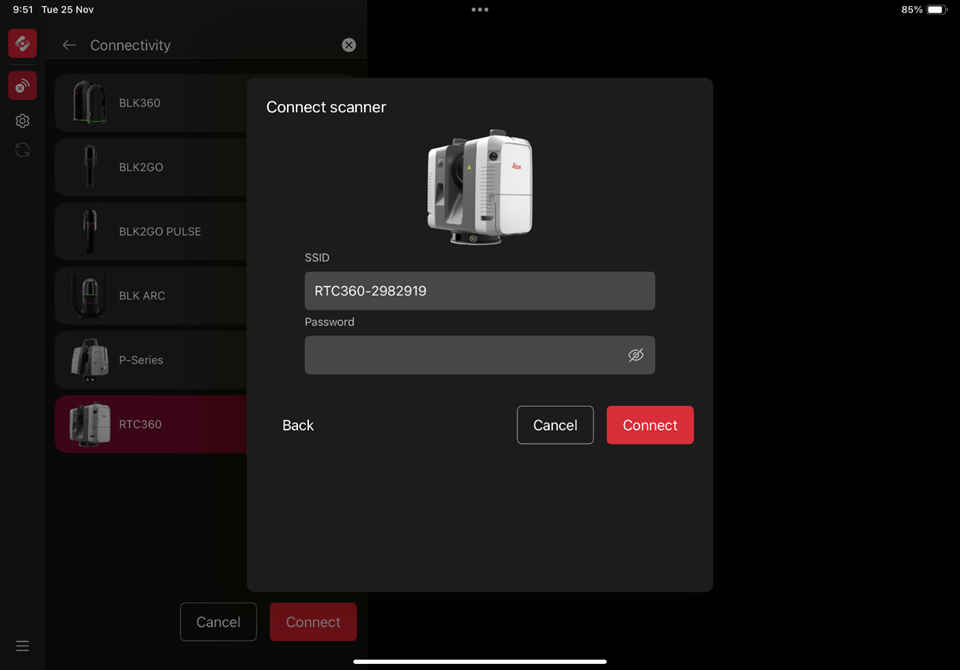
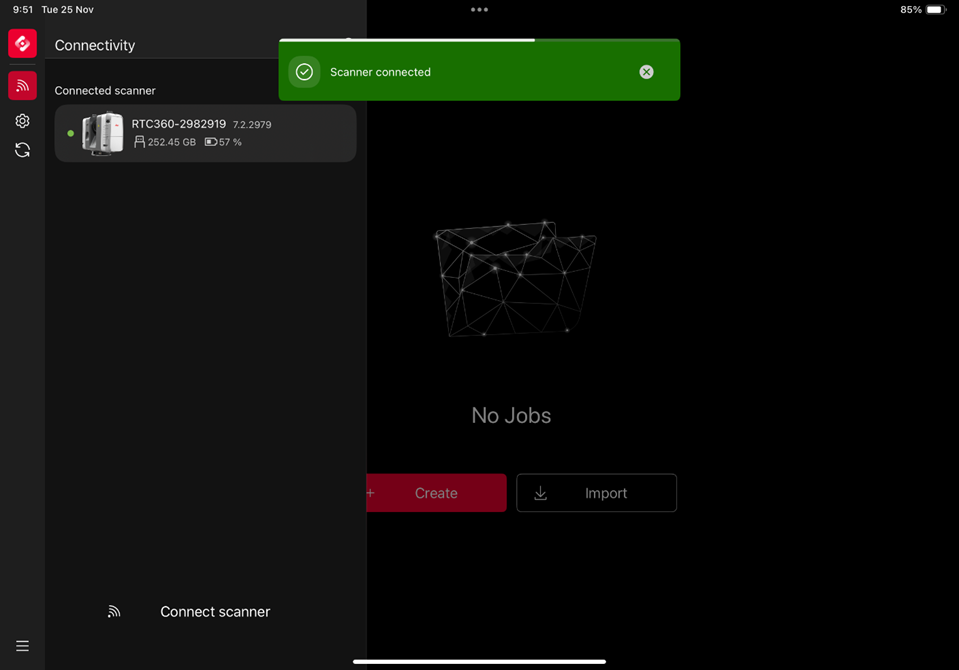
Close the FIELD 360 app
Reopen the FIELD 360 app again
In scanner list search for the RTC360 scanner with correct serial number, then click on the new 3 dots icon and select Cable connection. 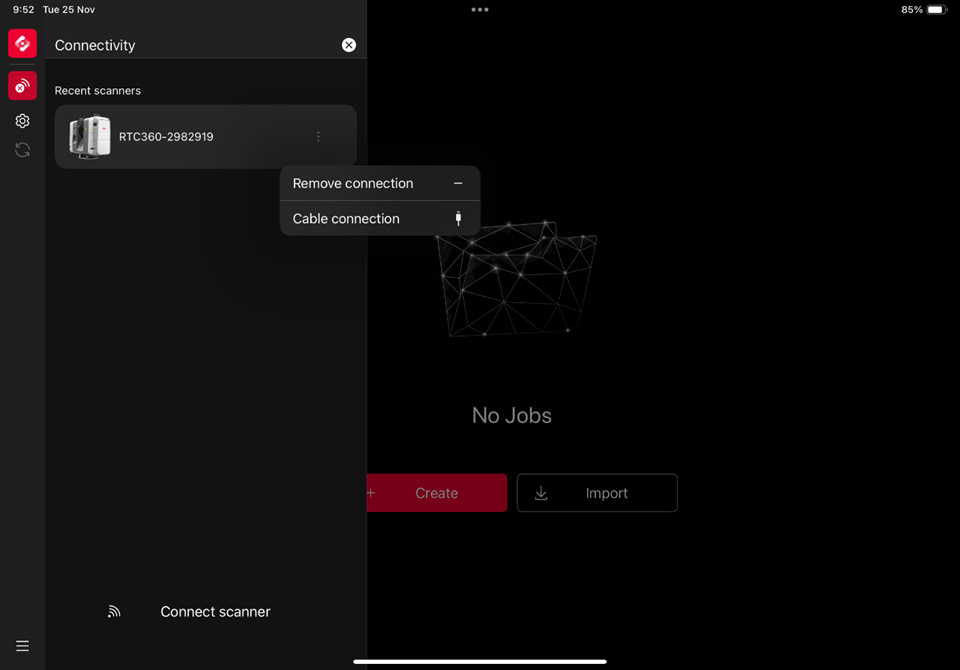
The Connect to Scanner screen is displayed with the static IP address 192.168.5.2 for the scanner. Tab Connect to establish the cable connection. 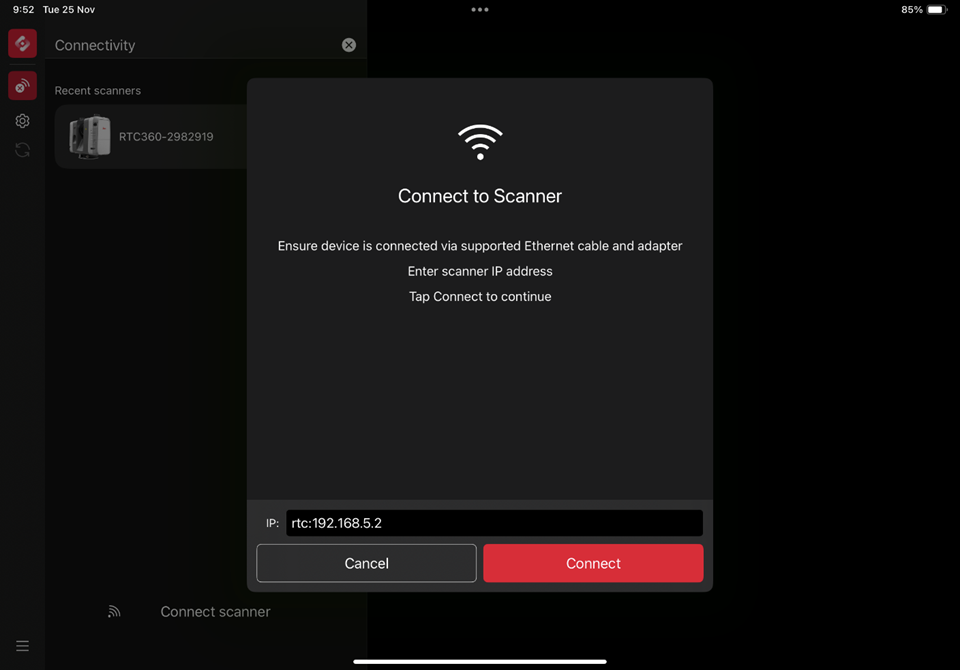
The Connection Successful screen is displayed. Tab Close to finish the connection. 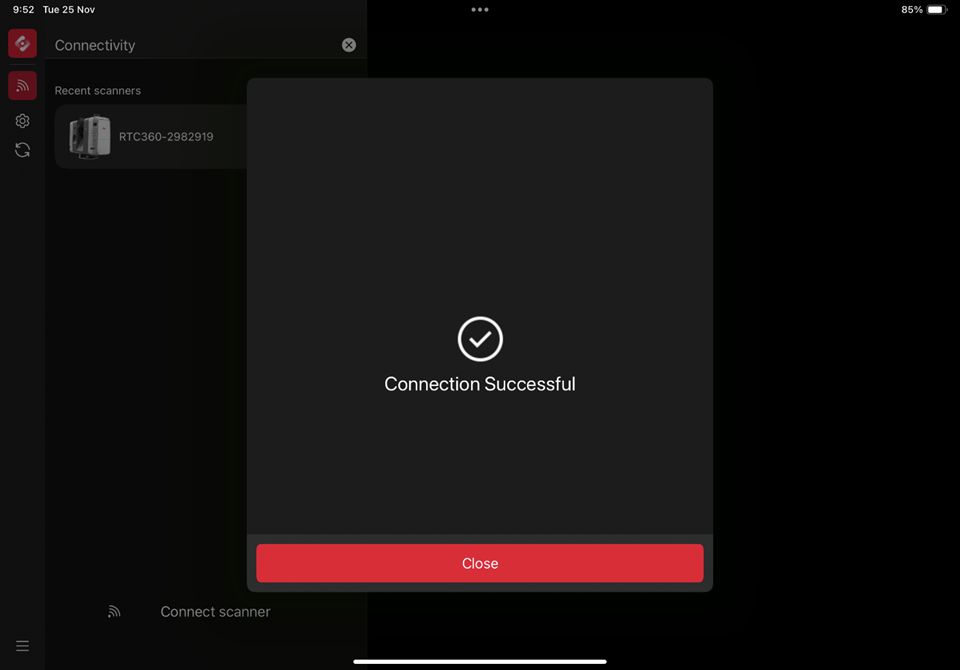
Close the Connectivity screen and create a new job.
Start a first scan/image acquisition.
Reset RTC360 scanner to normal WLAN connection mode
Go to the Settings menu and disable Cable Connection: 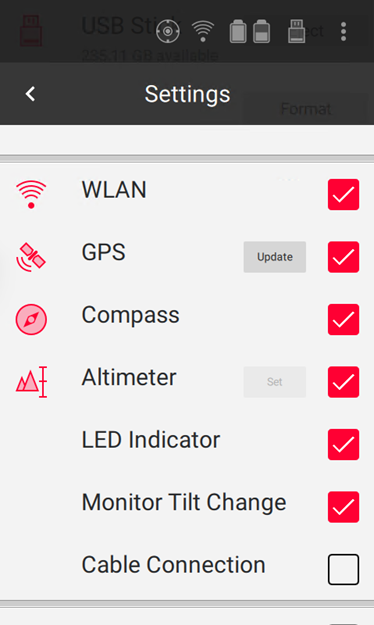
Reboot the scanner.
Reset Apple device to automatic IP address
In the Settings select Ethernet setting and select the correct interface. Click on Configure IP to switch from Manual to Automatic. Press Save to safe the new settings. 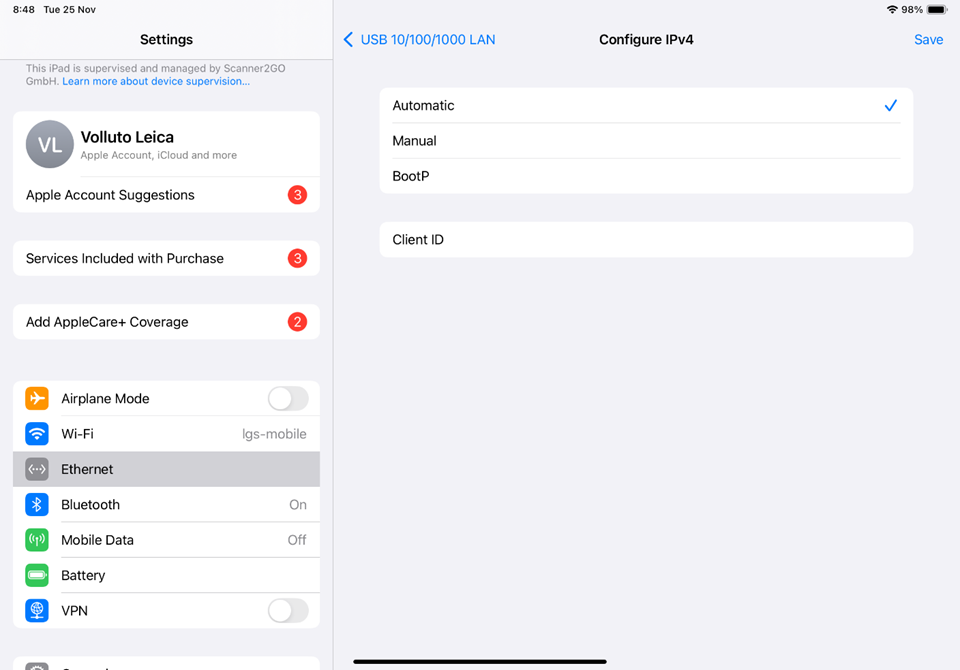
Tips and Tricks
The static IP address is always 192.168.5.2 and shall not be changed.
The Ethernet cable connection works for RTC360 and RTC360 LT scanners. Note the correct scanner types and serial numbers in the FIELD 360 screens:
RTC360-298xxxx
RTC360LT-3005xxx
Do not forget to reset the scanner to normal WLAN connection mode when the cable connection is not needed anymore.
This solution only works with Apple iOS 18 or higher installed.
This solution does not work with Android devices.
This solution only works with RTC360 firmware v7.02.2980 or higher installed.
When the connection is lost while a scan is executed (e.g. cable or adapter disconnected), then the scan is finished and stored on the scanner’s USB stick. The cable connection must be re-established by clicking on the 3 dots icon of the relevant previously connected scanner entry in FIELD 360, select Cable connection again and scans will re-sync to the mobile device after successful connection.