
This command creates a mesh from two contours (polyline or hole border). You can adjust tangency and surface curvature.
Requirements
No selection is required to launch the command.
Click 2 contours in the 3D scene. A contour can be a polyline or a hole border of a mesh.
If you don't want to use the complete contour, you can make a restriction for each contour by clicking on the corresponding Restrict button. You will have to select the 2 extremities of the restriction, and a third point to define which part of the polyline you want to keep. Then press Enter to validate, Delete to delete a point or Escape to cancel the restriction creation.
Choose a tangency departure mode:
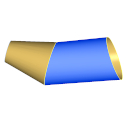
None (default)
If there is no tangency condition on both sides, the junction has the same topology as a cylinder.
To the surface
The junction will have a departure tangent to the surface (no angle between them). Available only if the contour is a hole border of a surface.
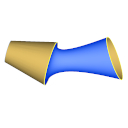
Inside the contour
The junction will have a departure along the tangent inside the contour best plane.
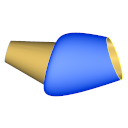
Outside the contour
The junction will have a departure along the tangent outside the contour best plane.
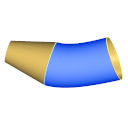
Perpendicular to contour
The junction will have a departure along the tangent perpendicular to the contour best plane.
Edit the Tension to adjust the shape in the middle of the junction.
The number of triangles in the mesh is automatically calculated according to the 2 contours:
If you have selected one or two hole border(s): triangles will have the same size as existing meshes.
I not, triangle edges will have the same length as contour segments.
But you can modify the default Number of points between contours. The minimum points required to build the mesh is 4 and the maximum is 999.
Click on Triangle reorganization to modify triangles to follow the local curvature.
Select Sew option to merge the junction and the optional meshes.