
This command modifies an existing network.
Requirements
Select the mesh and the network (polylines and / or set of polylines) and launch the command.
 Edit: move, select, delete nodes or change edge type.
Select nodes and edges and delete them by pressing Delete or Backspace.
Double-click to replace a straight edge by a curved one, or a curved edge by a straight one.
Click and drag nodes to move them. When a node is moved, all attached edges are also modified. Straight edges stay straight, and curved edges stay curved.
 Add: add a new edge.When this option is activated, you have the possibility to create a new edge by clicking the extremities on existing nodes or edges.
If you click on an existing edge, press Alt to keep the exact clicked point as extremity, else the extremity will be created on the closest point (between the 2 nodes or the middle of the clicked edge).
If you want a straight edge (by default, color is the same as polyline), click only the 2 extremities. The created edge will be projected on the mesh, and added to the current network.
If you want a curved edge (by default, the color is the same as bspline), click the first extremity + points on the mesh + the second extremity. The curved edge is displayed in blue, control points are displayed in red. Once the second extremity has been clicked, you have the possibility to adjust the edge with the control points. Click Enter when the edge has been correctly adjusted. The edge will be projected on the mesh, and added to the current network.
Notes
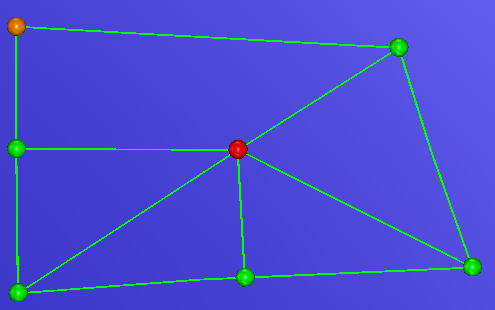
Colors are applied to nodes:
Orange if only 2 edges are attached to the node
Red if 5 or more edges are attached to the node
Green if 3 or 4 edges are attached to the node
If a node is deleted, all attached edges will be deleted.
If an edge is deleted, nodes at extremities are deleted if they are left connected to 1 edge or less at the end of the removal.
Isolated edges and isolated nodes will always be deleted
Tips & Tricks
You can switch between the 2 modes using the Space key.