User interface
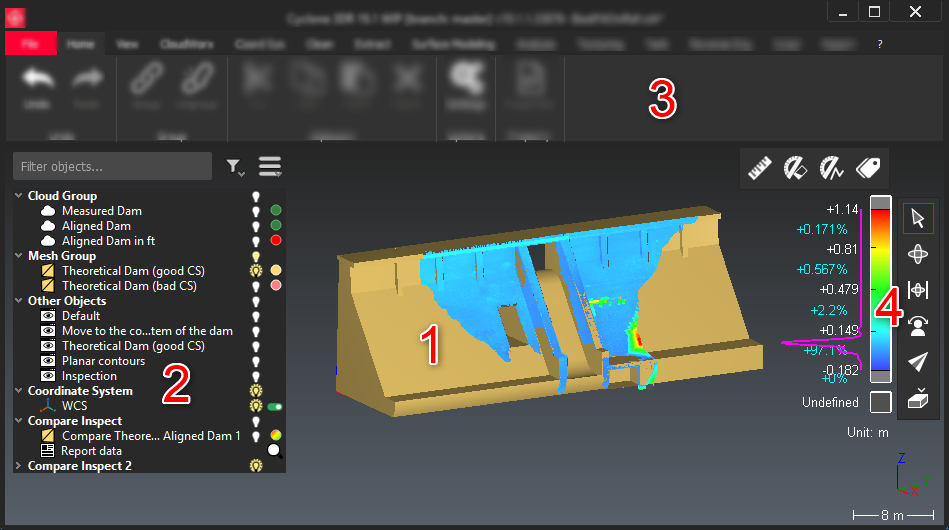
The main user interface is divided into four main areas:
The 3D scene to display and interact with 3D objects. This view can be split in several views thanks to the Multiview capabilities.
The tree (or explorer): to see and interact with the objects (clouds, meshes, polylines, etc.) which are in the current project. Read Tree view.
The ribbon with all the menus and all the commands. Commands are highlighted according to the current selection. For example, you need to select an object to run the commands Cut/Copy/Paste.
The toolbars:
Measurements: read Measurement Toolbar
Camera: read Navigation and selection toolbar
Coordinates systems
Commands
The dialog boxes have been standardized so that they share common controls. By default, all dialog boxes will appear on the left part of the screen.
The dialog box may contain several items among the following:
| Undocks or floats the dialog box. When undocked, double click on the title bar or right click to dock the dialog at the original position (left part) or to access the other modes |
| Displays advanced parameters (depending on the function). The icon becomes red when the dialog shows advanced parameters |
| Reset the dialog box to default parameters |
| Allows direct access to the help information for the current command |
| To enable/disable current clipping planes on the temporary result |
| Display keyboard shortcuts available for the current command |
| to validate and exit the command |
| to validate the current result and stay in the command |
| to validate and exit the command (only when "OK, next" button is present) |
| to exit the command without validating the computation |
| to launch the compute to see the result without validating |
| to undo the last action |
| to redo the last undo |
| to restore the previous state |
| to create a measure with some information |
| to edit the colors of the created gradient (see Edit Colors) |
| to edit the classification (see Manual Classification) |





Note
Only one project can be opened at the same time by Cyclone 3DR.
Nevertheless, it is possible to open several Cyclone 3DR on the same computer with a single license. Note your computer might lack of memory with large files.