This CloudWorx Tutorial is intended for first-time users who have access to Hexagon GeoCloud. Please follow the simple steps below to open a project file from GeoCloud in CloudWorx.
GeoCloud account is required to use this new feature.
Accessing GeoCloud Project Files
Connect to GeoCloud. Click on the GeoCloud icon (
 ) as depicted below:
CloudWorx for Revit plugin ribbon
Select the appropriate GeoCloud asset.
Click on the … to navigate to the asset or select one of the recent Point Source project files.
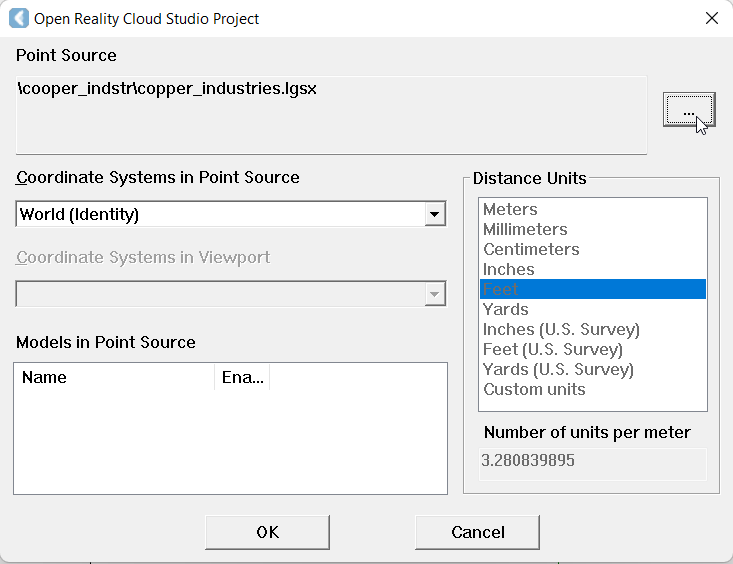
CloudWorx point source dialog browser
Sign in with your HxDR email and password.
Upon entering GeoCloud credentials, users will be shown only projects and assets that their account and project roles entitle them to. To modify the projects and asset a user has access to, please use GeoCloud via a web browser to modify their access rights.

GeoCloud Sign in interface for CloudWorx plugin
Browse until the desired asset is checked:
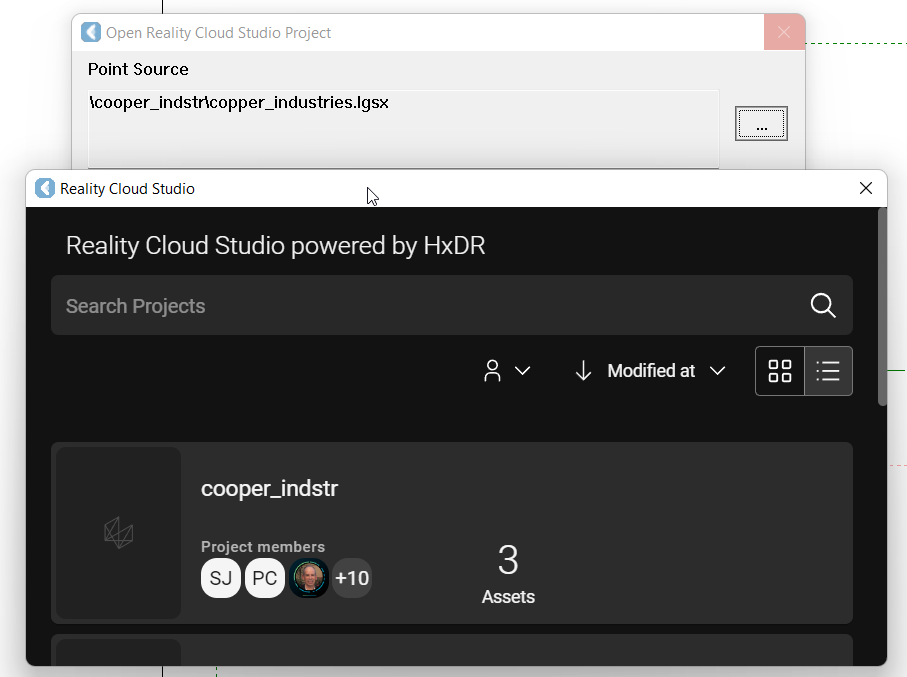
GeoCloud mini-browser project file selection for CloudWorx plugin
5. Click on Open Asset to start streaming the point cloud into the workspace:
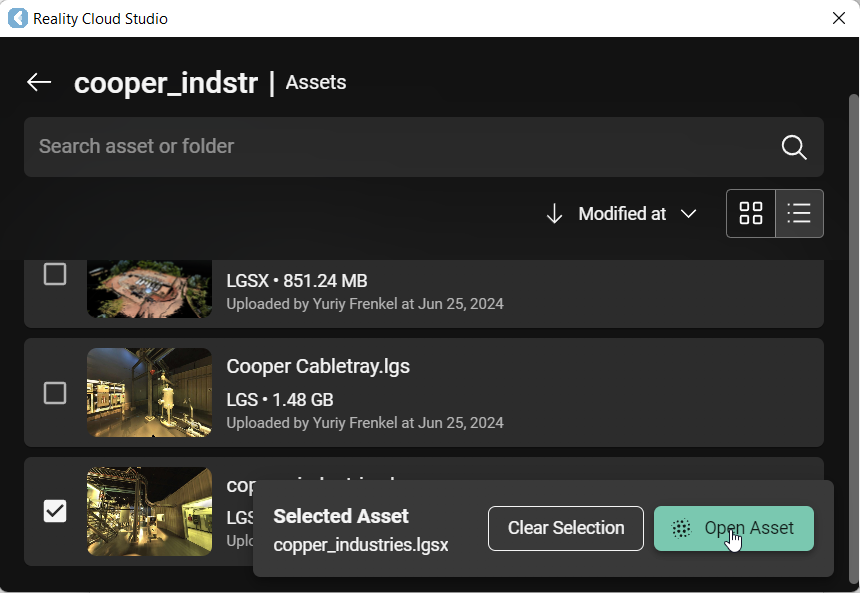
Conduct Analysis on GeoCloud Asset
After the point cloud is completely rendered, you may start working with any of the available CloudWorx Toolsets.
Please refer to the https://rcdocs.leica-geosystems.com/en/technical-specifications/latest/cloudworx-technical-specifications for a complete list of tools in each plugin.
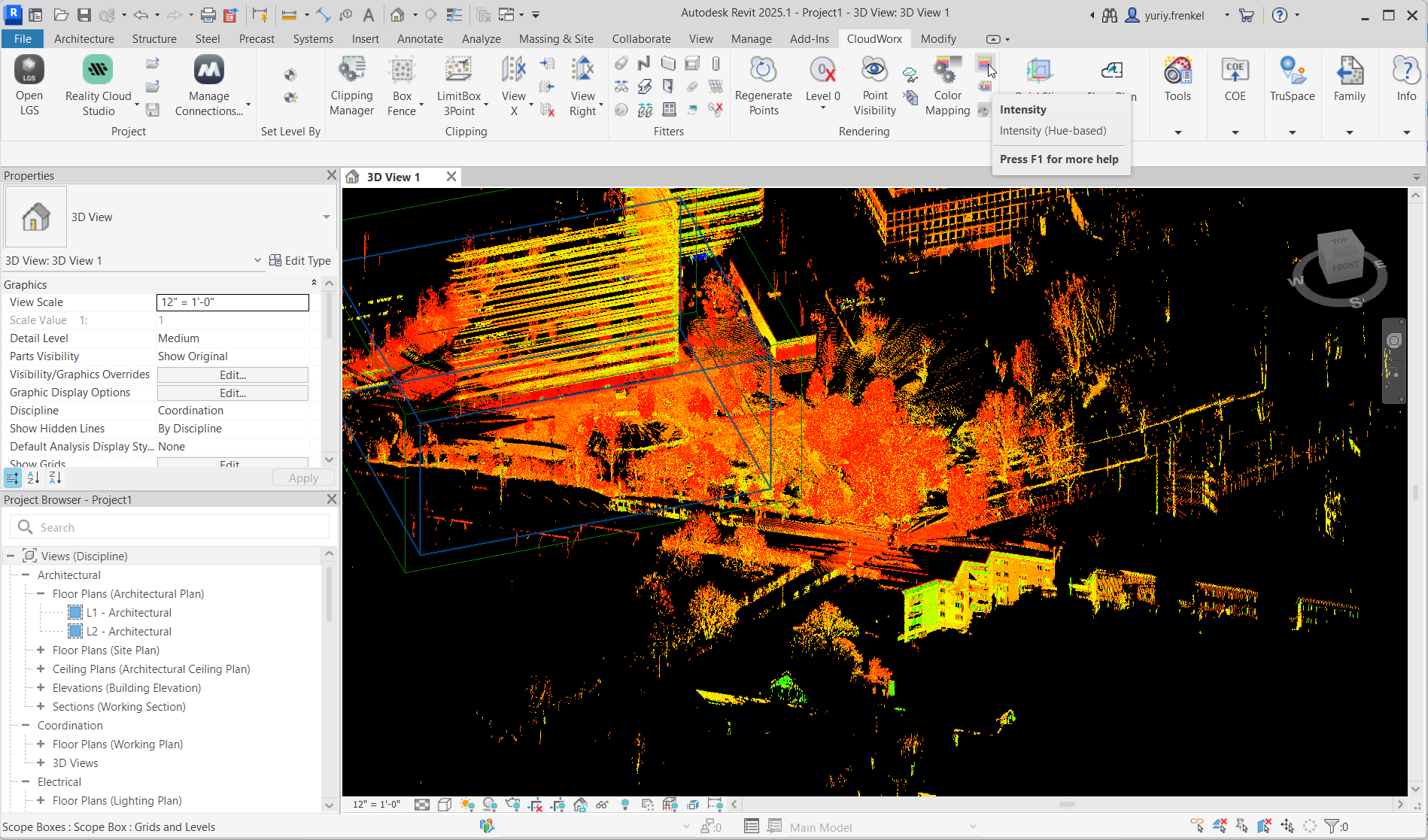
CloudWorx Rendering - Intensity Color Mapping is ON
Close GeoCloud Project File
Click on the Close Project icon as depicted below to close an active project in your current workspace:
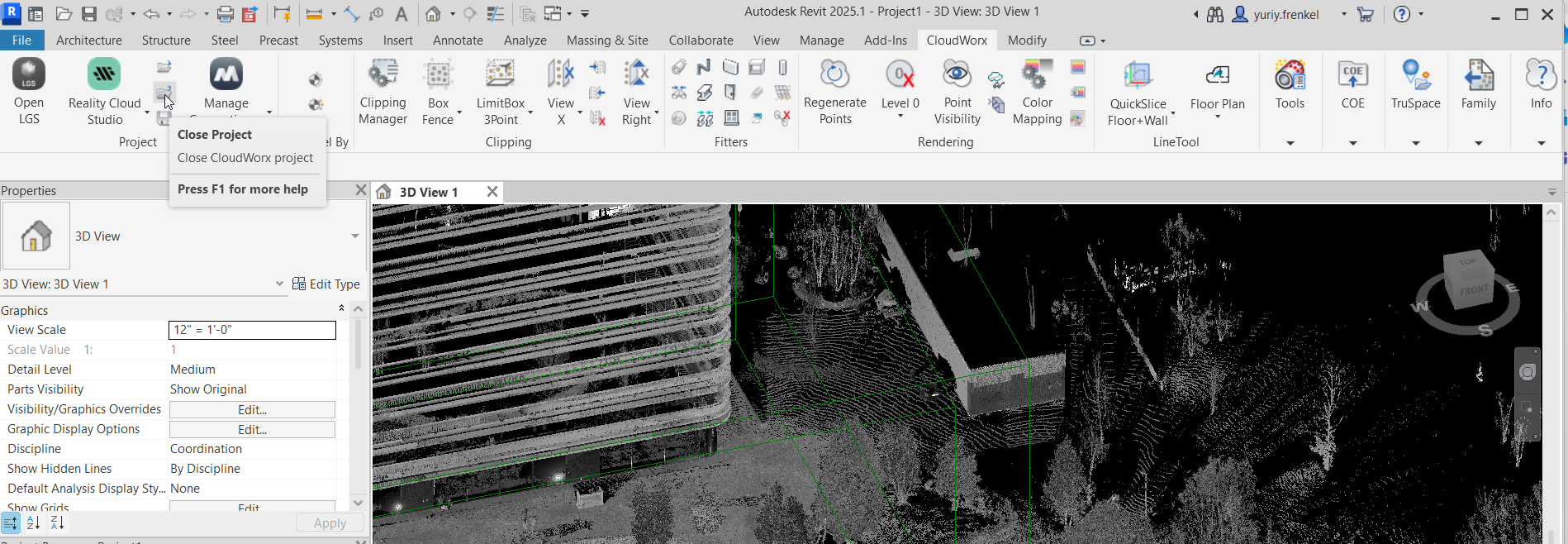
CloudWorx Close Project operation
Logout from GeoCloud
A user may logout from an active GeoCloud connection by selecting the ‘Manage Connections’ option available in the CloudWorx ribbon and clicking on ‘Logout' as depicted below:
Step 1
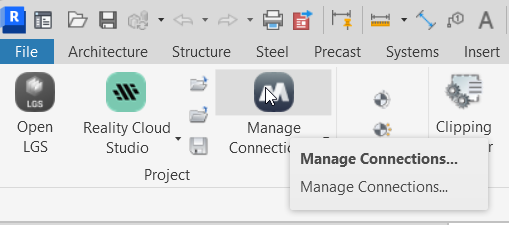
Step 2
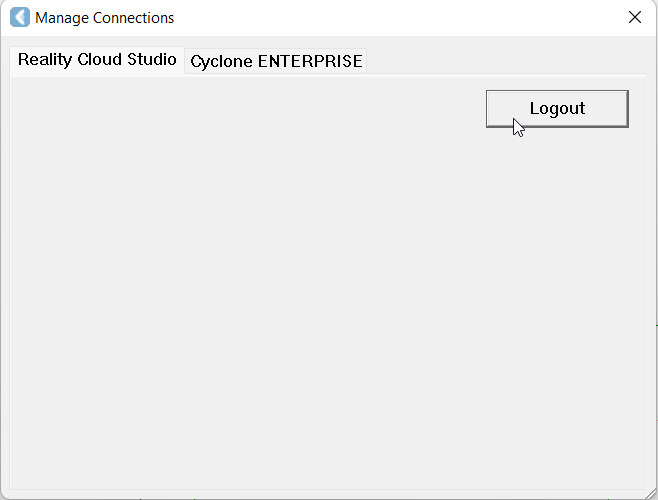
After logging out the connection to GeoCloud will be terminated. A user may access GeoCloud assets by logging in to GeoCloud again with their GeoCloud credentials.
Please refer to https://rcdocs.leica-geosystems.com/cloudworx/latest/help-cloudworx for additional feature-based support and information.